View
| Menu item | What it does |
|---|
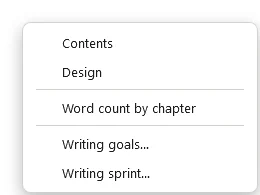
| View› then Contents | Shows the manuscript editor in the middle column (the same as the Contents button above the contents list). |
|---|
| View› then Design | Shows book design: theme, typography and layout. Format› then Book design… and Ctrl+Shift+D do the same. |
|---|
| View› then Word count by chapter | A chart and table of words per chapter. |
|---|
| View› then Writing goals… | A word target by a date and a daily habit. |
|---|
| View› then Writing sprint… | A countdown timer that counts your words. |
|---|
| Menu item | What it does |
|---|
| Tools› then Source library… | The sources for citations. Shown for book types with citations. |
|---|
| Tools› then Equation library… | Saved equations. Shown for book types with equations. |
|---|
| Tools› then AI editing connections… | Lets an AI assistant on your PC work on the book. |
|---|
| Tools› then Review AI changes… | Shows the corrections an AI assistant has proposed, for you to accept or reject. |
|---|
Help
| Menu item | What it does |
|---|
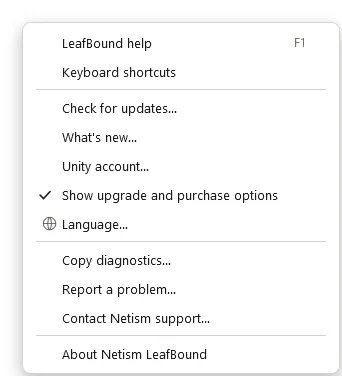
| Help› then LeafBound help F1 | A short guide inside the app, from starting a book to exporting it. |
|---|
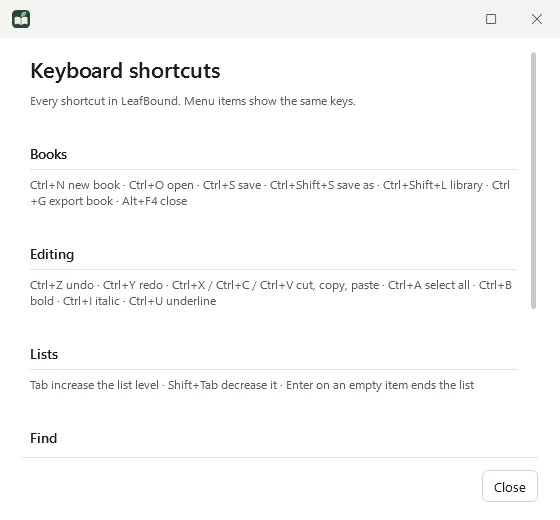
| Help› then Keyboard shortcuts | The list of keyboard shortcuts. |
|---|
| Help› then Check for updates… | Checks for a newer LeafBound. |
|---|
| Help› then What's new… | Lists what changed in each version of LeafBound. |
|---|
| Help› then LeafBound account… | Opens your LeafBound account page. |
|---|
| Help› then Show upgrade and purchase options | A check item that shows or hides upgrade and purchase offers in the app. |
|---|
| Help› then Language… | Opens the window where you choose the interface language. |
|---|
| Help› then Copy diagnostics… | Copies technical details for support. |
|---|
| Help› then Report a problem… | Reports a problem to LeafBound support. |
|---|
| Help› then Contact LeafBound support… | Opens the support page in your browser. |
|---|
| Help› then About LeafBound | The version, your edition and third-party licenses. |
|---|
 LeafBound