 LeafBound
| Menu item | What it does |
|---|---|
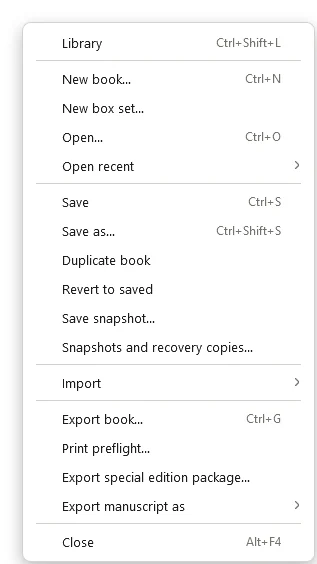
| File then Library Ctrl+Shift+L | Brings Your books, the library, to the front. |
| File then New book… Ctrl+N | Starts a new book: pick the book type and add the title. |
| File then New box set… | Makes one book from several books, each as a volume. |
| File then Open… Ctrl+O | Opens a book or a manuscript. |
| File then Open recent | Your last 20 books. Clear recent books empties the list. |
| File then Save Ctrl+S | Saves the book. |
| File then Save as… Ctrl+Shift+S | Saves under a new name or place. |
| File then Duplicate book | Opens a copy as a new, unsaved book. |
| File then Revert to saved | Discards unsaved changes and reloads the saved file. |
| File then Save snapshot… | Keeps a named copy of the book as it is now. |
| File then Snapshots and recovery copies… | Restores, opens or deletes snapshots and recovery copies. |
| File then Import | Word, LaTeX, Markdown, EPUB, rich text, Scrivener and Pages manuscripts, reimporting a Word file, and reusing elements from another book. |
| File then Export book… Ctrl+G | Creates the print PDF and the ebook editions. |
| File then Print preflight… | Checks the print PDF against printer rules. |
| File then Export special edition package… | Exports the files for a special edition. |
| File then Export manuscript as | Saves the manuscript as a Word document, rich text, rich text with images, or a LaTeX manuscript. |
| File then Close Alt+F4 | Closes the book window, asking to save unsaved changes first. |
Choosing the export folder
In the Export book window, the Browse… button beside the destination folder opens Where to save the exported books, a Windows folder picker. Pick a folder and confirm it. You can also type or paste a folder path in the box.
Items that do not apply right now are unavailable: Revert to saved needs a saved book file, and Update reused elements needs elements reused from another book.
Related
- Save, open, duplicate and revert a book
- Snapshots and recovery copies
- Edit menu, item by item
- Book menu, item by item
Still stuck?
Choose Help then Report a problem… in LeafBound to send us the details, or write to support.