 LeafBound
Save a snapshot
- Choose File then Save snapshot….
- Name the snapshot (for example "before the edit letter"). The name starts as today's date and time.
- Choose OK.
A snapshot is a complete copy of the book as it is now, including unsaved changes. It does not change your book file.
Restore, open or delete a snapshot
- Choose File then Snapshots and recovery copies….
- Select a snapshot or recovery copy in the list. Each line shows its name (or Recovery copy), when it was written and its size.
- Choose an action at the bottom of the window.
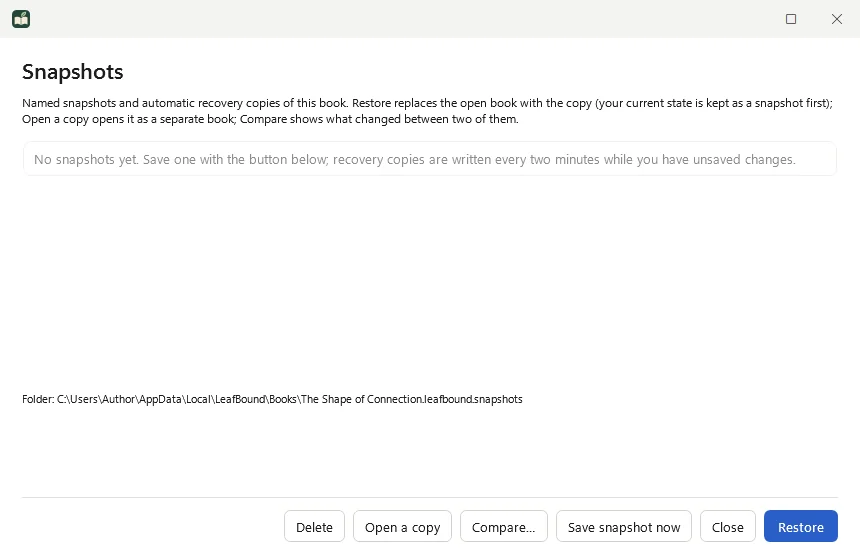
| Button | What it does |
|---|---|
| Restore | Replaces the open book with the copy, after you confirm. Your current state is saved as a snapshot named "before restore" first. Save afterwards to keep the restored book in your file. |
| Open a copy | Opens the copy in a separate window as a new, unsaved book with "(snapshot)" after its title. Your open book is untouched. |
| Compare… | Shows what changed between the selected copy and the open book, or between two copies. See Compare two snapshots. |
| Save snapshot now | Saves a new named snapshot. |
| Delete | Removes the selected copy from the list, after you confirm. Your book is not affected. |
| Close | Closes the window. |
Recovery copies
- While the book has unsaved changes, LeafBound writes a recovery copy every two minutes. The status bar notes the time of the last one.
- The newest 12 recovery copies are kept. Named snapshots are never removed automatically.
- When you open a saved book and a recovery copy is newer than the file (for example after a power cut), LeafBound offers Open the recovery copy or Keep the saved file. Either way the copy stays in the Snapshots list.
Where they are kept
For a saved book, in a folder beside the book file named after it with .snapshots at the end, for example My Novel.leafbound.snapshots. For a book that has never been saved, in the Autosave folder of your LeafBound profile. The Snapshots window shows the folder. Every copy is a complete .leafbound book that also opens on its own.
To see what changed between two versions, choose Compare… in the Snapshots window. See Compare two snapshots.
Related
Still stuck?
Choose Help then Report a problem… in LeafBound to send us the details, or write to support.