 LeafBound
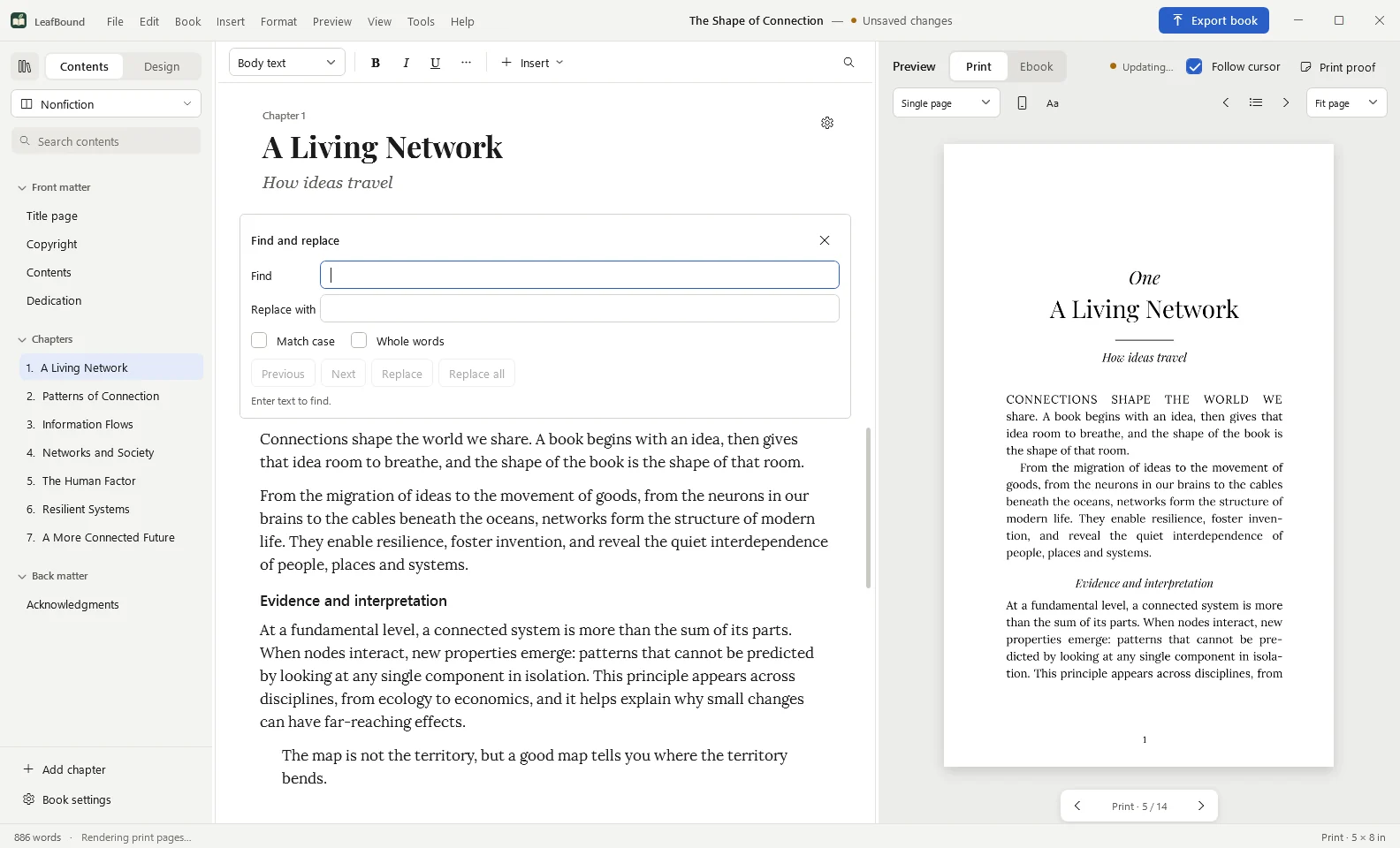
- Choose Edit then Find and replace… or press Ctrl+F. The Find and replace panel opens above the text.
- Type in Find.
- Press Enter or choose Next to go to the first match. The panel shows "Match 1 of 12".
- To replace, type in Replace with, then choose Replace for the current match or Replace all for every match.
- Press Esc or click the close button to close the panel.
| Control | What it does |
|---|---|
| Find | The text to look for. Enter finds the next match, Shift+Enter the previous one. |
| Replace with | The new text. Enter here replaces the current match. |
| Match case | Finds only matches with the same capitals. |
| Whole words | Skips matches inside longer words. |
| Previous, Next | Move between matches. After the last match LeafBound goes back to the first. |
| Replace | Replaces the current match and moves to the next. |
| Replace all | Replaces every match in the book at once. |
From the menu and keyboard
Edit then Find next (F3) and Edit then Find previous (Shift+F3) step through matches even when the panel is closed. The magnifier at the right end of the format bar also opens the panel.
What is searched
- The text of every element, and the footnotes and endnotes they reference. Chapter titles typed in the title field are not searched.
- When a match is in a note, a Find in notes window shows the note with Previous match, Next match, Replace match… and Edit note….
- The search is for the exact text you type. Check Pattern to search with a regular expression instead; see Save finds and search with patterns.
Protected text
Matches in generated text or in elements reused from another book cannot be replaced. Replace says so, and Replace all skips them and reports how many it skipped. When you replace text in a note made from a citation, your wording is kept and the source facts stay unchanged.
Replace all is one step: press Ctrl+Z to undo every replacement at once.
Related
- Jump to headings, breaks, pictures and notes
- Convert straight quotes to curly quotes
- Keyboard shortcuts
Still stuck?
Choose Help then Report a problem… in LeafBound to send us the details, or write to support.