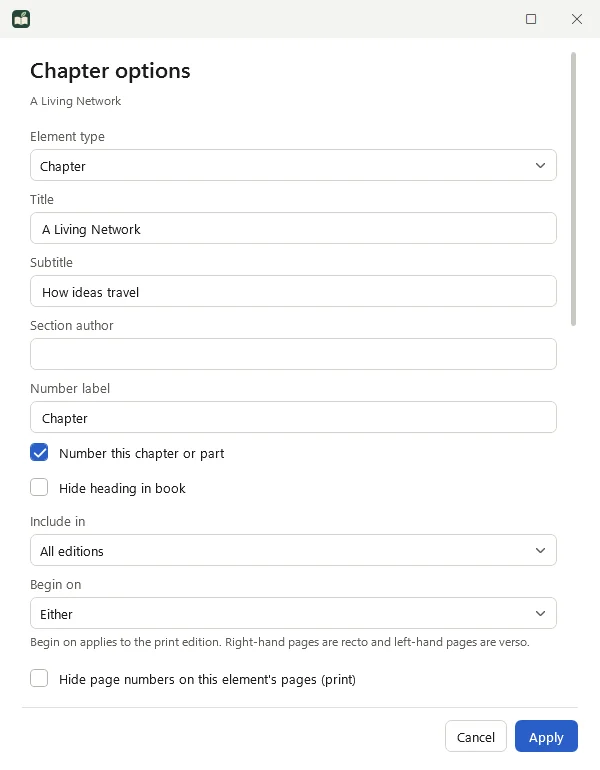
Every field in Chapter options: element type, title, numbering, which editions, the page it begins on, heading image and page decoration.
Select the chapter or other element in the contents list.
Choose Book› then Chapter options…. You can also click the gear button to the right of the chapter title, or right-click the element and choose its options item.
Change the fields you need.
Choose Apply. Cancel closes the window without changing anything.
Field
What it does
Element type
The kind of element: Chapter, Prologue, Dedication, Part and so on.
Title and Subtitle
The heading text. The subtitle shows under the title and in the contents.
Section author
An author for this element only, for example in an anthology.
Number label
The word used in this chapter's number, such as Chapter, Letter or Day. To change it for every chapter, use Chapter word in Title, author and details.
Number this chapter or part
Counts this element in the chapter or part numbering.
Hide heading in book
Leaves the heading off the page.
Include in
All editions, Ebook only, Print only or Excluded (in no edition).
Begin on
Either, Recto (a right-hand page) or Verso (a left-hand page). Applies to the print edition only.
Hide page numbers on this element's pages (print)
Leaves page numbers off this element's printed pages.
Hide running headers on this element's pages (print)
Leaves running headers off this element's printed pages.
Heading image
Field
What it does
Image
None, or a picture already in the book. Import… adds a new picture from your PC.
Image description
Read aloud by screen readers. Leave it empty for purely decorative artwork.
Image size · %
From 5 to 200 percent.
Position
Above the title, Below the title, or Full-width banner across the top of the page. A banner runs edge to edge in print (into the bleed) and sits full width above the title in ebooks.
Show the image in
The editions that show the image.
Ebook version (optional)
A different picture used in ebooks only.
Page decoration
Field
What it does
Background
A picture behind this element's pages.
Border
The book's border (the border set in the design), No border on this chapter, or a border used only on this element.
Whole-image border (legacy)
An older kind of border made from one whole picture. It is kept for books made with it.
Good to know
The window is titled Chapter options for every kind of element.
Pictures you import here are added to the book only when you choose Apply.
An element reused from another book shows "This element is linked to a source book. Detach it before editing its options." and its fields cannot be changed.
Changes made with Apply can be undone with Ctrl+Z.
 LeafBound