 LeafBound
The book window has three columns: the contents list on the left, the editor in the middle and the preview on the right. The contents list shows every element of the book (each chapter, part, copyright page, dedication and so on) in three groups: Front matter, Chapters and Back matter.
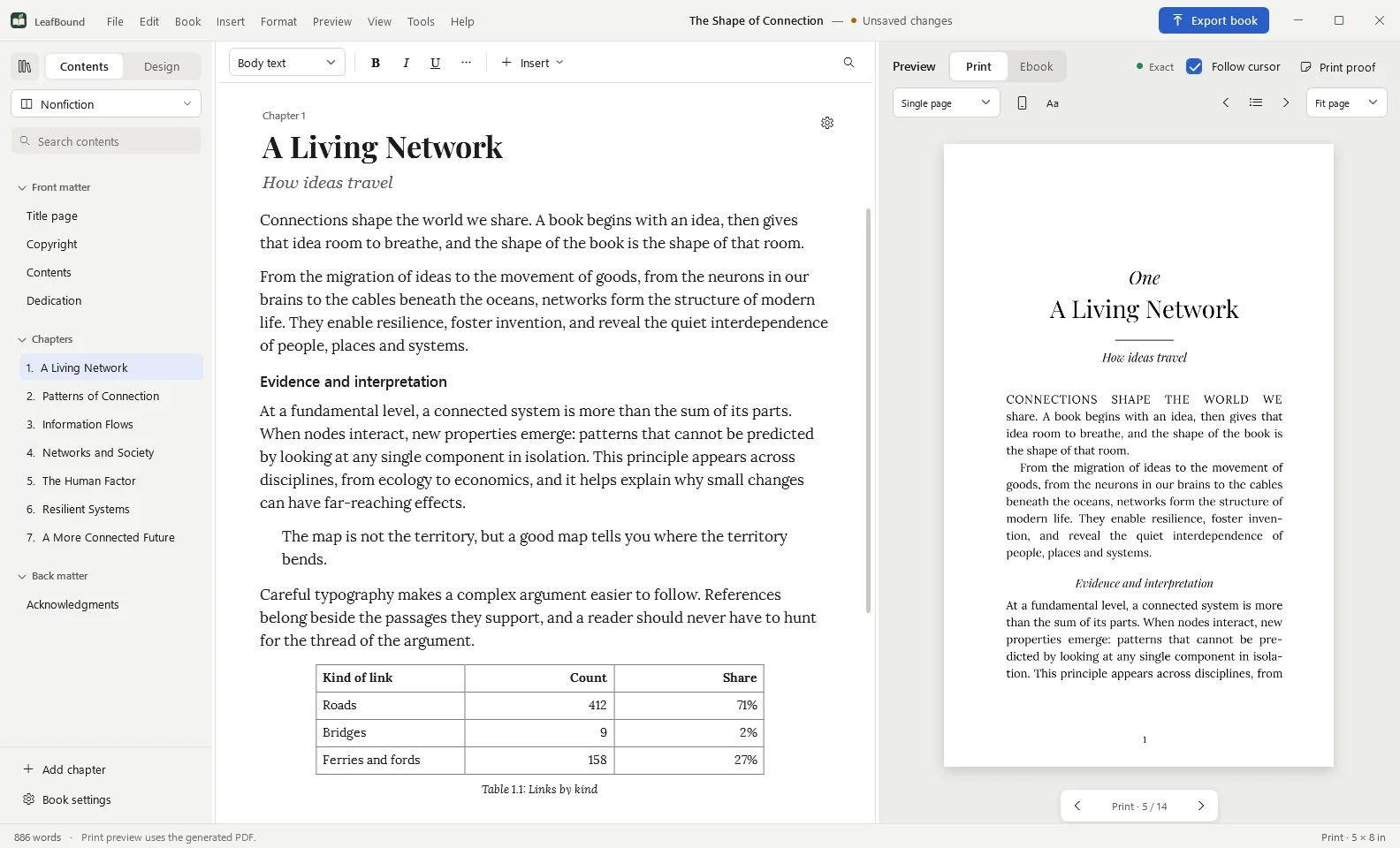
- Click an element in the list to open it in the editor.
- Type in Search contents at the top of the list to show only the elements whose names match.
- Right-click an element to open its menu (see Change an element from its right-click menu).
What the list shows
- Numbered chapters show their number before the title, for example 3. The Harbor.
- A chapter with no title shows its number label and number, for example "Chapter 4".
- Parts and volumes show the chapters inside them, indented underneath.
- An element that is not in every edition (set with Include in) shows in italics.
Reorder by dragging
- Drag an element and drop it on another element to move it just before that element.
- Drop an element on a part or a volume to move it inside, at the end of that part or volume.
- You cannot drop a part or volume inside itself. Press Ctrl+Z to undo a move.
- To move one step at a time, use Book then Organize chapters then Move up or Book then Organize chapters then Move down.
Controls around the list
| Control | What it does |
|---|---|
| Library button (top left) | Opens Your books, the library of your books (Ctrl+Shift+L). |
| Contents and Design | Switch the middle column between the manuscript editor and book design. |
| Book type button | Shows the book type (for example Nonfiction) and opens the window to change it and the tools it offers. |
| Add chapter (bottom) | Opens a menu of everything you can add: a chapter, designed pages, front matter, back matter and groups. |
| Book settings (bottom) | Opens the book settings. |
Above the text
The editor shows the element's label ("Chapter 1" for a numbered chapter, otherwise the kind, such as Dedication), then its title, then its subtitle. Click the title or the subtitle to type in it. The subtitle line ("Add a subtitle") appears for chapters, parts and volumes. The gear button at the right opens Chapter options.
Elements you cannot type in
- The title page, half title and contents are built from your book details. Selecting the title page or the half title opens Title, author and details in the middle column instead of the editor.
- A bibliography generated from the source library updates by itself.
- An element reused from another book is read only until you detach it.
The status bar
The bottom edge of the window shows the book's word count on the left, your writing goal progress when you have set a goal, and short messages about what just happened (for example "Saved" or "No matches.").
Related
- Add chapters and other elements
- Change an element from its right-click menu
- Split, merge, group and move chapters
- Set chapter options
Still stuck?
Choose Help then Report a problem… in LeafBound to send us the details, or write to support.