 LeafBound
Compare snapshots shows the differences between two versions of your book. Each version can be the book as it is now, a named snapshot or a recovery copy.
- Choose File then Snapshots and recovery copies….
- Select the snapshot you want to start from, then choose Compare…. The Compare snapshots window opens with that snapshot as the earlier version and the open book as the later one.
- To compare other versions, pick them under Earlier version and Later version. Each list holds This book as it is now, every snapshot and every recovery copy.
- Choose a chapter in the list on the left. Its changes appear on the right.
- Use Previous change and Next change to step through the changes. Past the last change in a chapter, Next change moves on to the next chapter that has changes.
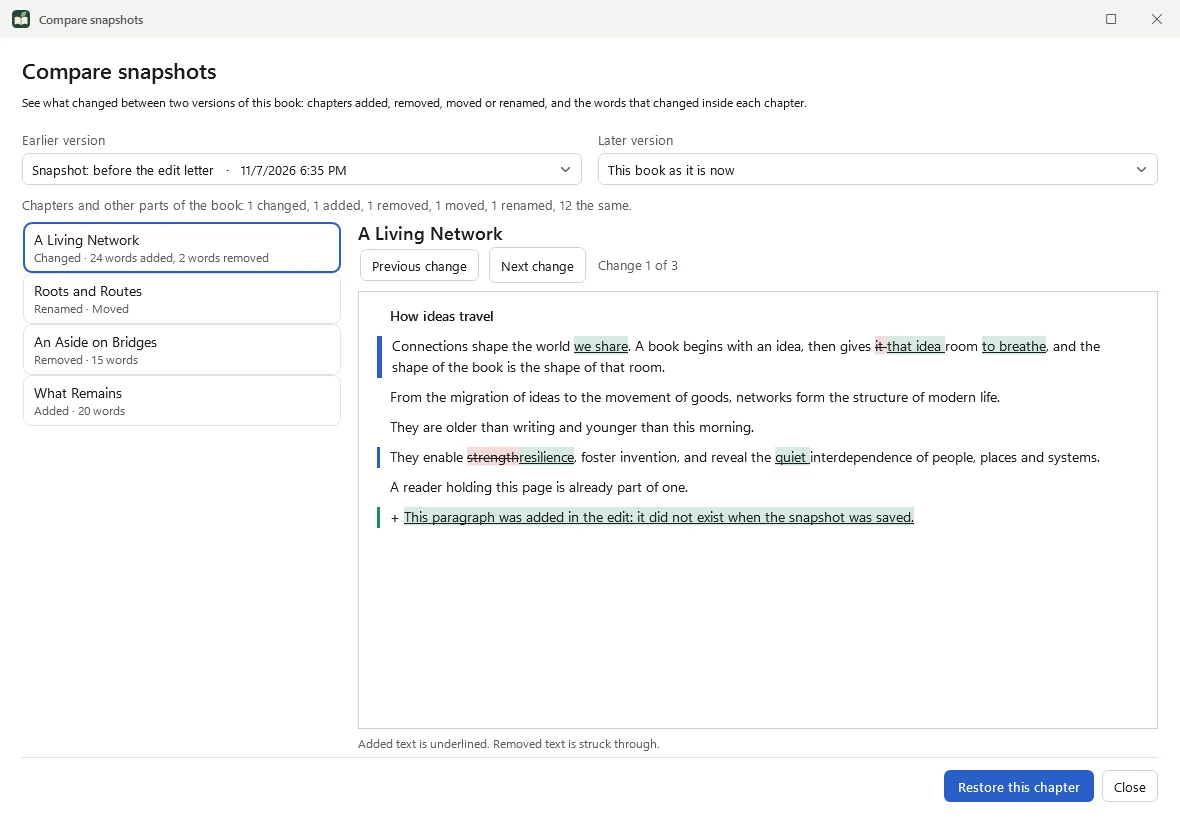
Reading the comparison
- The line under the version pickers counts the chapters and other parts of the book that changed, were added, removed, moved or renamed, and those that are the same.
- The left list shows only the chapters that differ, each marked Changed, Added, Removed, Renamed or Moved, with word counts.
- Added words are underlined on a green tint. Removed words are struck through on a red tint.
- A paragraph added whole starts with a plus sign; a removed one starts with a minus sign. Unchanged stretches are counted, for example "12 paragraphs the same".
- Footnotes and endnotes are labeled Note, pictures Picture, table rows Table and equations Equation.
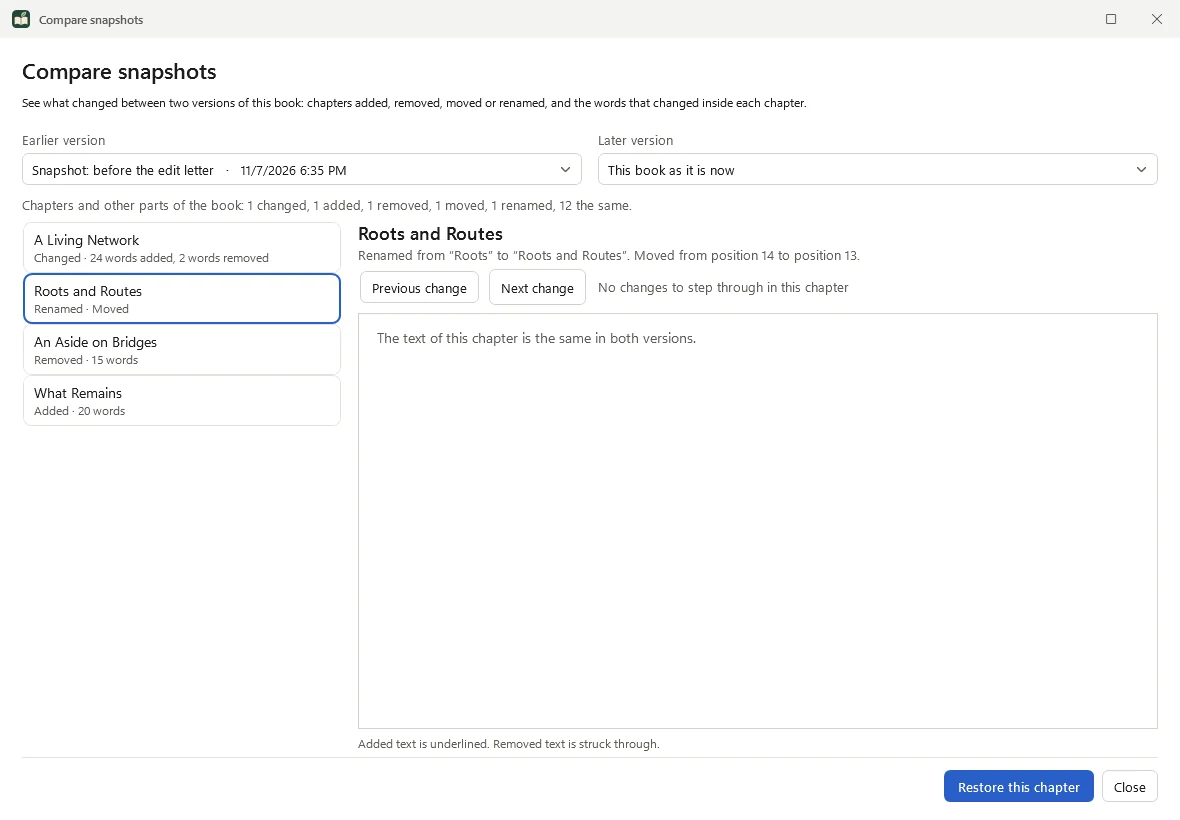
- For a renamed or moved chapter, the pane says so, for example "Renamed from “Roots” to “Roots and Routes”." or "Moved from position 5 to position 4."
Restore one chapter
When one of the two versions is This book as it is now, you can bring back a single chapter from the other version without restoring the whole book.
- Select the chapter in the list.
- Choose Restore this chapter, then Restore to confirm.
- Save the book to keep the restored chapter.
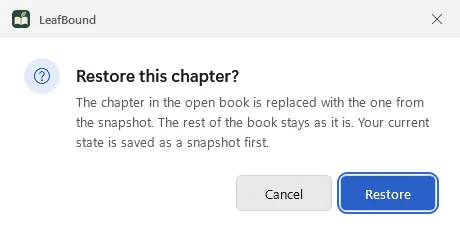
The chapter in the open book is replaced with the one from the snapshot, and the rest of the book stays as it is. Your current state is saved first as a snapshot named "before restore", and the status bar says "Chapter restored; save to keep it". A chapter the book no longer has can be put back too; it returns to where it was.
What is compared
| Compared | Not compared |
|---|---|
| Chapter titles and subtitles, paragraphs and headings | Bold, italic and other formatting |
| Footnotes and endnotes | Page breaks |
| Table cells and picture captions (a replaced picture counts as a change) | Book details, the theme and print settings |
| Equations | The positions of frames on designed picture-book pages, and pages LeafBound builds itself, such as the endnotes list and bibliography |
Messages you might see
- "Choose two different versions to compare.": both pickers show the same version.
- "There is nothing to compare yet. Save a snapshot, keep writing, then compare.": the book has no snapshots or recovery copies yet.
- "These two versions have the same chapters and the same text.": nothing differs.
- "The snapshot does not have this chapter.", "This part of the book is rebuilt by LeafBound and cannot be restored on its own." or "The chapter could not be found in the open book." under "Could not restore the snapshot": that chapter cannot be restored on its own. Restore the whole snapshot from the Snapshots window instead, or open a copy and copy the text across.
Compare looks at the text, not the page layout. Text in languages written without spaces, other than Chinese and Japanese, is compared in longer runs rather than word by word.
Related
Still stuck?
Choose Help then Report a problem… in LeafBound to send us the details, or write to support.