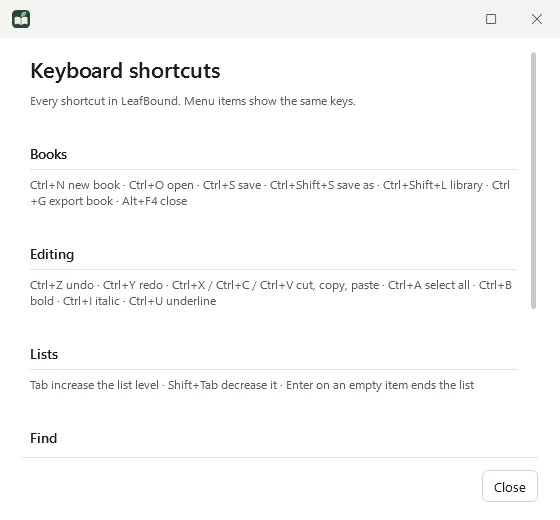
Every keyboard shortcut in the LeafBound book window: books, editing, formatting, lists, find and replace, design and help.
To see these in the app, choose Help› then Keyboard shortcuts. Menu items show the same keys beside their names.
Books
Keys
What it does
Ctrl+N
New book (File› then New book…).
Ctrl+O
Open a book or manuscript (File› then Open…).
Ctrl+S
Save (File› then Save).
Ctrl+Shift+S
Save as (File› then Save as…).
Ctrl+Shift+L
Bring the library, Your books, to the front (File› then Library).
Ctrl+G
Export book (File› then Export book…).
Alt+F4
Close the book window (File› then Close). LeafBound asks to save unsaved changes first.
Editing
Keys
What it does
Ctrl+Z
Undo (Edit› then Undo). Covers typing and book changes such as moving or deleting a chapter.
Ctrl+Y
Redo (Edit› then Redo).
Ctrl+X
Cut.
Ctrl+C
Copy.
Ctrl+V
Paste.
Ctrl+A
Select all the text of the open element.
Ctrl+B
Bold.
Ctrl+I
Italic.
Ctrl+U
Underline.
Lists
Keys
What it does
Tab
In a list item: move it one level in (up to five levels). Elsewhere: type a tab.
Shift+Tab
In a list item: move it one level out.
Enter on an empty item
End the list.
Find and replace
Keys
What it does
Ctrl+F
Open the Find and replace panel, or close it if it is open (Edit› then Find and replace…).
F3
Find next (Edit› then Find next), even with the panel closed.
Shift+F3
Find previous (Edit› then Find previous).
Enter in Find
Find the next match.
Shift+Enter in Find
Find the previous match.
Enter in Replace with
Replace the current match.
Esc
Close the Find and replace panel.
Design and help
Keys
What it does
Ctrl+Shift+D
Open book design (Format› then Book design…).
F1
Open LeafBound help (Help› then LeafBound help).
Good to know
In a text field outside the editor (a title, a number box), Ctrl+Z and Ctrl+Y undo and redo the typing in that field.
Tables have no keyboard shortcut of their own: Insert› then Table… adds one at the cursor, and you click in a cell to edit it in the manuscript, or right-click the table and choose Edit table….
When LeafBound is reading only (after the offline period runs out, until it can check in again), only the reading shortcuts work: Ctrl+F, Ctrl+C, Ctrl+A, Ctrl+O, Ctrl+Shift+L and Ctrl+S. The others show a note in the status bar instead.
 LeafBound