 LeafBound
The library opens when LeafBound starts. Its page is called Your books.
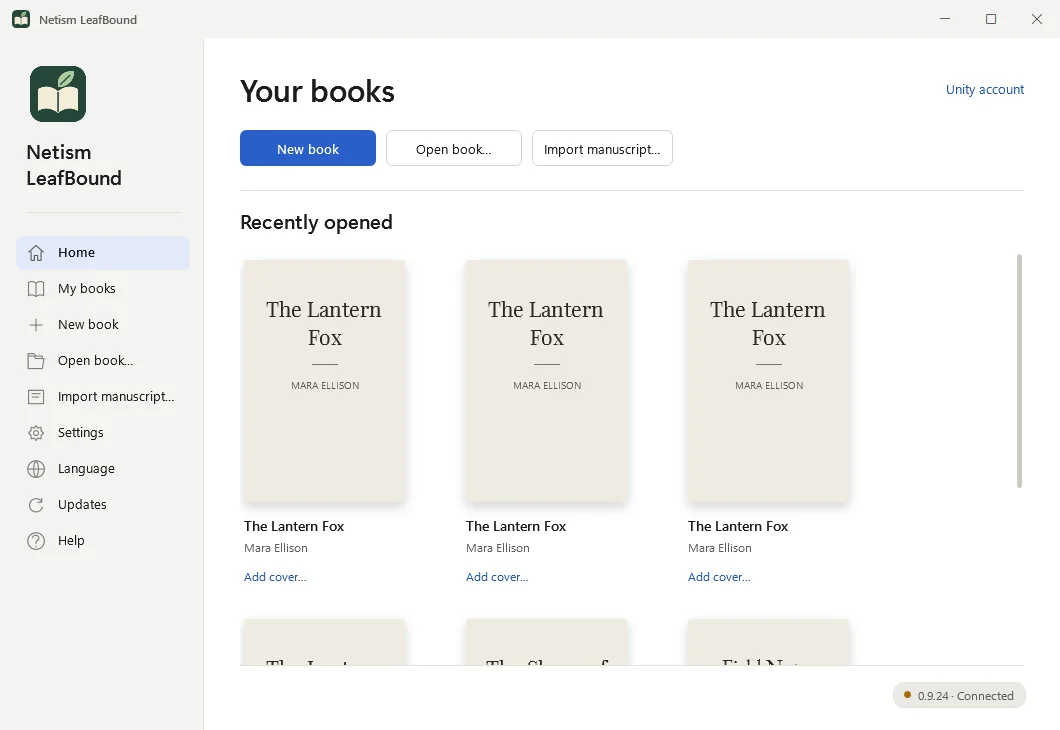
The left rail
| Item | What it does |
|---|---|
| Home | Shows the Your books page. |
| My books | Also shows the Your books page, refreshed. |
| New book | Opens the New book window. See Create a new book. |
| Open book… | Opens the Windows window Open book, where you pick a LeafBound book (.leafbound) or a manuscript to import. |
| Import manuscript… | Opens the Import manuscript window for Word, PDF, LaTeX and other manuscripts. Imports become new LeafBound books. |
| Settings | Opens LeafBound settings. See LeafBound settings. |
| Language | Opens the window where you choose the interface language. See Change the interface language. |
| AI assistant | Opens the Connect an AI assistant window. See Connect an AI assistant to LeafBound. |
| Updates | Opens the LeafBound updates window. See Check for updates. |
| Help | Opens a short guide, with links to copy diagnostics, report a problem and contact support. See Get help inside LeafBound. |
The Your books page
- New book, Open book… and Import manuscript… at the top do the same as the rail items.
- LeafBound account at the top right opens the account window, which shows whether this PC is activated. See Check your license and plan.
- Recently opened shows up to six of the books you opened most recently, as long as the file is still where it was. Choose a cover to open that book.
- A book with no cover shows a plain paper card with its title in the title font of its theme and the author underneath.
- Under each card, Add cover… or Change cover… sets the cover picture, as described below.
- Beside it, Remove… takes the book off the library or deletes its file. See Remove or delete a book.
- If a book file cannot be read, its card says so and shows the file name.
- When there are no recent books yet, the page says "A place for your next book". Under it: "Start a new book, open an existing book, or import a manuscript from Word, PDF, LaTeX and other formats."
The bottom right corner shows the installed version and either Offline ready (this PC can work offline) or Connected.
Covers on the cards
- Choose Add cover… under a card, or Change cover… if it already has one.
- In Choose book cover, pick a JPG or PNG picture and choose Open.
The picture is saved inside the book file as its cover, the same cover shown in Book settings under Book details. To take it off, right-click Change cover… and choose Remove cover image. The picture must be a JPG or PNG smaller than 2 GB, LeafBound must be activated, and the book must not be open in a workspace window at the time. More in Add or remove a cover on a library card.
Get back to the library
Opening a book closes the library. To bring it back from a book, choose File then Library, press Ctrl+Shift+L, or choose the library button at the top left of the contents sidebar. If the library is already open, LeafBound brings it to the front.
Related
- Add or remove a cover on a library card
- Remove or delete a book
- Create a new book
- Open, save and close books
Still stuck?
Choose Help then Report a problem… in LeafBound to send us the details, or write to support.