 LeafBound
's interface is available in seven languages:
| Language | Shown in the list as |
|---|---|
| English | English |
| German | Deutsch |
| French | Français |
| Spanish | Español |
| Italian | Italiano |
| Dutch | Nederlands |
| Portuguese (Brazil) | Português (Brasil) |
How LeafBound chooses
Until you pick one, LeafBound follows Windows. It goes down your Windows display language list (Settings, Time and language, Language) and uses the first language it has. Regional versions share one translation: Spanish from Mexico or Spain gets Spanish, and Portuguese from Portugal gets Brazilian Portuguese. If none of your Windows languages is available, LeafBound uses English.
Choose a language
The language choice is marked with a globe, so you can find it even when LeafBound is in a language you do not read.
- In the library, choose Language in the left rail, between Settings and Updates. In a book window, choose Help then Language….
- In the Language window, choose a language. Each one is listed by its own name. Match Windows (English) follows Windows again, and shows in brackets the language Windows gives on this PC.
- Choose Save.
- LeafBound asks "Restart LeafBound to change the language?". Choose Restart now to change at once, or Later to keep working.
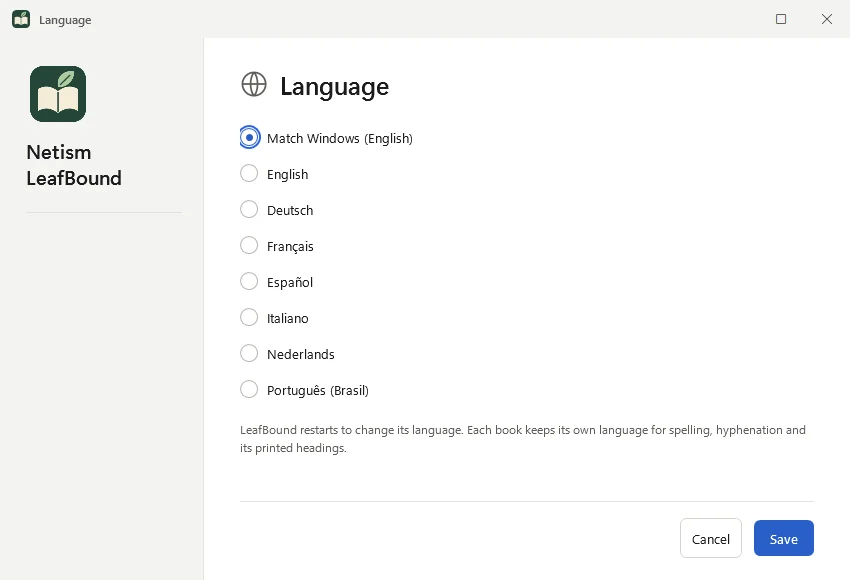
Cancel closes the window without changing anything. Choosing the language LeafBound already uses and then Save changes nothing and asks nothing.
Restart now or later
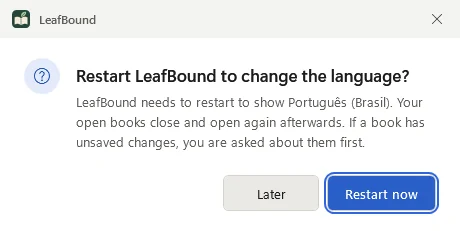
- Restart now: each open book closes the usual way. A book with unsaved changes asks whether to save them first, with Save, Don't save and Cancel. LeafBound then starts again in the new language and opens the same saved books.
- If you choose Cancel on a book's unsaved-changes question, the restart stops. The books that were already closed stay closed, and the new language shows the next time LeafBound opens.
- A new book that was never saved to a file is not opened again after the restart.
- Later: nothing closes. The new language shows the next time LeafBound opens, and LeafBound does not ask again for that choice until then.
From LeafBound settings
The library's Settings window keeps the same choice under Language and units, in Interface language. After Save there, LeafBound offers the same restart.
When you install LeafBound
The first page of LeafBound Setup has a Language list with a globe, at the bottom of the step list on the left. It starts on the language LeafBound already uses on this PC, or else on your Windows language.
- Choose a language and Setup shows itself in that language at once, on the same page. With the list closed, the Up and Down arrow keys change it directly. With the list open, they move through it and the language changes when the list closes.
- LeafBound opens in the chosen language after the install finishes, or after Open LeafBound when LeafBound is already installed.
- If you leave the list alone, nothing is saved: LeafBound keeps the language it had, or goes on following Windows.
- Updates that LeafBound installs by itself never show the list and never change your language.
The uninstaller uses the language LeafBound uses.
Measurements
In the library's Settings window, under Language and units, Measurements offers Match region (inches or millimeters, from your Windows region), Inches or Millimeters. It changes the sizes shown in the cover designer. It also applies the next time LeafBound opens.
About the translations
The translations are machine-made. They are complete, but native speakers have not read them, so some wording may sound unusual. Your feedback through Help then Report a problem… helps.
What stays in English
- Theme genres and heading variation names, printer and format names such as Amazon KDP and Paperback, and paper and ink names.
- Element kinds and a few option values in Chapter options, and some book tool names, such as Verse.
- The panel labels on the cover and special edition sheets, such as back, spine and front.
- The trim size in the status bar, such as "Print · 5 × 8 in", and numbers LeafBound formats itself, which use a decimal point and inches.
- Key names such as Ctrl, Shift and Tab.
Related
Still stuck?
Choose Help then Report a problem… in LeafBound to send us the details, or write to support.