 LeafBound
The LeafBound settings window holds the settings for the app itself. Settings for one book are in that book's Book settings.
- In the library, choose Settings in the left rail.
- Change the settings you need.
- Choose Save, or Cancel to leave them as they were.
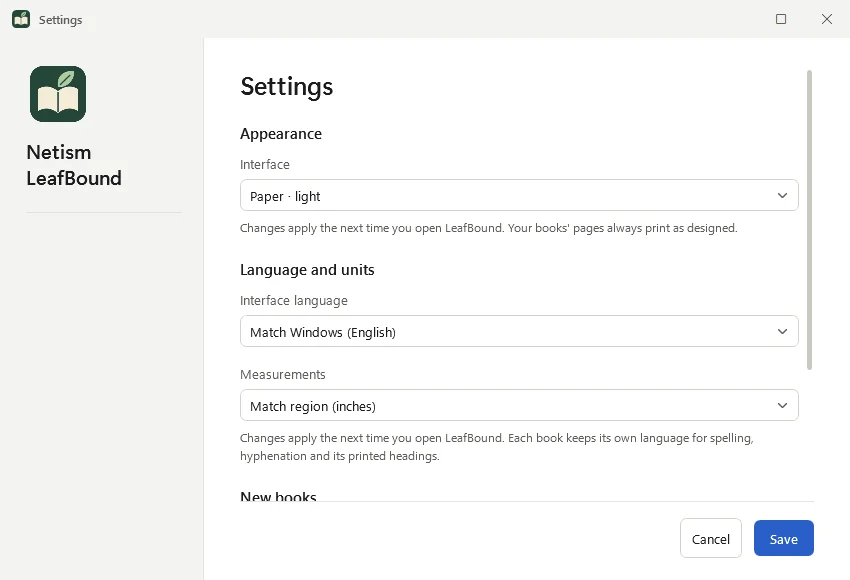
Appearance
| Choice under Interface | What it does |
|---|---|
| Paper · light | A light interface. This is the default. |
| Graphite · dark | A dark interface. |
| Match Windows | Follows the light or dark mode set in Windows. |
The appearance changes the next time you open LeafBound. It only changes LeafBound's own windows: your book pages always print as designed.
Language and units
Interface language sets the language of LeafBound's menus and windows, or Match Windows to follow Windows. Measurements chooses inches or millimeters, or Match region to follow your Windows region. Both apply the next time you open LeafBound. They do not change your books: each book keeps its own language, set in its Book details.
New books
| Setting | What it does |
|---|---|
| Author name | Filled in as the author of every new book. Existing books keep their own author. |
| Language code | The language new books start with, as a short code such as en, es, fr or de. It cannot be empty. Existing books keep their own language. |
Settings that live elsewhere
| Setting | Where to change it |
|---|---|
| Automatic updates | Download updates automatically in the LeafBound updates window (library rail Updates, or Help then Check for updates… in a book). See Turn automatic updates off. |
| Upgrade and purchase options | Help then Show upgrade and purchase options in a book window. See Upgrade prompts and turning purchase options off. |
| AI connections | Allow AI to inspect, edit and format open manuscripts under Tools then AI editing connections… in a book window, or under AI assistant in the library. It is off until you turn it on. |
| Your saved themes | Themes you keep with Save as my theme in Design view are stored with your settings, so every book can use them. |
Where settings are kept
LeafBound keeps your settings, recent books and saved themes in %LOCALAPPDATA%\Leafbound for your Windows account. Uninstalling LeafBound does not remove them. Older versions also stored a separate interface theme value; the Interface appearance above has replaced it.
If the settings cannot be saved, for example because the folder is not writable, LeafBound shows "Could not save the settings" with the reason, and the window stays open.
Related
- Change the interface language
- Turn automatic updates off
- Upgrade prompts and turning purchase options off
- Create a new book
Still stuck?
Choose Help then Report a problem… in LeafBound to send us the details, or write to support.