 LeafBound
Each open book has its own workspace window. Before the book is saved, the Windows title of the window is "Untitled" followed by LeafBound; after saving, it shows the file name.
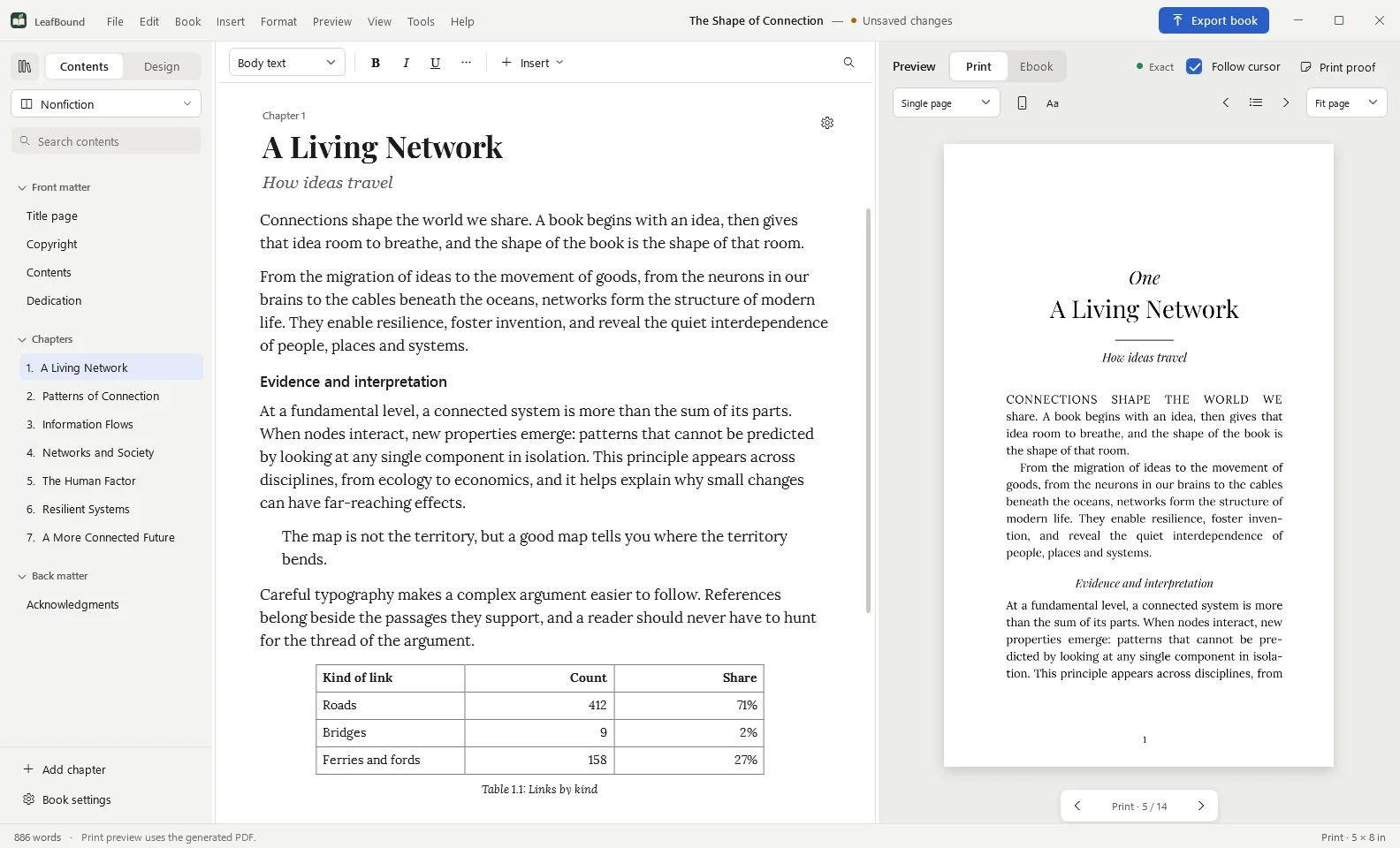
The title bar
- On the left, the LeafBound mark and the menus: File, Edit, Book, Insert, Format, Preview, View, Tools and Help.
- In the middle, the book title followed by "Saved" or, with an amber dot, "Unsaved changes".
- On the right, Export book (Ctrl+G), which makes the print PDF and ebook editions, then the minimize, maximize and close buttons.
The menus
| Menu | What is in it |
|---|---|
| File | The library, new books and box sets, opening, recent books, saving, snapshots and recovery copies, imports, Export book, Print preflight, special edition packages, exporting the manuscript as Word, rich text or LaTeX, and Close. |
| Edit | Undo, Redo, Cut, Copy, Paste, Select all, Find and replace, Find special, spelling and smart quotes. |
| Book | Book settings, title, author and details, book type, print and page setup, publishing settings, cover, special edition, adding and organizing chapters, and reused elements. |
| Insert | Images, tables, callout boxes, notes and citations, math and science, references and lists, links and breaks. Some items appear only when the book type or its tools include them. |
| Format | Book design, and text formatting such as bold, italic, small capitals and alignment. |
| Preview | Print, Ebook and Print proof previews, page and chapter navigation, and device and reader settings. |
| View | Contents and Design views, word count by chapter, writing goals and the writing sprint. |
| Tools | The source library and equation library (when the book has those tools), AI editing connections and Review AI changes. |
| Help | LeafBound help, keyboard shortcuts, Check for updates, What's new, your account, purchase options, diagnostics, reporting a problem, support, About and Language. |
The contents sidebar
- The library button at the top left brings back the library (Ctrl+Shift+L).
- Contents and Design switch the middle of the window between your manuscript and the book's design. Ctrl+Shift+D also opens Design.
- The book type button below them shows the type, such as Nonfiction. Choose it to change the type.
- Search contents filters the list to elements whose names match.
- The list groups the book into Front matter, Chapters and Back matter. Select an element to edit it. Drag an element to move it, or drop a chapter onto a part or volume to group it. Elements shown in italics are not in every edition. Right-click an element for more actions.
- At the bottom, Add chapter adds a chapter or another element, and Book settings opens the book's settings.
The editor
- The format bar at the top: the paragraph style list (Body text, Heading 1 to Heading 6, Block quote, Verse when the book has the Verse tool, Numbered list and Bulleted list), Bold, Italic, Underline, a menu of more text formats, Insert, and Find.
- Above the text: the chapter label (for example Chapter 1), the chapter title, and the subtitle line ("Add a subtitle"). The gear button opens Chapter options.
- The manuscript text, with spelling checked as you type. Tab and Shift+Tab change the level of a list item.
- Selecting the title page opens the book details instead of text, because the title page is built from them. Picture book pages open in the page designer.
The preview
The right side shows the book as it will print or as an ebook. Switch with Print and Ebook. Follow cursor keeps the preview on the page you are editing. Print proof shows the exact print page. The arrows below the page move between pages.
Design view
Choose Design to pick a theme and adjust the chapter opening, body text, paragraphs and breaks, subheadings, and headers and footers. Choose Contents to return to the manuscript.
The status bar
- On the left, the book's word count, and your writing goal progress when you have set a goal.
- In the middle, short messages such as "Saved" or what the last action did.
- On the right, during a trial, the days left with a link to buy LeafBound; a Connect to renew link when the offline period is nearly over; and the current preview with its trim size, for example "Print · 5 × 8 in".
Drag the bars between the sidebar, the editor and the preview to make each one wider or narrower.
Related
- Create a new book
- Open, save and close books
- Change the book type or tools later
- Change LeafBound settings
Still stuck?
Choose Help then Report a problem… in LeafBound to send us the details, or write to support.