 LeafBound
Change the book type
- Choose the book type button near the top of the contents sidebar. You can also choose Book then Book type…, or Change book type… on the Tools tab of Book settings.
- In Change book type, choose the new type's card.
- Choose Apply book type.
The status bar says the new type's tools are now available and that your content and design are unchanged. The theme stays as it is; choose a new one in Design view if you want the new type's look.
If your plan does not include the type you chose, LeafBound shows which plan adds it and does not change the type.
Add a single tool
- Choose Book settings at the bottom of the contents sidebar, or Book then Book settings….
- Choose the Tools tab.
- Under Additional tools, check the tool you want.
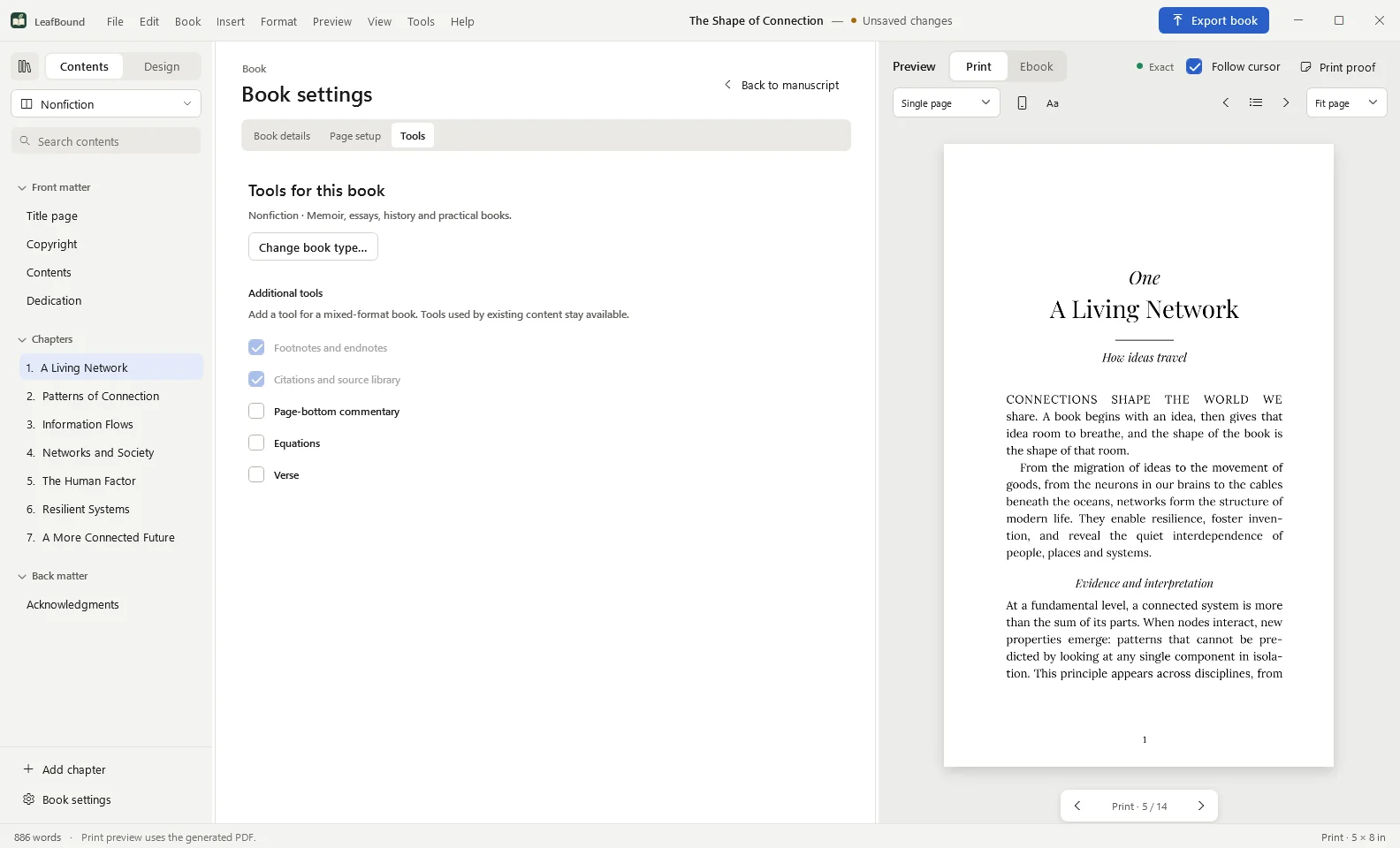
| Tool | What it adds | Depends on | Plan |
|---|---|---|---|
| Footnotes and endnotes | Footnotes and endnotes in Insert then Notes and citations. | Nothing. | Author |
| Citations and source library | Citations and the source library. | Turns on footnotes and endnotes too. | Academic |
| Page-bottom commentary | Study notes and commentary at the foot of the page. | Turns on citations, and footnotes and endnotes. | Academic |
| Equations | Equations, the math and science items, and Insert then References and lists (numbering, cross-references, glossary, index and appendices). | Nothing. | Academic |
| Verse | The Verse paragraph style. | Nothing. | Author |
Why a box is checked and grayed
- The book type already includes that tool.
- Content in the book uses it. For example, a book with footnotes keeps the footnote tool, and a book with sources keeps citations. Tools used by existing content stay available.
- Another tool you turned on depends on it, such as footnotes under citations.
- Your plan does not include it. Hover over the box to see which plan adds it.
Clearing a tool only hides its menu items for new content. It never deletes notes, sources, equations, formatting or pictures already in the book.
The other Book settings tabs
| Tab | What it holds |
|---|---|
| Book details | Title, subtitle, series, chapter word, authors and contributors, author profiles, language, ISBN, edition, publisher, description, rights and the ebook cover. The same as Book then Title, author and details…. |
| Page setup | Buttons for Publishing settings…, Print and page setup… (trim size, KDP presets, binding, margins and page-bottom notes) and Book design. |
| Tools | The book type, Change book type… and the additional tools described above. |
Choose Back to manuscript to return to the editor.
Books from older versions
A book saved before book types existed gets a type from its content when it opens: commentary makes it a study book, equations an academic book, notes or citations a nonfiction book, verse a poetry book, and anything else a fiction book.
Related
Still stuck?
Choose Help then Report a problem… in LeafBound to send us the details, or write to support.