 LeafBound
- In the library, choose New book. In a book, choose File then New book… or press Ctrl+N.
- On What kind of book?, choose the card for your book type.
- Read the line at the bottom, which lists the tools that type turns on, then choose Continue.
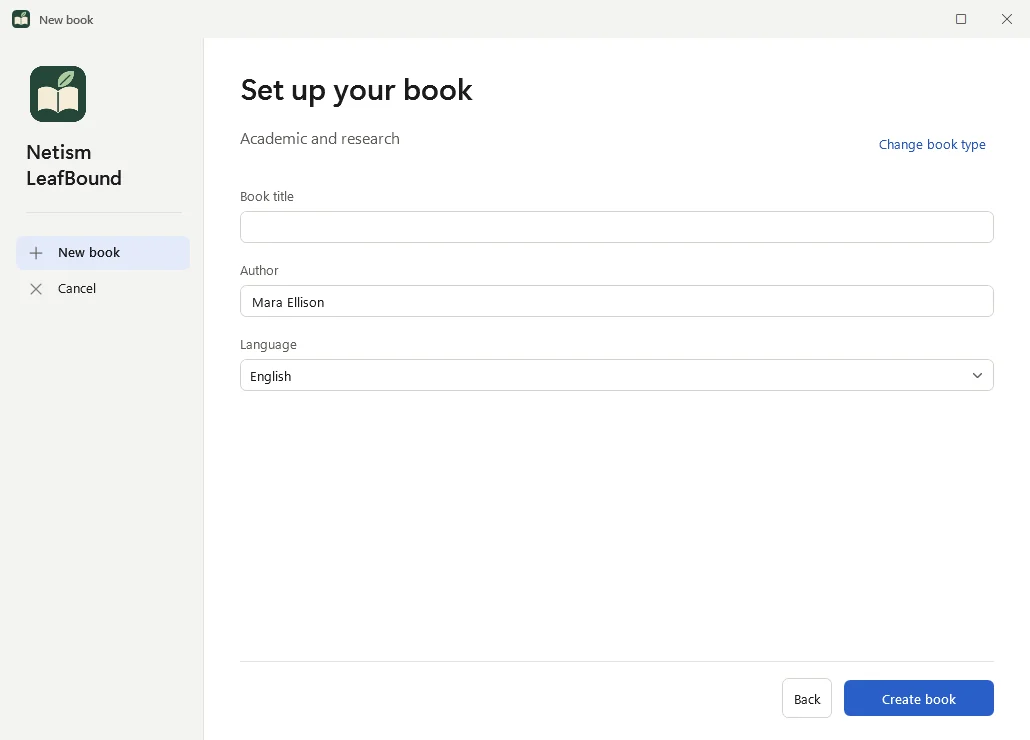
- On Set up your book, type the Book title.
- Check the Author name and the Language.
- For a picture book, choose a Format.
- Choose Create book.
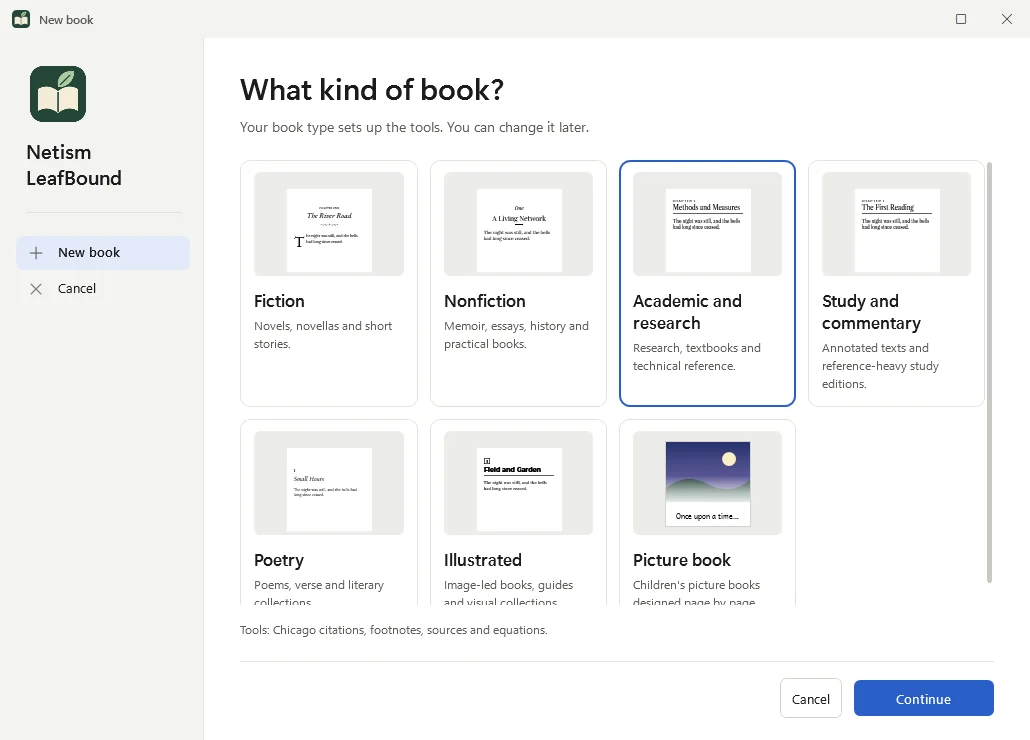
The book type cards
Each card shows a sample page set in the theme that type starts with. Hover over a card to see its tools. The type decides which tools appear, and you can change it later. See Change the book type or tools later.
| Card | For | Tools |
|---|---|---|
| Fiction | Novels, novellas and short stories. | Chapters, scene breaks, images and links |
| Nonfiction | Memoir, essays, history and practical books. | Headings, footnotes, citations and sources |
| Academic and research | Research, textbooks and technical reference. | Chicago citations, footnotes, sources and equations |
| Study and commentary | Annotated texts and reference-heavy study editions. | Page-bottom commentary, citations, footnotes and equations |
| Poetry | Poems, verse and literary collections. | Verse, line breaks, quotations and images |
| Illustrated | Image-led books, guides and visual collections. | Images, captions, full-page artwork and text |
| Picture book | Children's picture books designed page by page. | Page designer, text fades, images and full-bleed art |
A card your plan does not include shows the plan name in its corner. Choosing it opens a window that explains which plan adds it, instead of selecting it.
Set up your book
| Field | What it does |
|---|---|
| Change book type | Goes back to the type cards. Back does the same. |
| Book title | The title on the title page and in every edition. Left empty, the book is called "My Book" until you change it. |
| Author | Filled in from the author name in LeafBound settings. Change it here for this book. |
| Language | The book's own language, which sets hyphenation and printed headings. It starts at the language code in LeafBound settings. The list offers English, Spanish, French, German, Italian, Portuguese, Dutch, Arabic, Hebrew, Chinese, Japanese, Korean, Russian, Ukrainian, Greek and Hindi. |
| Format | Picture books only. Formats are grouped under Picture books, Board books and Early readers. The line below says what the format is for, how it is bound, and the page plan the book starts as. The starting format is Picture book 8.5 × 8.5 in (KDP, IngramSpark, Lulu). |
What happens next
- The book opens in a workspace window with the starting theme of its type. It is not saved yet: the title bar says "Unsaved changes" until you press Ctrl+S and choose where to save it.
- A picture book opens as a finished-looking example with pages, words and placeholder art that you replace.
- If you start a new book from inside a book window, the new book replaces the open one in that window. LeafBound first asks whether to save changes to the open book.
- Creating a book needs an activated LeafBound.
Related
- Change the book type or tools later
- A tour of the workspace
- Open, save and close books
- Set the language of your book
Still stuck?
Choose Help then Report a problem… in LeafBound to send us the details, or write to support.