 LeafBound
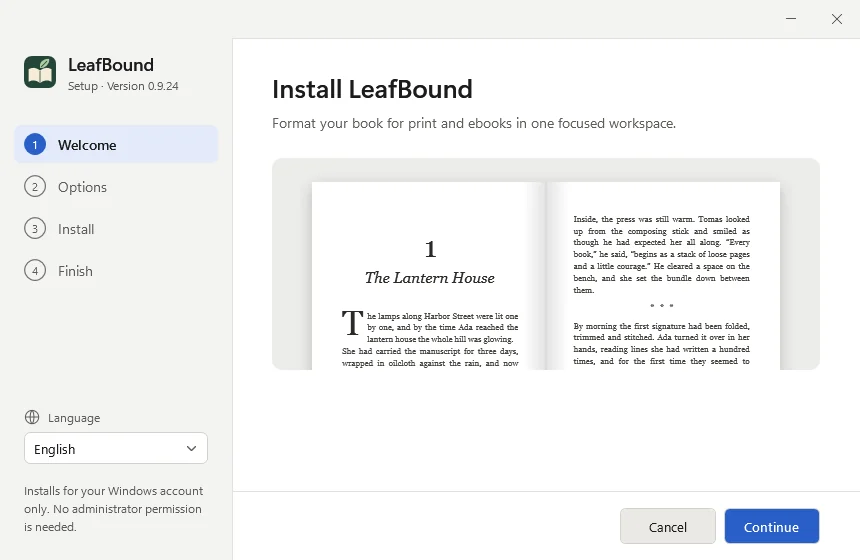
 Setup installs the app for your Windows account. It shows its steps down the left side: Welcome, Options, Install and Finish.
- Run the LeafBound installer you downloaded from your account page. If Windows shows a warning about an unknown publisher first, see Why Windows warns about the installer.
- On the first page, Install LeafBound, pick your language in the Language list at the bottom left if you want a different one. Setup changes to it at once.
- On the first page, Install LeafBound, choose Continue.
- On Choose install options, keep the folder shown under Install location, or choose Browse… to pick another folder.
- Leave Create a desktop shortcut checked if you want a desktop icon, or clear it.
- Choose Install.
- Wait while Installing LeafBound works through its steps. Keep the window open until it finishes.
- On LeafBound is ready, choose Open LeafBound to start it now, or Close to finish.
The options page
| Control | What it does |
|---|---|
| Install location | The folder LeafBound is copied into. The default is a folder for this version inside your own AppData folder (%LOCALAPPDATA%\Programs\Netism\LeafBound). Below it, Setup shows how much free space the drive has. |
| Browse… | Opens the window Choose where to install LeafBound so you can pick a folder. |
| Create a desktop shortcut | Adds a shortcut to LeafBound on your desktop. It is checked at first. LeafBound is always added to the Start menu. |
| Remove LeafBound … after installing | Shown only when an older version is installed. It is always on: after the new version is installed and verified, Setup removes the older version's app files. Your books, themes and account connection stay. |
Setup has no checkbox for opening LeafBound when the installation ends. The last page has an Open LeafBound button instead.
Choose the language
The first page has a globe and a Language list at the bottom of the step list: English, Deutsch, Français, Español, Italiano, Nederlands and Português (Brasil), each under its own name. It starts on the language LeafBound already uses on this PC, or else on your Windows language. Setup shows itself in the language you pick straight away, and LeafBound opens in it after the install. If you leave the list alone, nothing changes. You can change the language later from the library or the Help menu. See Change the interface language.
What Setup does
- Check the installer package: confirms the installer is complete and has not been changed.
- Copy LeafBound files: copies the app, with a progress bar and a file count.
- Verify the installed app: checks the copied program against the one that was published.
- Remove LeafBound …: only when you are updating, removes the older version.
The finish page lists where LeafBound is installed, the version, and which shortcuts were made (Start menu, or Start menu and desktop). It also says your books and preferences were not changed.
Updating over an older version
When an older LeafBound is already installed, the first page says Update to LeafBound … and explains that your books, themes and account connection carry over. Close LeafBound before you continue. If the older version cannot be removed, usually because it is open, the finish page says so and you can remove it later from Windows Settings, then Apps.
Repairing the same version
If this exact version is already installed, the first page says it is already installed and offers Close, Reinstall and Open LeafBound. Reinstall repairs missing or damaged files in the same folder; the folder cannot be changed for a repair. Your books are not affected.
Canceling
Before installing starts, closing Setup asks Cancel setup? with Cancel setup and Continue setup. Nothing has been installed at that point. While files are being copied, Setup asks you to keep it open, because stopping then could leave LeafBound incomplete.
If Setup cannot finish
The page Setup could not finish explains the problem and says nothing in your books or settings was changed. Copy details copies the technical details for support, and Try again returns to the options page. Common causes:
| Message | What to do |
|---|---|
| Choose a dedicated folder for LeafBound. | Pick a folder, not the top of a drive. |
| Choose a folder outside the Windows directory. | Pick a folder that is not inside the Windows folder. |
| Save your work and close LeafBound before installing. | Close every LeafBound window, then try again. |
| A newer LeafBound version is installed. Open that version instead. | You already have a newer version. Open it from the Start menu. |
| LeafBound is already installed in another folder. Repair it there, or uninstall it first. | Run Setup again and choose the existing folder, or uninstall that copy first. |
| Another LeafBound installation is in progress. Let it finish, then try again. | Wait for the other Setup window to finish. |
| The installer payload did not pass verification. Download a fresh copy from leafbound.org. | Download the installer again from your account page. |
Related
Still stuck?
Choose Help then Report a problem… in LeafBound to send us the details, or write to support.