 LeafBound
 checks for updates by itself and, unless you turn that off, downloads them while you work. It never restarts by itself: it asks. Updates come from the LeafBound account server and stay within your major version.
What happens
- About 12 seconds after LeafBound starts, and then every 12 hours while it stays open, it asks the LeafBound account server whether a newer version is available.
- If there is none, or the version on offer is not newer than yours, the updates window says "LeafBound is up to date."
- If there is one, LeafBound downloads it in the background while you keep working. A download that loses its connection carries on from where it stopped.
- LeafBound checks the download: the update must carry the LeafBound signature, be for LeafBound on 64-bit Windows and your major version, be newer than the version you have, and match the published size and checksum exactly. A download that fails any check is deleted.
- A notice in the window you are using says the new version is ready to install, with Restart LeafBound to update and Later.
- Choose Restart LeafBound to update. Your open books close the usual way, each asking about unsaved changes, and LeafBound closes.
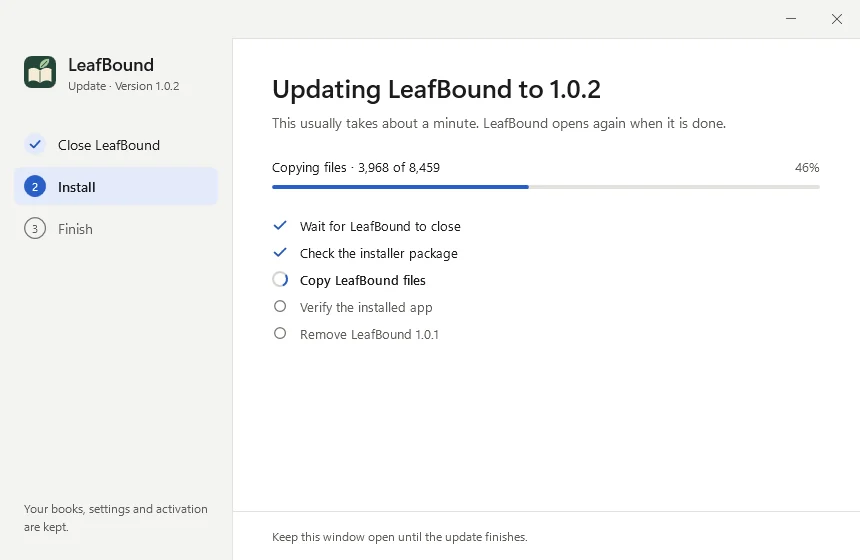
- A LeafBound update window shows each step: waiting for LeafBound to close, checking the installer package, copying files, verifying the installed app and removing the previous version. It usually takes about a minute. Keep the window open until it finishes.
- LeafBound opens again on the new version, with the books you had open.
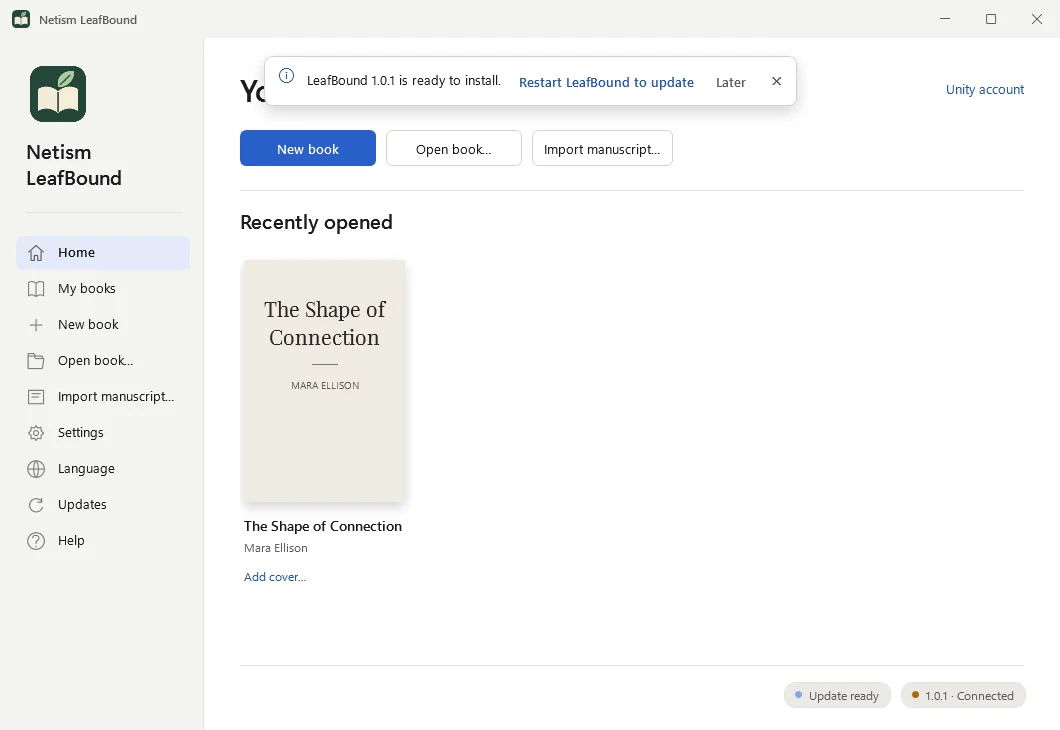
While an update downloads, the footer of the library shows how far it has got, then Update ready. Choose it to open the updates window.
If you choose Later
- The update stays ready. Help then Check for updates… shows it, with Restart LeafBound to update and Install after I close LeafBound.
- With Download updates automatically on, a ready update also installs the next time you close LeafBound. LeafBound does not open again by itself then: the update window ends on "LeafBound was updated", with Open LeafBound and Close.
What an update changes
- It replaces the LeafBound program files.
- It does not change your books, your settings, your saved themes or your activation. Your books are opened by the new version exactly as they are.
- The older version's program files are removed after the new one is installed and checked.
If something goes wrong
- If the check cannot reach the LeafBound account server, the updates window says "Updates could not be checked. You can keep working offline and try again later."
- If the download stops, the updates window says why and offers Try again. What has arrived is kept.
- If LeafBound has not closed after a while, the update window says "LeafBound is still open." and offers Close LeafBound. If a LeafBound window is asking a question, answer it first.
- If a ready update fails its checks when LeafBound closes, it is not installed and your current version keeps working.
- If installing fails, the update window says "LeafBound could not be updated". The version you had is still installed, and after Restart LeafBound to update it opens again. Copy details copies the reason for a problem report.
If you installed LeafBound from the Microsoft Store, the Store installs updates instead, and the updates window offers Open in Microsoft Store.
Related
Still stuck?
Choose Help then Report a problem… in LeafBound to send us the details, or write to support.