 LeafBound
- In a book window, choose Help then Check for updates…. In the library, choose Updates in the left rail.
- Choose Check for updates.
- If the status line says a version is available, choose Update now. A bar shows the download, with the percent, the megabytes and the time left. With Download updates automatically on, the download starts by itself.
- When the status line says "The update is ready.", choose Restart LeafBound to update. Your books close the usual way, the update installs in its own window, and LeafBound opens again with the same books.
To install later instead, choose Install after I close LeafBound, then Done. The update installs the next time you close LeafBound.
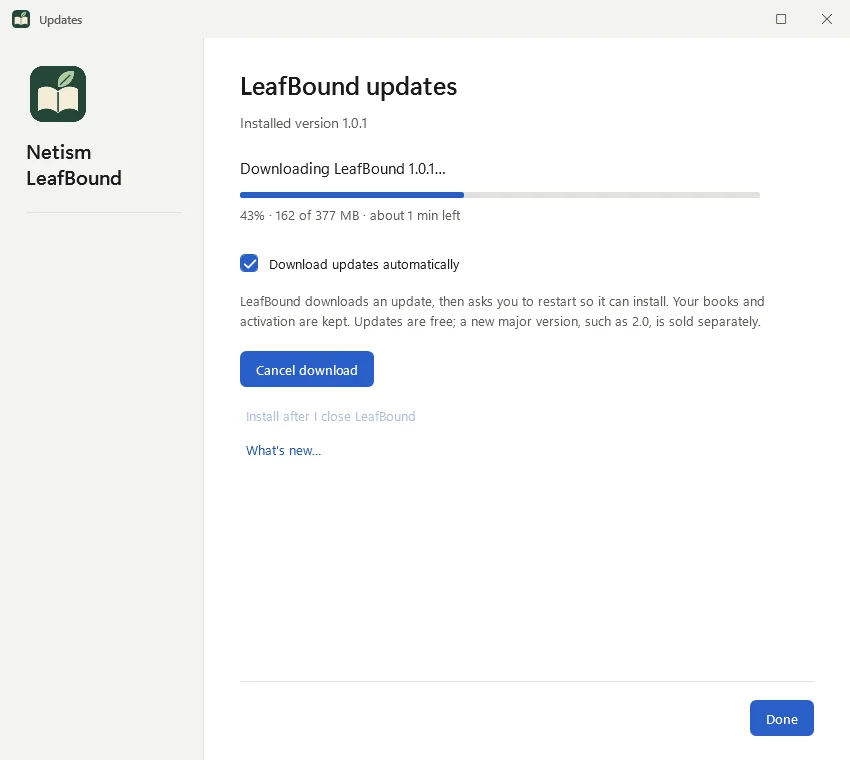
The window
| Item | What it shows or does |
|---|---|
| Installed version | The version you are using. |
| Status line | For example "Checking Unity for updates…", "LeafBound is up to date.", that a version is available, "Checking the download…" or "The update is ready." |
| Download bar | Shows while an update downloads: the percent, the megabytes so far and in all, and the time left. A download you stop keeps its place. |
| Download updates automatically | When on, LeafBound checks by itself and downloads an update as soon as it finds one. See Turn automatic updates off. |
| The main button | Always the next step: Check for updates, Update now, Cancel download, Try again or Restart LeafBound to update. |
| Install after I close LeafBound | Available once an update is downloaded and checked. Installs it when you next close LeafBound, without opening LeafBound again. |
| What's new… | Opens the list of changes in each version. |
| In this update | When an update is on offer, lists what it changes. |
| Done | Closes the window. A download in progress carries on. |
LeafBound never restarts by itself, so nothing changes under an open book.
Messages
- "Could not save the update settings" means LeafBound could not store the checkbox change, usually because its settings folder cannot be written. The reason is shown with it.
- Checking for updates needs an activated PC that can reach the LeafBound account server. Otherwise the status line says "Updates could not be checked. You can keep working offline and try again later."
- If a download stops, the status line says why. See the message reference.
Related
Still stuck?
Choose Help then Report a problem… in LeafBound to send us the details, or write to support.