 LeafBound
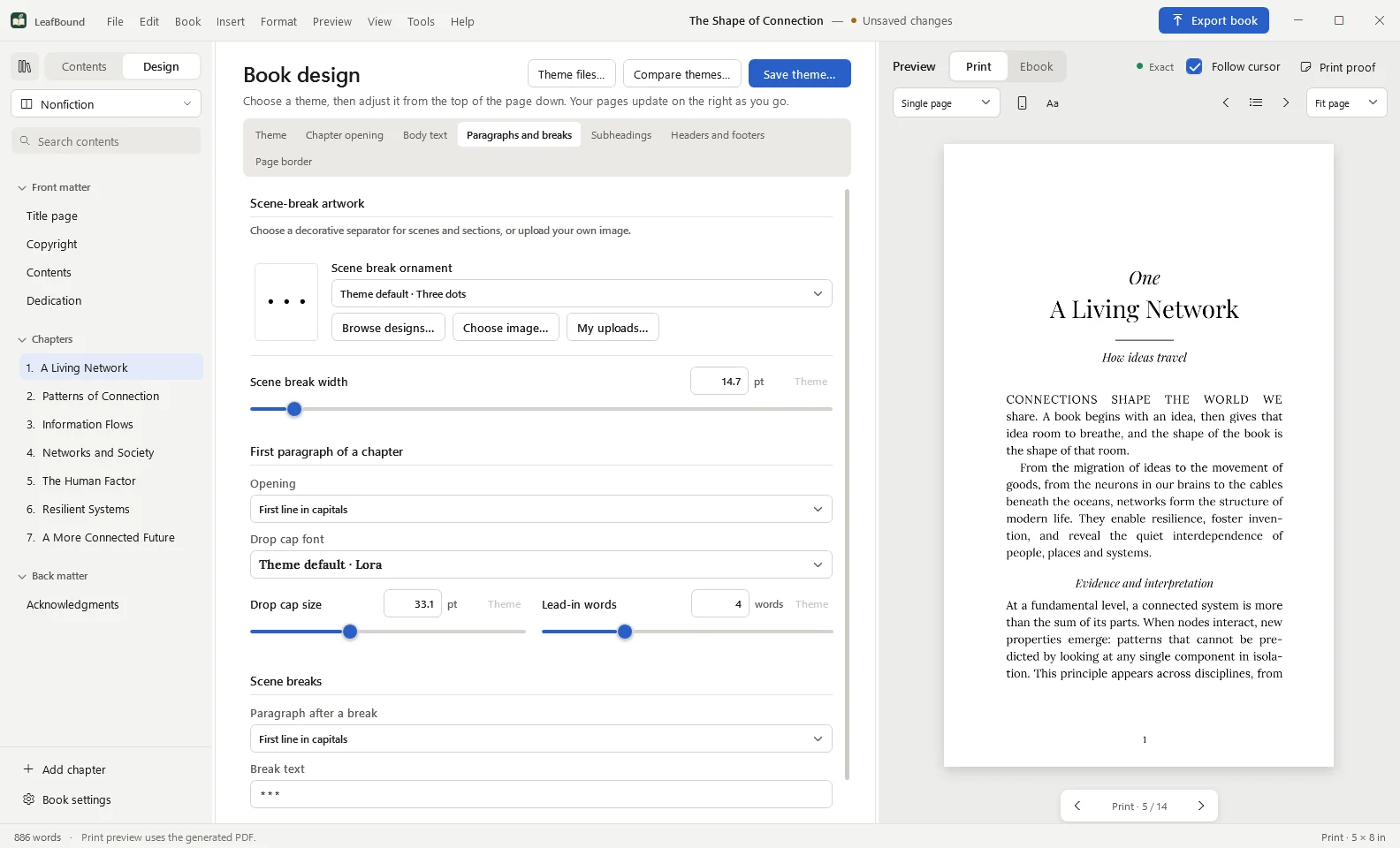
- Choose Format then Book design…, then the Paragraphs and breaks tab.
- Under Scene-break artwork, choose a Scene break ornament and its Scene break width.
- Under First paragraph of a chapter, choose an Opening style.
- For a drop cap, set the Drop cap font and Drop cap size; for lead-ins, set how many Lead-in words (1 to 12).
- Under Scene breaks, choose the Paragraph after a break style.
Opening styles
- Plain: no special treatment.
- Drop cap: a large first letter sunk into the first lines.
- Drop cap with lead-in words: a drop cap followed by words in capitals.
- Lead-in words in capitals: the first few words in capitals.
- First line in capitals: the whole first line in capitals.
- First phrase in capitals: the first phrase in capitals.
Break text
Leave Break text as * * * to use the ornament chosen above. Typing other text replaces the ornament with your text.
Reference catalog themes offer fixed presets instead: Opening paragraph, After a section break, Subheading style and Ornamental break.
Related
Still stuck?
Choose Help then Report a problem… in LeafBound to send us the details, or write to support.