 LeafBound
A theme sets the whole look of the book: the chapter openings, the body type, scene breaks, subheadings and running heads. LeafBound has 128 themes with 394 variations between them. Your text never changes when you switch theme.
- Choose Format then Book design… (Ctrl+Shift+D), or choose Design at the top of the sidebar, or View then Design.
- On the Theme tab, keep All themes selected.
- Narrow the list with the category list, or type a name or a genre such as romance, history or poetry in Find a theme or genre.
- Click a theme tile. Each tile shows a small chapter opening drawn in that theme, using your own first chapter title.
- Under the theme name, choose a Heading variation.
- Look at the preview on the right, which updates as you go.
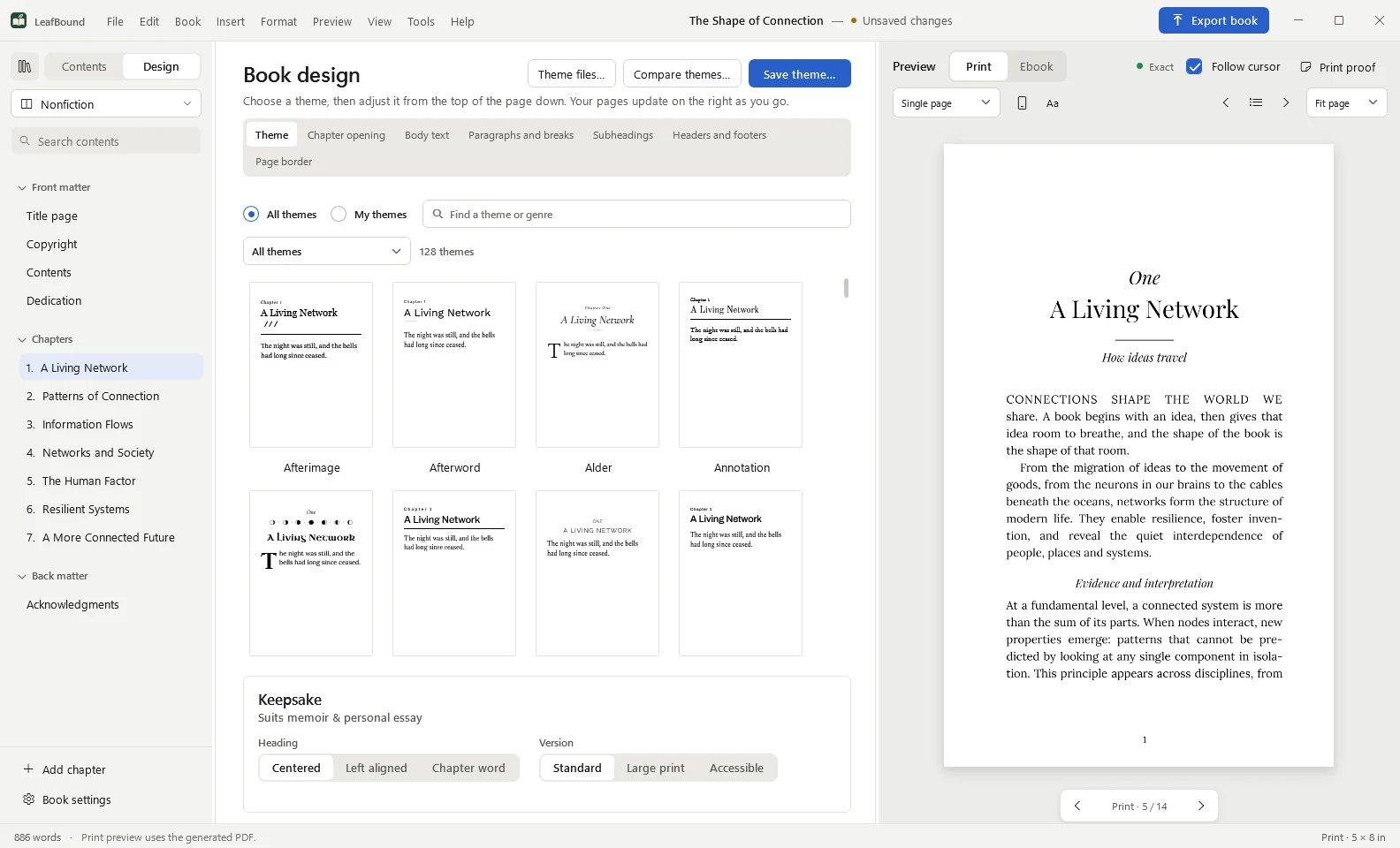
What the Theme tab shows
- The count beside the category list says how many themes match.
- The panel under the tiles names the current theme and the genres it suits, and adds "adjusted for this book" once you have changed it.
- Heading lists the theme's variations, such as centered, left aligned or with a chapter word. One click switches.
- Version switches between Standard, Large print and Accessible. See Large print and accessible versions.
- My themes shows the themes you have saved. See Save a theme for your other books.
Switching from an adjusted theme
If you have changed sizes or settings in the current theme, LeafBound asks Keep your adjustments? before switching. Choose Keep adjustments to carry your text sizes and every setting the new theme supports, or choose to use the new theme as designed. Either way you can undo the switch.
Themes and your plan
Every plan includes 14 core themes. Themes your plan does not include show a badge on the tile; choosing one tells you which plan adds it. The theme a book already uses is never locked, so books keep working whatever your plan.
Some themes come from a reference catalog and keep fixed chapter openings and subheadings. The other tabs say so when a setting cannot be changed for such a theme. If a theme cannot be applied, you see Could not apply the theme with the reason.
Related
- Compare themes side by side
- Large print and accessible versions of a theme
- Design the chapter opening
- Save a theme for your other books
Still stuck?
Choose Help then Report a problem… in LeafBound to send us the details, or write to support.