 LeafBound
The Chapter opening tab changes how each chapter begins. Every value starts at the theme's own setting, and each row has its own reset.
- Choose Format then Book design…, then the Chapter opening tab.
- Change any setting. The preview on the right updates.
- To go back to the theme's value for one setting, choose ↺ Theme beside it, or choose the "Theme default" entry in its list.
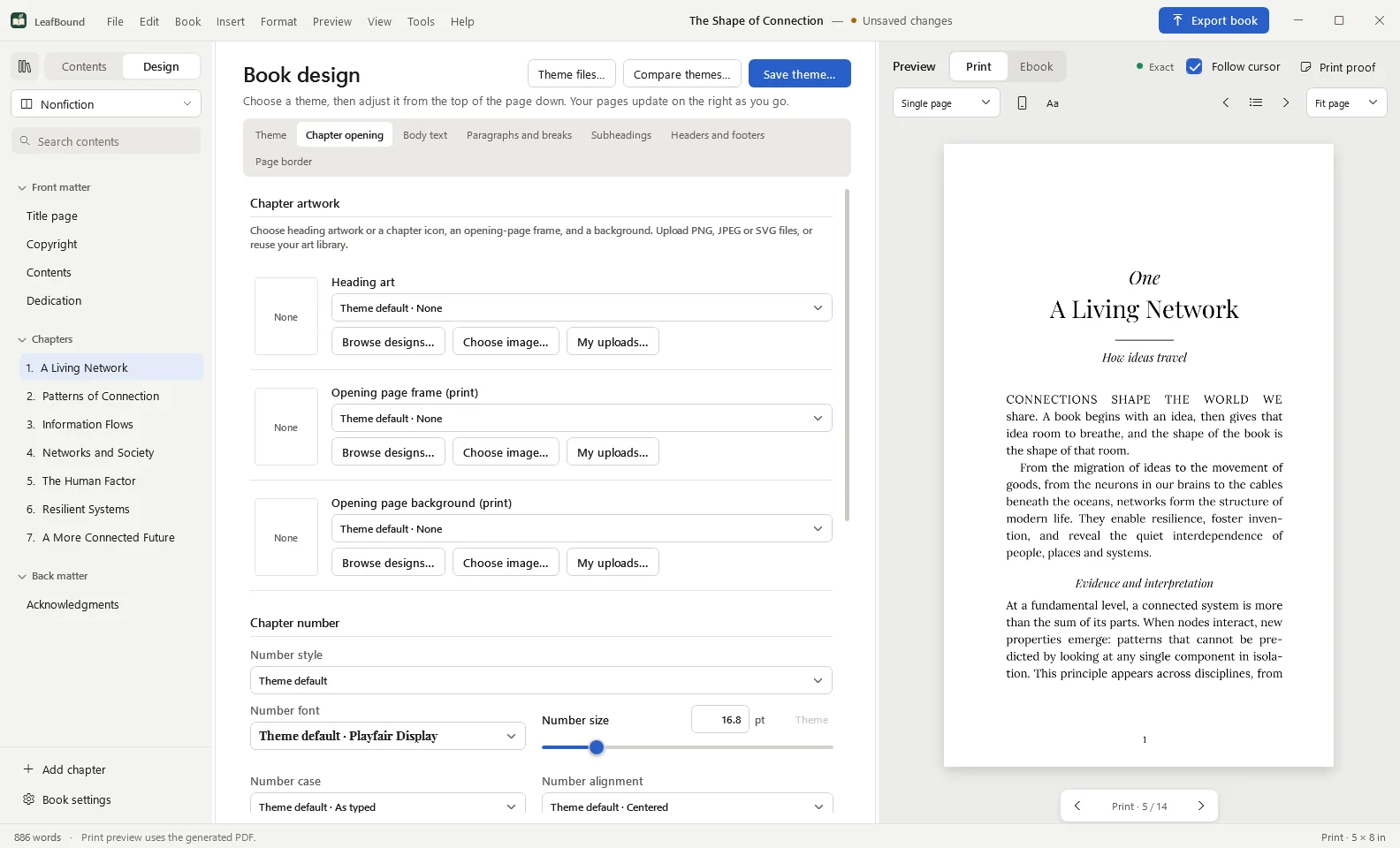
Settings
| Section | Settings |
|---|---|
| Chapter artwork | Heading art (art above or around the heading, or a chapter icon), Opening page frame (print) and Opening page background (print). See Use theme artwork and your own images. |
| Chapter number | Number style: theme default, 1, 01, I, i, One, Chapter 1, Chapter One, Chapter I or no number. Then Number font, Number size, Number case, Number alignment, Number letter spacing and Number width. |
| Chapter title | Title font, Title size, Title case, Title alignment, Title letter spacing and Title width. |
| Artwork placement and size | Heading art position (above the number, between number and title, or below the title), Space above the heading and Heading art width. |
How values are shown
- Sizes that grow with the text are shown in points for your print text size. Letter spacing is in em of the heading's own size, and widths are a percentage of the text block.
- Case can be as typed, capitals, lowercase or capitalize each word. Alignment can be left, centered or right.
- Each value row has a slider and a box. Type a number and press Enter, or drag the slider. A value out of range turns the box red and says the allowed range.
- The word Theme beside a value means it is the theme's own; ↺ Theme means you changed it, and clicking it puts the theme's value back.
- Font lists show each font in its own typeface, with fonts that embed in books first, then fonts installed on your PC.
Themes with fixed chapter openings
Some themes keep their chapter openings as designed. For those, the tab shows the note "This theme has fixed chapter openings. To adjust them, choose a theme that allows it on the Theme tab." and offers only Number style. To change the fonts, sizes and artwork, go to the Theme tab and choose a theme that allows it. See Choose a theme for your book.
In the accessible version of a theme, case, letter spacing and alignment are fixed.
Related
- Set the body text font, size and spacing
- Use theme artwork and your own images
- Style first paragraphs and scene breaks
Still stuck?
Choose Help then Report a problem… in LeafBound to send us the details, or write to support.