 LeafBound
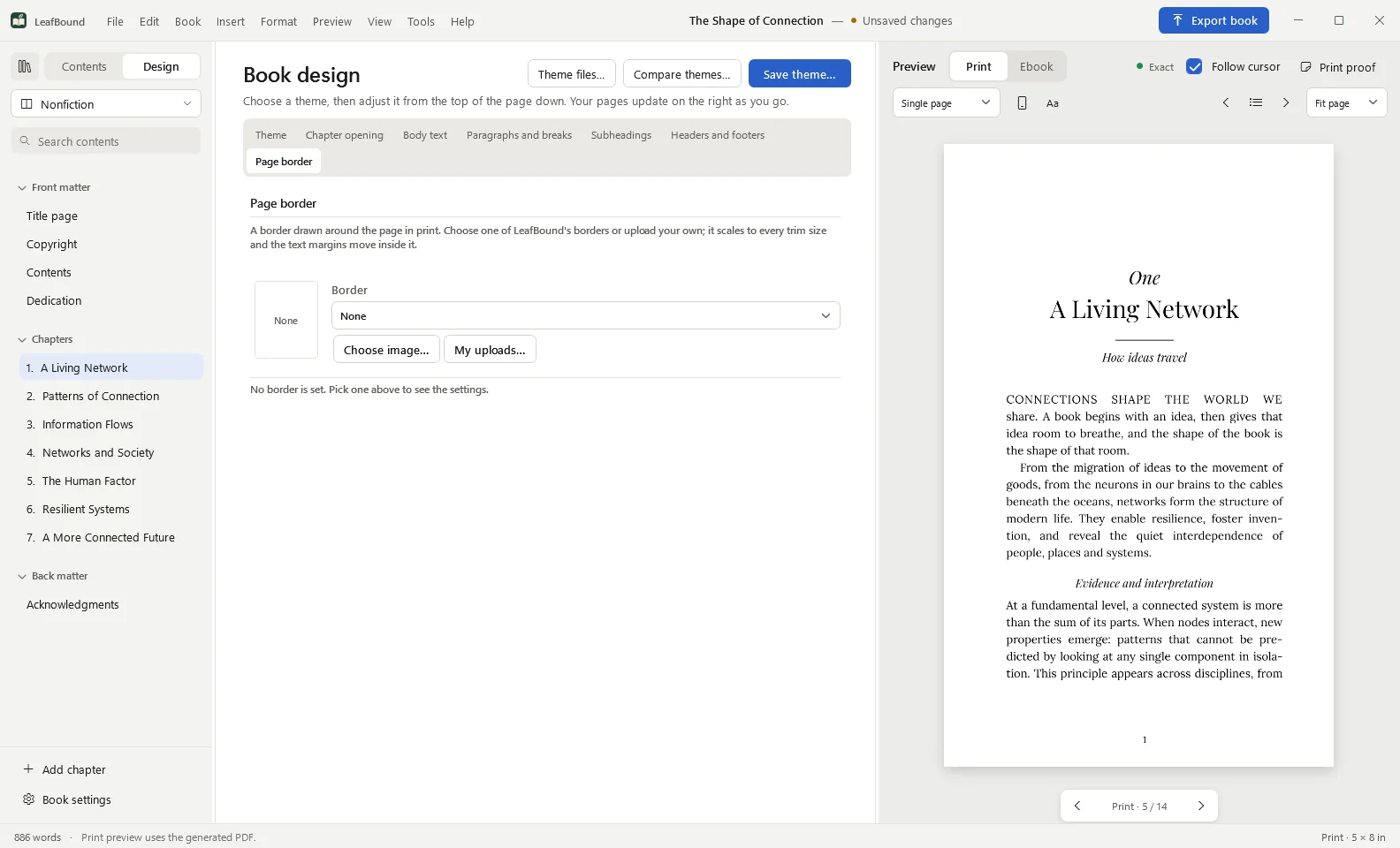
A page border is drawn around the page in print. It scales to every trim size and the text margins move inside it. Page borders are included from the Author plan.
- Choose Format then Book design…, then the Page border tab.
- Choose a Border from the list, or choose Choose image… to upload your own, or My uploads… to reuse one.
- Under Scale and placement, choose the Scaling and what to Measure the border from, then set the distance.
- Under Where it appears, choose the Pages and what Ebooks show.
Settings
| Setting | Choices |
|---|---|
| Scaling | Corners stay sharp, edges stretch or repeat, Stretch the whole image or Corners only. |
| Measure the border from | The trimmed page edge (inward) or The text block (outward). |
| Distance · in | How far the border sits from that edge, 0 to 2 in. |
| Runs to the trimmed edge (adds bleed) | For a border that bleeds off the page. |
| Mirror on left-hand pages | Flips the border on left-hand pages. |
| Move the text margins inside the border | Keeps the text clear of the border. |
| Tint | The art's own colors, the theme ink (black in print), or a custom color typed as #rrggbb. Tint recolors SVG line art; photographs keep their colors. |
| Opacity · % | 10 to 100. |
| Pages | Every body page (chapters and parts), Chapter openings only, Every page of the book, Part and volume pages or Front matter. |
| Ebooks | No border (print only) or Frame each chapter opening. |
An uploaded SVG may set its own corners; otherwise the outer 20% of the image becomes the corners.
One chapter different
In Chapter options…, the Page border choice can keep the book's border, show no border on that chapter, or use a different border only there.
What Print preflight checks
- Borders stay at least 0.375 in from the binding.
- A border inside the page keeps at least 0.25 in from the trim, so trimming never cuts it.
- A border that runs to the edge needs bleed; preflight offers to turn bleed on for the whole book.
- Photographic borders print at 300 ppi on the trim.
When special edition page frames are on, the tab shows them as the current border and says to change them in the special edition. Picture books and fixed-layout ebooks print their page frames in full.
Related
Still stuck?
Choose Help then Report a problem… in LeafBound to send us the details, or write to support.