 LeafBound
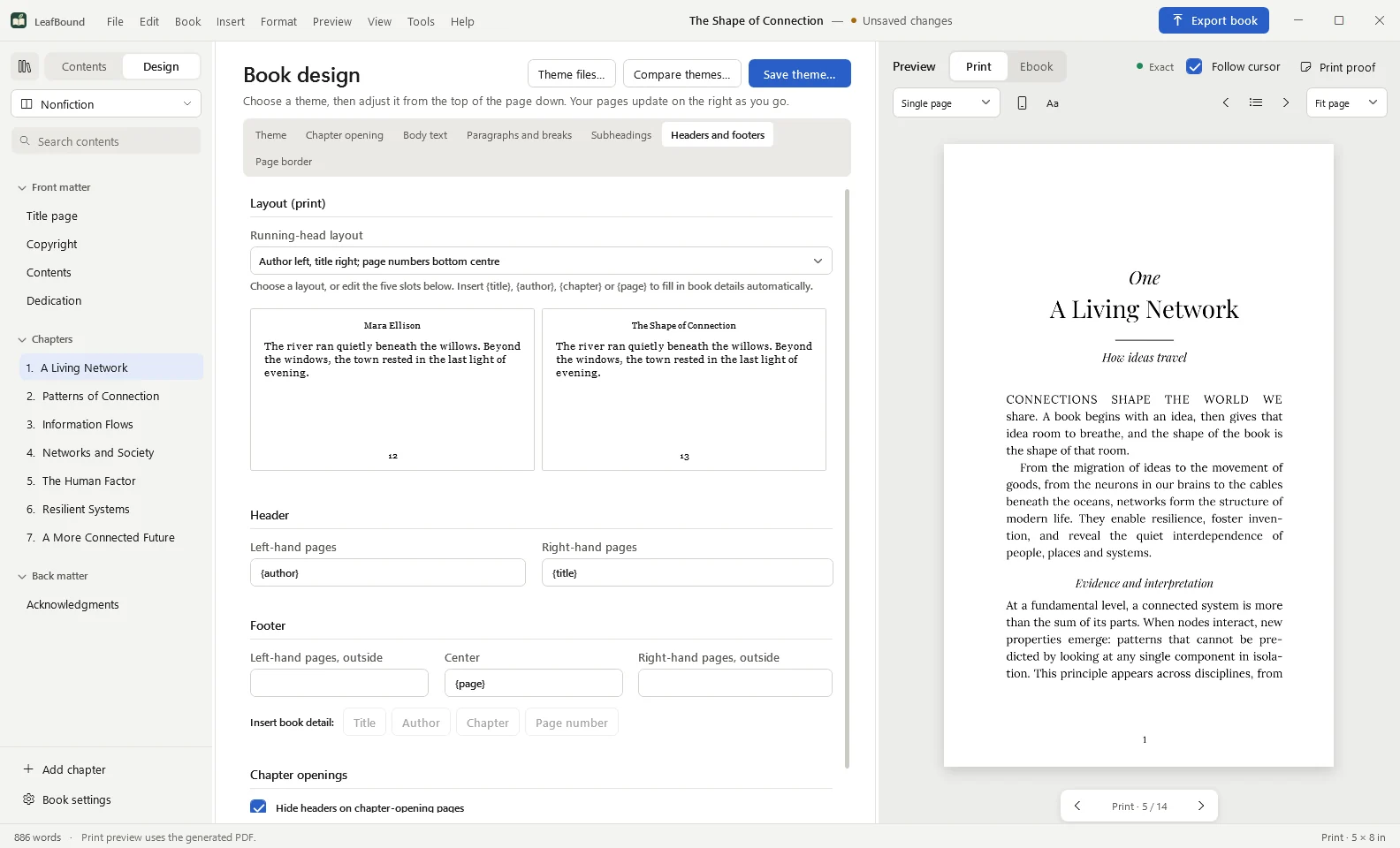
Running heads are the lines at the top and foot of printed pages. LeafBound has five slots: a header on left-hand and on right-hand pages, and a footer at the outside of each page and in the middle.
- Choose Format then Book design…, then the Headers and footers tab.
- Choose a Running-head layout. The diagram shows a left-hand and a right-hand page with your book's own title, author and chapter.
- To change a slot, click in it under Header or Footer and edit the text.
- Click a slot, then choose Title, Author, Chapter or Page number beside Insert book detail: to insert that detail at the cursor.
- Under Chapter openings, tick Hide headers on chapter-opening pages to keep opening pages clean.
Layouts
The fourteen layouts cover the usual combinations: author and title, title and chapter, or author and chapter in the headers with page numbers at the bottom; page numbers in the header corners with or without names; page numbers in the footer corners; the chapter or the title on both sides; page numbers only; and no running heads or page numbers at all. Editing a slot by hand switches the layout to Custom.
Book details in slots
Type {title}, {author}, {chapter} or {page} in any slot, or use the buttons. Text you type around them prints as it is, for example "{page} {author}".
Related
Still stuck?
Choose Help then Report a problem… in LeafBound to send us the details, or write to support.