 LeafBound
Most templates take a picture on the front. The Your artwork template is for a front cover you already have, made by a designer or in another program.
Add a picture to the front
- Choose Book then Cover….
- Under Picture, open the Front cover picture list and choose a picture already in the book, or choose Import… and pick a file in the Choose an image window.
- Look at the check on the right. It warns when the picture is too small for print.
Choose No picture for a cover set in type. The Band and Picture templates are at their best with a picture; without one they use a field of color.
Use your finished front cover
- Choose the Your artwork template.
- Under Picture, choose Your finished front cover from the list, or choose Import… to add it.
- Check the back and spine. LeafBound colors them from the edge of your picture next to the spine, with light or dark type, whichever reads better.
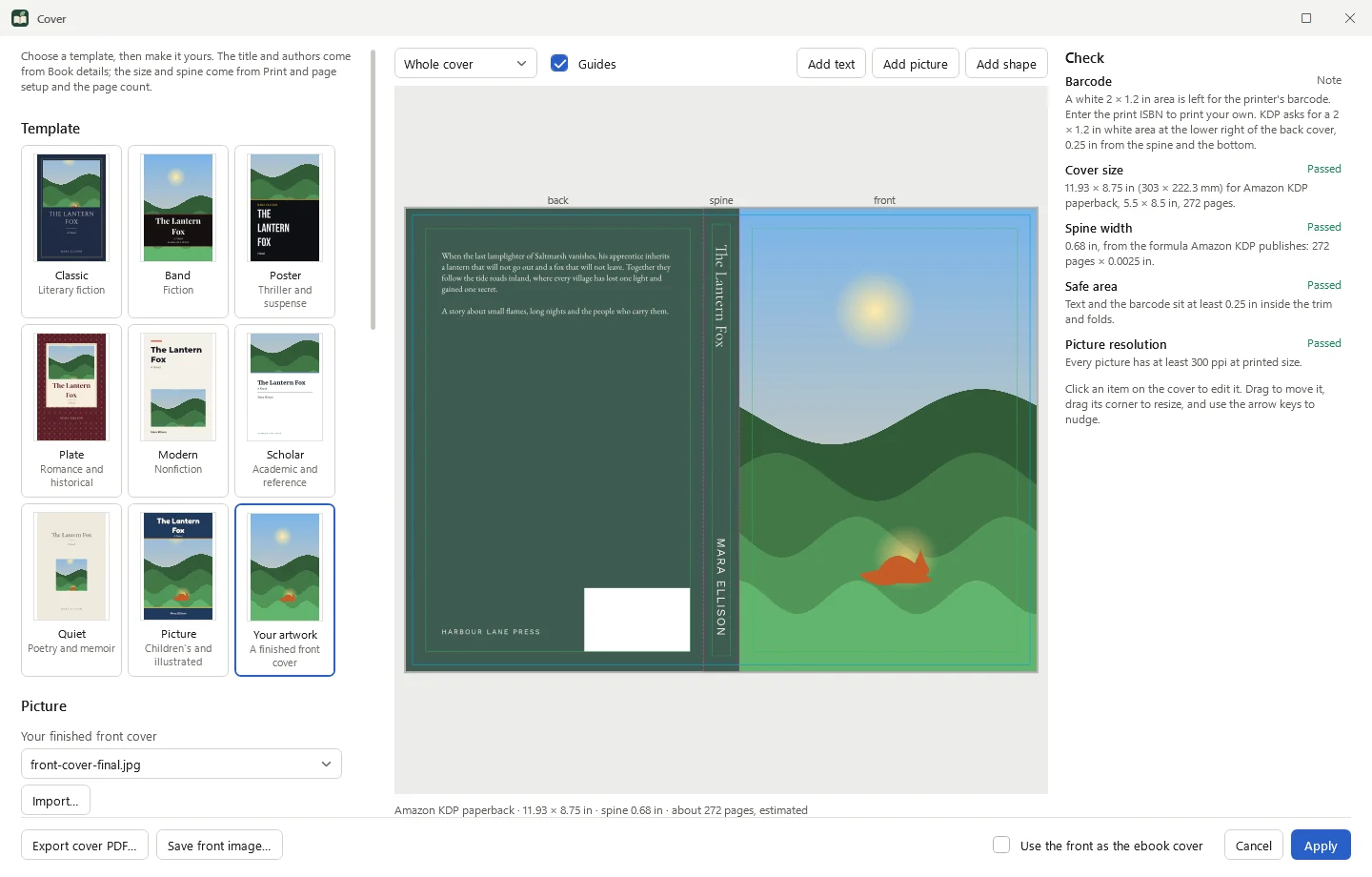
If a book already has a front cover image when you first open the designer, LeafBound starts with Your artwork and builds the spine and back around that image.
Picture quality
- For print, use a picture of at least 300 pixels per inch at the size it prints. The check names the printer's target and each picture that will print soft.
- A picture far below the target fails the check; one a little below it gives a warning.
- Cover pictures must be JPEG, PNG or TIFF. A missing picture, or one in another format, fails the check until you choose it again or remove it.
Related
Still stuck?
Choose Help then Report a problem… in LeafBound to send us the details, or write to support.