 LeafBound
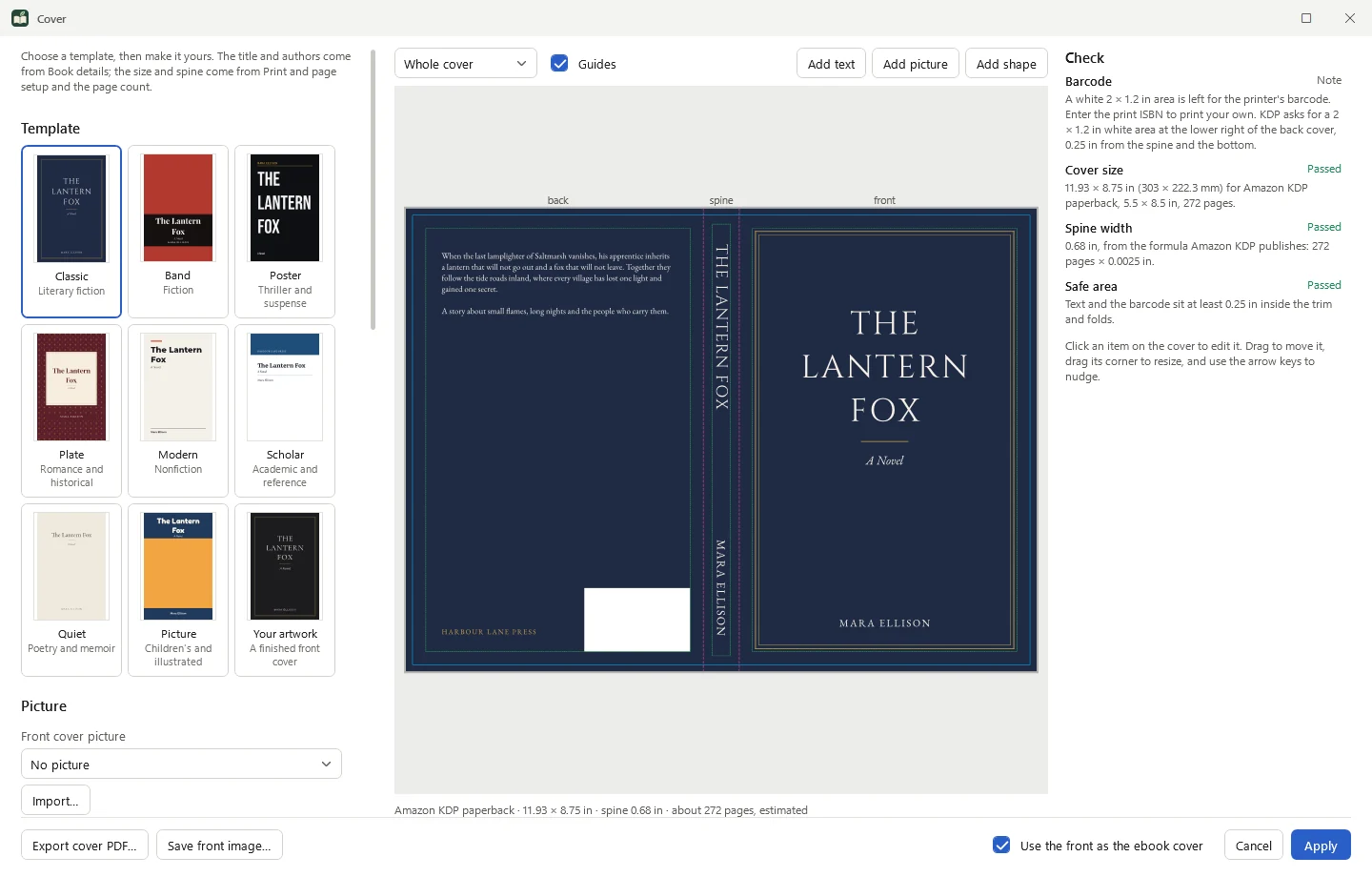
The cover designer makes the whole printed cover (back, spine and front, with flaps on a dust jacket) and the front cover for ebooks, from one design. The title and authors come from the book details; the size and spine come from Print and page setup and the page count.
- Choose Book then Cover…. You can also choose Cover… in the Export book window, or Design a cover… in the book details.
- Look at the cover LeafBound has laid out. The first time, it picks a template that suits your book type, or Your artwork when the book already has a front cover image.
- Choose another template under Template if you like. Each tile shows the front of your book in that template.
- Under Picture, choose a Front cover picture from the list or choose Import… to add one.
- Click a color swatch, or type colors in Background, Text and Accent.
- Under Type, choose a Title typeface and a Text typeface, and drag Title size to make the title smaller or larger.
- Choose Apply.
Templates
| Template | Suits | Look |
|---|---|---|
| Classic | Literary fiction | A ruled border, a capital title and room to breathe. |
| Band | Fiction | A picture or a field of color above a solid title band. |
| Poster | Thriller and suspense | One word to a line, as large as the cover allows. |
| Plate | Romance and historical | A patterned ground with the title on a framed plate. |
| Modern | Nonfiction | A bold title set left, with a short bar of color. |
| Scholar | Academic and reference | A colored head band, then title, subtitle and authors in order. |
| Quiet | Poetry and memoir | A small title on open paper, with space for one picture. |
| Picture | Children's and illustrated | The picture fills the cover between a title band and an author band. |
| Your artwork | A finished front cover | Your own front cover fills the front, and LeafBound adds the spine, back and barcode around it. |
LeafBound suggests Scholar for academic and study books, Modern for nonfiction, Quiet for poetry, Picture for picture books and illustrated books, and Classic for everything else.
The color swatches are ready-made schemes (Midnight, Ink, Paper, Burgundy, Slate, Bone, Harbour, Plum and Graphite). Each sets the background, text and accent colors together, and you can use any of them with any template. Colors are typed as six-digit codes such as #1F2A44.
Authors and long titles
The cover shows one to three authors by name. For an anthology it shows the volume editor; with more authors it lists every author and the type shrinks to fit. Titles are fitted to the panel they sit on, so one template suits every trim size.
The ebook cover
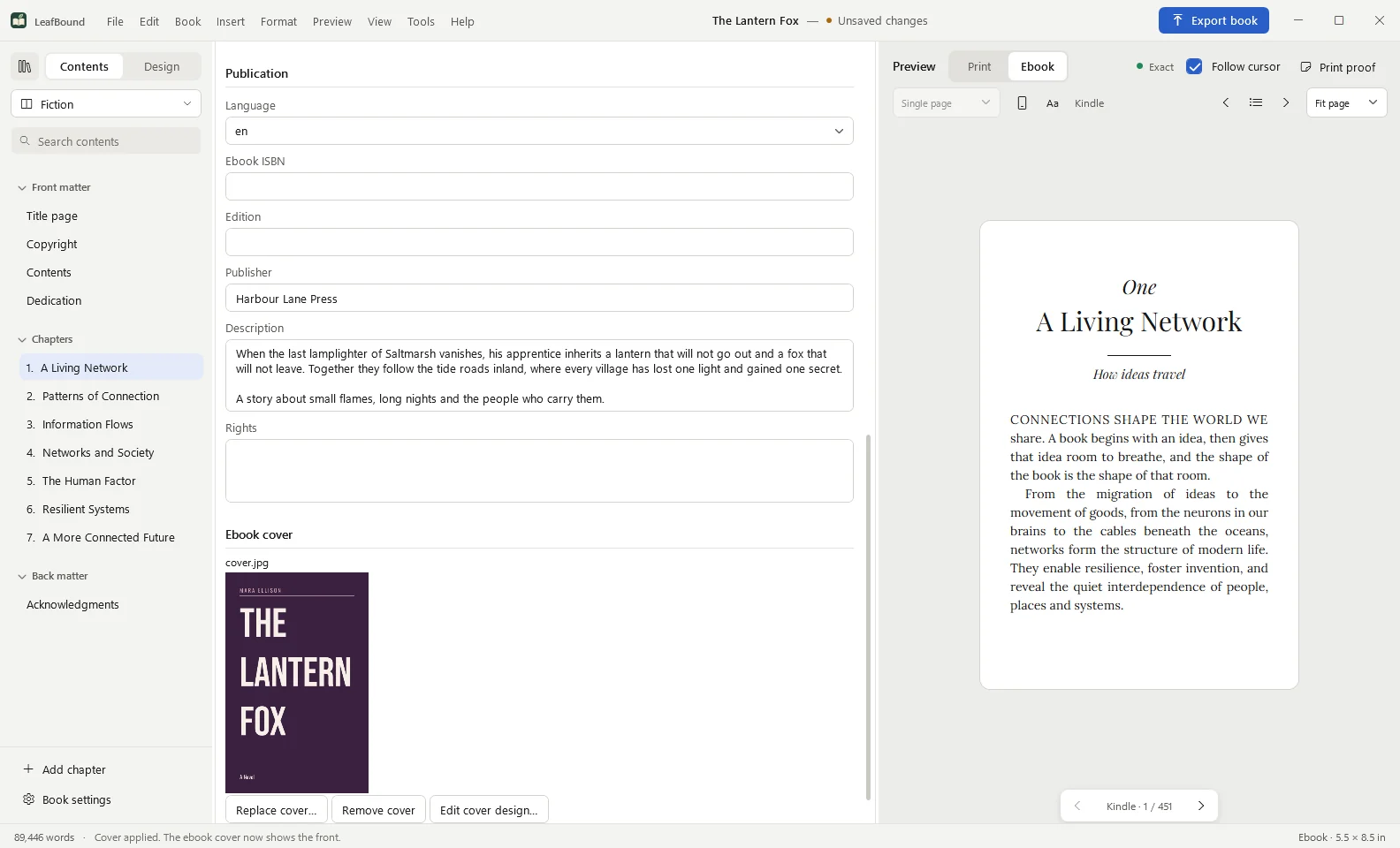
With Use the front as the ebook cover ticked (at the foot of the window), Apply also makes an image of the front and sets it as the ebook cover in the book details. Each time you apply the design, the image made from the last design is replaced; your own pictures are never removed. Untick it to keep a different ebook cover.
Closing the window
- Apply saves the design as one step you can undo with Ctrl+Z.
- Cancel closes the window. If you changed anything, LeafBound asks Discard your cover changes? before it closes.
- Open Book then Cover… again at any time. The book details show Edit cover design… once the book has a design.
Related
- Use a picture or your own finished front cover
- Move and edit items on the cover
- Size the spine and the full cover wrap
- Export the cover PDF and front cover image
- Set the ebook cover
Still stuck?
Choose Help then Report a problem… in LeafBound to send us the details, or write to support.