 LeafBound
Save a proof with guides
To check the layout before you export, choose Save proof with guides… at the foot of the cover designer, then choose a folder and name in the Save cover proof window. LeafBound saves a PNG picture of the whole cover with the trim, folds, bleed, safe area and barcode area marked. The proof is for checking only; send the printer the cover PDF.
Export the cover PDF
- Choose Book then Cover….
- Choose Export cover PDF… at the foot of the window.
- In the Export cover PDF window, choose a folder and a name, then choose Save.
- Read the result beside the button. It names the file, its size and color, and says whether every check passed or how many failed.
The PDF is one page, exactly the size of the whole wrap with bleed. It is CMYK PDF/X-1a when you chose CMYK or when the interior is a press file, and standard RGB PDF otherwise. Type is turned into outlines, so the printer needs no fonts.
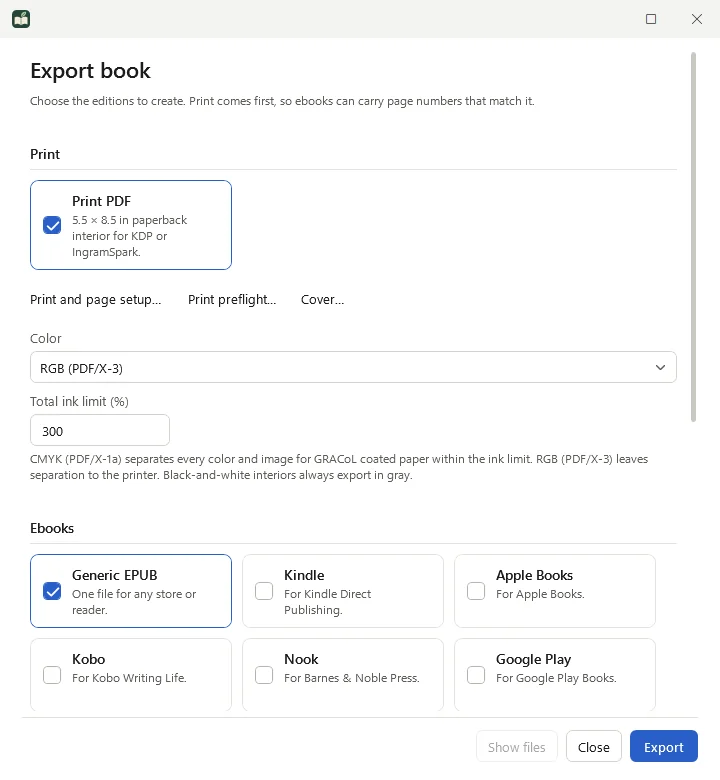
You can also reach the designer from the Export book window: choose Cover… under Print.
Save the front cover image
- Choose Save front image… at the foot of the cover designer.
- In the Save front cover image window, choose JPEG or PNG, a folder and a name.
- Choose Save. The message beside the button gives the size in pixels.
The image is the front alone, cut at the trim, 2,560 pixels on its longer side, which is what ebook stores ask for. Use it for your store pages, newsletters and social posts.
Limits
- A binding with nothing printed on the outside, such as a cloth case, has no PDF to export.
- Exporting the cover needs the Author plan or above. The trial does not export: during the trial, Export cover PDF… and Save front image… open the Buy LeafBound to export window and no file is made.
Related
Still stuck?
Choose Help then Report a problem… in LeafBound to send us the details, or write to support.