 LeafBound
Every part of a designed cover is an item you can select and change: the title, the author, the back cover text, the picture, rules and bands of color, and the barcode area.
- Choose Book then Cover….
- Click an item on the cover. Its properties replace the check on the right.
- Drag the item to move it, drag its corner to resize it, or press the arrow keys to nudge it.
- Change the item's properties on the right.
- Choose Show the check to go back to the check list.
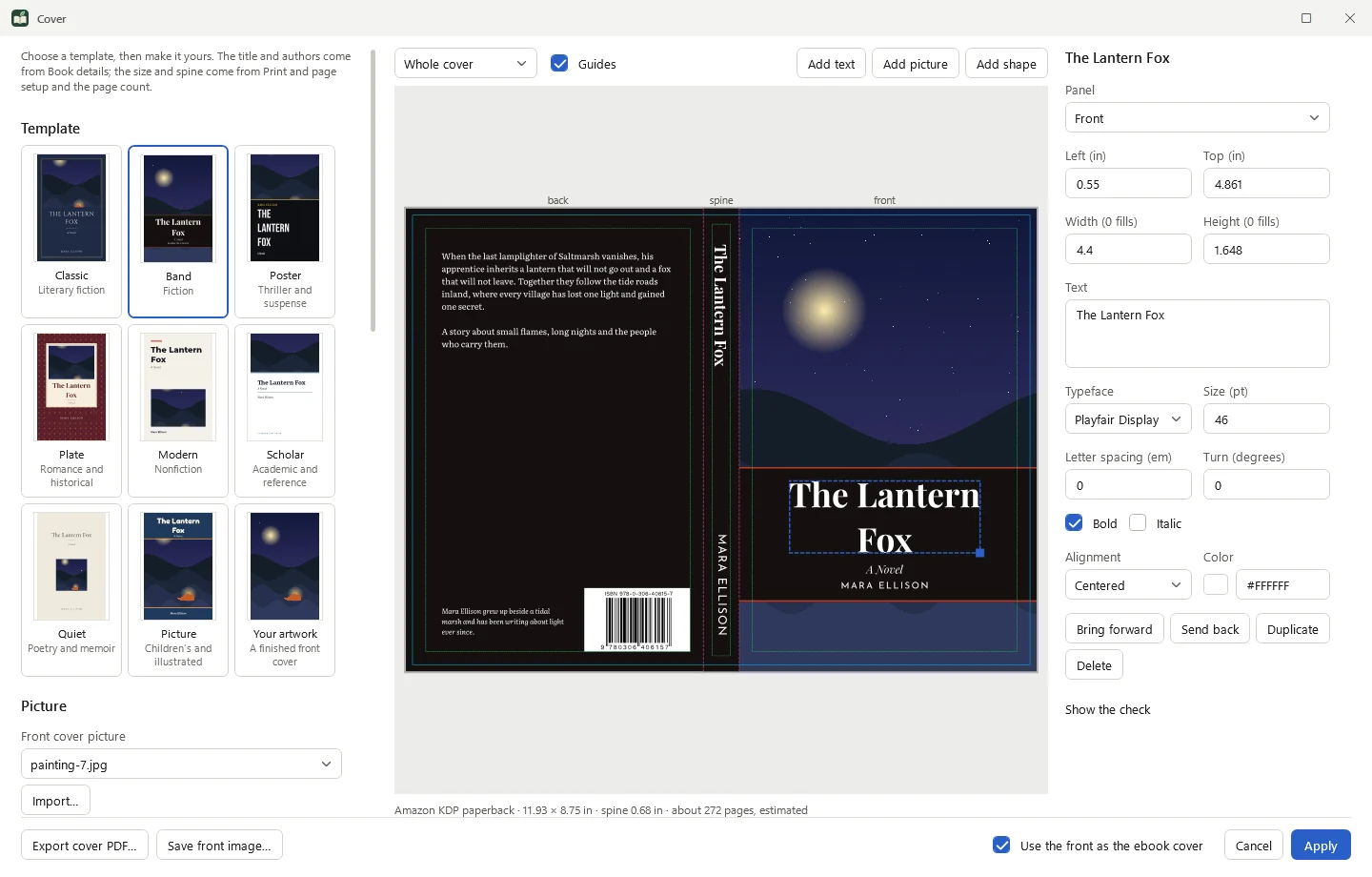
Item properties
| Property | What it does |
|---|---|
| Panel | The part of the cover the item belongs to: Front, Back, Spine, Front flap, Back flap or Whole cover. Positions are measured from that panel. |
| Left, Top | The position from the panel's top-left corner, in inches or millimeters as your settings use. |
| Width (0 fills), Height (0 fills) | The size. 0 makes the item fill the panel. |
| Text, Typeface, Size (pt) | For text items: the words, the font and the size. |
| Letter spacing (em), Turn (degrees) | Space between letters, and rotation (spine titles are turned 90 degrees). |
| Bold, Italic, Alignment | Weight, slant and alignment of the text. The color sits beside Alignment. |
| Picture, Fit | For pictures: which picture, and whether it fills and crops the box or fits inside it. |
| Run into the bleed where it meets the trim | For pictures and shapes: an edge that touches the trim carries on into the bleed, so no white line shows after cutting. |
| Bring forward, Send back | Moves the item in front of or behind its neighbors. |
| Duplicate, Delete | Copies the item slightly offset, or removes it. |
Add items
- Add text adds a text box saying "Your text" in the template's text typeface.
- Add picture asks for a picture file and places it.
- Add shape adds a thin bar in the accent color, which you can resize into a band or a block.
- New items go on the panel you are viewing; with Whole cover they go on the front.
View and guides
The View list shows the Whole cover, or just the Front or the Back at a larger size. Guides shows the trim, spine and safe-area lines; they never print.
When you have moved items by hand
Once you move or edit an item yourself, the template leaves the layout alone. A banner says so. Color and typeface changes still apply to your items. A new template, a new picture or new back cover text needs the cover laid out again:
- Choose Lay out again in the banner.
- Confirm Lay the cover out again? The template places every item again, and the items you moved go back to the template's layout.
Related
Still stuck?
Choose Help then Report a problem… in LeafBound to send us the details, or write to support.