 LeafBound
The preview pane on the right of the workspace shows your book as it will be printed. In print mode LeafBound composes the real print PDF with the same engine that exports your book, then shows its pages through the Windows PDF engine. Trim size, margins, running heads, page numbers, notes and pictures are exactly as they will print.
- Choose Preview then Print, or the Print tab at the top of the preview pane.
- Click in the chapter you want to see. With Follow cursor ticked, the preview turns to the page that holds the cursor.
- Use Previous page and Next page under the page to turn pages.
- Choose Facing pages in the page layout list to see left and right pages side by side.
The Preview menu
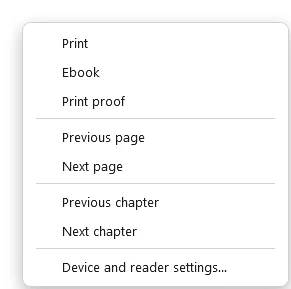
| Menu item | What it does |
|---|---|
| Preview then Print | Shows the print pages (the print draft). |
| Preview then Ebook | Shows the flowing ebook on the device chosen under Device and reader settings…. |
| Preview then Print proof | Shows the print pages in proof mode. Print preflight uses this mode when you choose Show page 12 in the print proof (the page number changes). In this release the print draft and the print proof show the same composed pages. |
| Preview then Previous page | Turns back one page, or one spread when Facing pages is chosen. |
| Preview then Next page | Turns forward one page, or one spread. |
| Preview then Previous chapter | Selects the element before the current one in the contents, opens it in the editor and shows it. |
| Preview then Next chapter | Selects the next element in the contents and shows it. |
| Preview then Device and reader settings… | Opens the device list: the ebook devices, Fixed layout (print pages) when the book has a fixed-layout edition, Print draft and Print proof. |
Controls in the preview pane
| Control | What it does |
|---|---|
| Print and Ebook | Switch between the print pages and the ebook. |
| Print proof | Switches to proof mode (its tooltip reads "Compose the final print proof"). |
| Follow cursor | Keeps the preview on the page you are editing. Turning pages by hand stops following until you edit again or tick it again. |
| Status label | Up to date or Exact when the page shown is finished, Rendering… or Updating… while LeafBound composes, Excluded when the selected element is not in the print edition, and Preview paused after a failure. |
| Single page and Facing pages | One page at a time, or the left and right pages of a spread together. Print only. |
| Device button | Device and preview edition: the same list as Preview then Device and reader settings…. |
| Aa | Reader theme and text size for the ebook preview. |
| Chapter arrows and list | Previous chapter, Preview contents (a list of every element; pick one to go to it) and Next chapter. |
| Zoom | Fit page fits the whole page in the pane; 100%, 125% and 150% show it larger with scroll bars. |
| Page label | For example Print · 12 / 240: the page shown and the total number of pages. |
When the pages update
After you stop typing, or after you change a setting, LeafBound waits about a quarter of a second and composes the pages again. While it works the status label says Rendering… or Updating…; when the new page is ready it says Exact and the status bar reads "Print preview uses the generated PDF." A long book shows its progress in the status bar after a few seconds, for example "Setting the pages · pass 2".
If a composition fails, LeafBound tries again twice. If it still fails, the pane shows "Preview needs another try" with a Retry rendering button, and your book is not changed.
Related
- How the print preview keeps up while you type
- Set the trim size, margins and bleed
- Check the print PDF before you upload
Still stuck?
Choose Help then Report a problem… in LeafBound to send us the details, or write to support.