 LeafBound
Print and page setup holds the settings that shape the printed pages. The preview follows each change as you make it; Apply keeps your settings and Cancel puts the previous layout back.
- Choose Book then Print and page setup…. The same window opens from Print and page setup… in Book settings and in Export book.
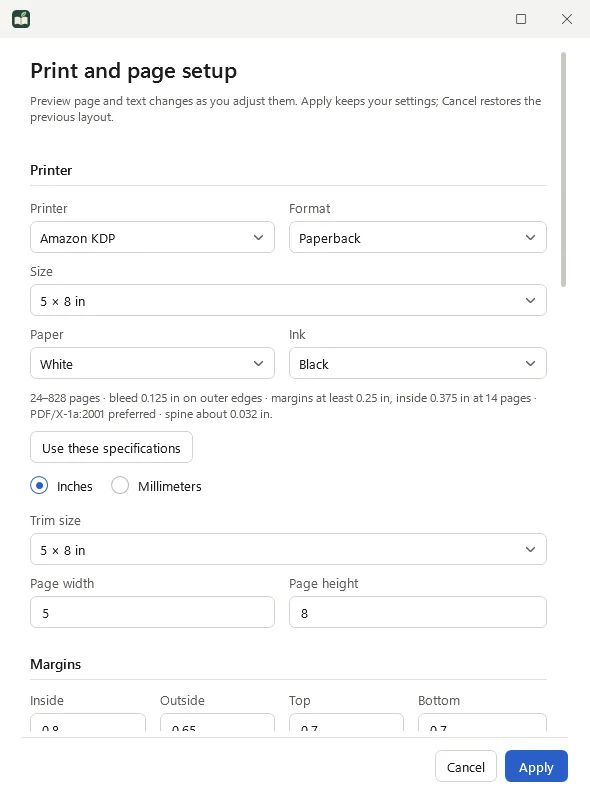
- Under Printer, choose your printer, format, size, paper and ink, then choose Use these specifications to take that printer's size, bleed and minimum margins.
- Choose a Trim size, or type a Page width and Page height.
- Adjust the Inside, Outside, Top and Bottom margins if you need to.
- Choose Apply.
Size and margins
| Option | What it does |
|---|---|
| Inches and Millimeters | The unit for the numbers in this window. |
| Trim size | The finished page size. Choosing a size also resets the inside margin (1 in for pages 8 in wide or wider, otherwise 0.875 in) and the outside margin (0.5 in for pages narrower than 5 in, otherwise 0.65 in). It never changes the text size. Custom appears when you type your own size. |
| Page width and Page height | A custom size: width from 3 to 14 in, height from 4 to 20 in. |
| Inside, Outside, Top, Bottom | Margins from 0.1 to 3 in. Inside is the binding edge; left and right margins mirror across facing pages. The margins must leave at least half an inch of text area in both directions, or LeafBound shows "The margins must leave at least half an inch for content in both directions." |
| Text | Shows the body text size and line spacing. Change them in Design under Body text, where every heading size follows. |
The trim sizes in the list are 5 × 8 in, 5.25 × 8 in, 5.5 × 8.5 in, 6 × 9 in, 5.06 × 7.81 in (B format), 5.5 × 8.25 in, 6.14 × 9.21 in, 4 × 6 in, 4.12 × 6.75 in, 4.25 × 7 in, 4.37 × 7 in (A format), 105 × 148 mm (A6), 130 × 180 mm, 120 × 190 mm, 125 × 190 mm, 135 × 205 mm, 148 × 210 mm (A5), 135 × 215 mm, 7 × 10 in, 8 × 10 in, 8.25 × 11 in, 8.5 × 11 in, 190 × 270 mm and 210 × 297 mm (A4). The entries marked Large print are the same sizes again; choosing one sets only the size and margins, not a larger text size.
Contents, chapters and page numbers
| Option | What it does |
|---|---|
| Automatically include a print table of contents | Adds a generated Contents page to the print edition, placed before the first chapter, part or volume. Chapter titles, subtitles and printed page numbers update by themselves. The ebook keeps its own contents. |
| Include chapter subtitles in contents | Prints each chapter's subtitle under its title in the contents. A chapter with its own author (in an anthology) always shows the author. |
| Begin the first chapter on the right | Starts the first chapter on a right-hand (odd) page, adding a blank page before it when needed. |
| Begin every chapter on the right | Starts every chapter on a right-hand page. |
| Start page numbering | Initial page counts from the first printed page. First chapter starts page 1 at the first chapter, so the front matter is not counted. |
| Prevent widows where supported | Keeps at least two lines of a paragraph together at the top and bottom of a page. |
| Request balanced spreads | Asks for facing pages to end on the same line. After each export LeafBound measures the spreads and lists any that do not match. See Check that facing pages end on the same line. |
| Keep subheads with following text | Keeps a subheading on the same page as the text after it. |
Where the page numbers and running heads sit on the page is part of the design: change it in Design under Headers and footers.
Images, bleed and press output
| Option | What it does |
|---|---|
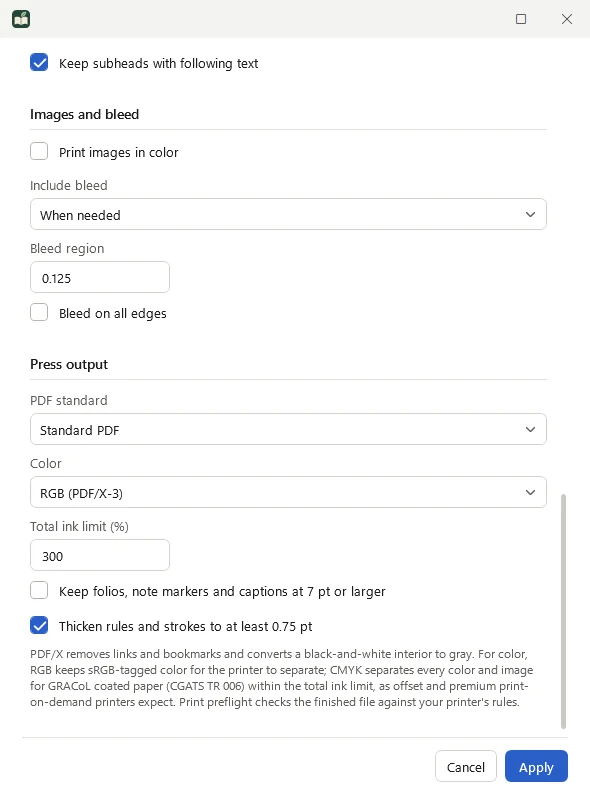
| Print images in color | Keeps pictures in color. Off, every picture is converted to gray for a black-and-white interior. |
| Include bleed | None: pages at trim size. When needed: bleed is added only when the book has full-page or background pictures, designed pages, a full-width heading picture at the top of a page, or a page border set to run to the edge. Always: every page has bleed. |
| Bleed region | How far art extends past the trim, from 0 to 0.5 in. Most printers ask for 0.125 in. |
| Bleed on all edges | Adds bleed on the binding edge too. Most printers want bleed on the outside, top and bottom edges only. |
| PDF standard | Standard PDF or PDF/X for print (X-1a gray, X-1a or X-3 color). Choosing PDF/X needs a plan that includes it. |
| Color | RGB (PDF/X-3) leaves color separation to the printer. CMYK (PDF/X-1a) separates every color yourself; it also turns on PDF/X and color pictures. |
| Total ink limit (%) | The most ink a CMYK file may lay down in one spot, from 200 to 400 percent. |
| Keep folios, note markers and captions at 7 pt or larger | Raises small generated text (page numbers, note numbers, captions) to at least 7 pt. |
| Thicken rules and strokes to at least 0.75 pt | Makes hairlines, rules and border strokes at least 0.75 pt thick in the print PDF. |
Related
Still stuck?
Choose Help then Report a problem… in LeafBound to send us the details, or write to support.