 LeafBound
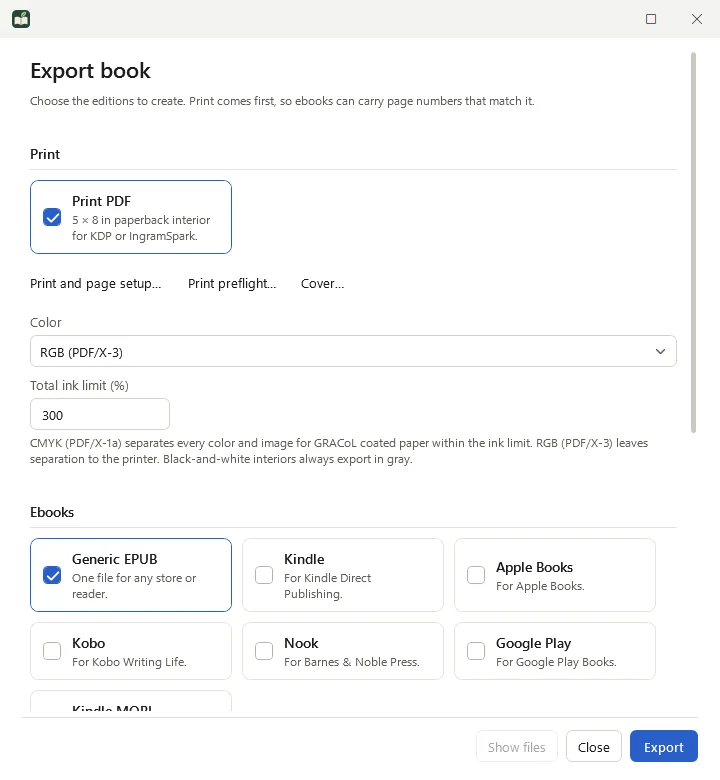
- Choose File then Export book… (Ctrl+G).
- Under Print, tick the Print PDF card. It shows your trim size.
- If you need to, use Print and page setup…, Print preflight… or Cover… from the buttons under the card, and choose the Color.
- Under Save to, type a folder or choose Browse…. Tick Include the subtitle in file names or Add today's date to file names if you want them.
- Choose Export. If a file of the same name is already there, LeafBound asks before replacing it.
- When it finishes, choose Show files to open the folder.
The results
The print PDF is always made first, so the ebooks can carry page numbers that match it. The results list the number of pages, where the file was saved, its PDF standard, and the Print preflight verdict, followed by notes that need your attention. Notes you may see:
- "Balanced spreads were requested. Check facing pages in the proof, as bottom lines are not always aligned."
- How many rules or strokes were thickened for print.
- That a PDF/X file passed LeafBound's structural checks, or why PDF/X was not produced.
- KDP notes, when KDP publishing checks are on.
How the file is made
LeafBound measures the book, then sets the pages up to eight times until the contents page, running heads and note labels stop changing. Each step is shown in the status bar for a long book. Composition runs in a separate LeafBound process, so the editor stays usable. The finished file has your trim size (plus bleed), page labels that match the printed numbers, and the title, author and language from Book details; every font is embedded.
Related
Still stuck?
Choose Help then Report a problem… in LeafBound to send us the details, or write to support.