 LeafBound
Smart import
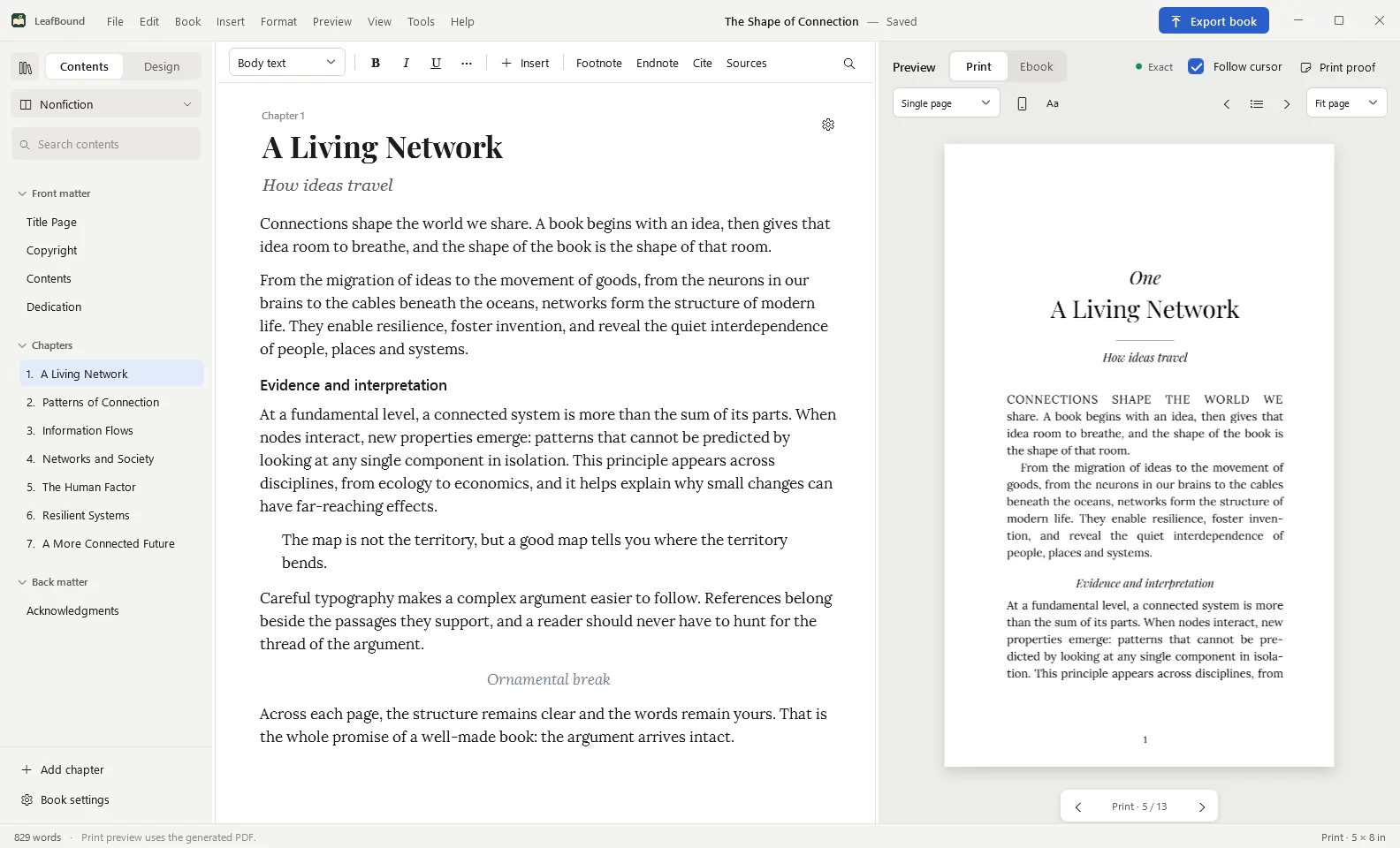
Open your manuscript. The chapters are already in place.
LeafBound reads a Word, RTF, Markdown, plain text or EPUB file and works out the book inside it: the title page, the parts, the prologue, every chapter and the back matter. Then it tells you what it found and lists every line it moved.
- 9kinds of file it opens, from Word and RTF to Scrivener and LaTeX
- 31 of 31real manuscripts imported in testing with every letter accounted for
- 47 of 47import structure tests passing
- $79once, in the Author tier
What smart import does with your file
Finds chapters typed any way
It reads heading styles, lines such as “Chapter 1”, “Part Two” or “Book III”, numbered headings, a change in type size and bold lines set off from the text.
Builds the title page
The title, subtitle, by-line and credits are read from the opening lines, including lines that begin “Title:” or “Subtitle:” and credits such as “Edited by” and “Translated by”.
Replaces a typed contents list
A contents list you typed, or one Word generated, is swapped for LeafBound’s own contents page, which keeps itself up to date.
Cleans up the typing
Empty paragraphs and manual breaks are removed, lines of ***, # or ~ become scene breaks, and a drop cap made by hand is rejoined to its word.
Lists everything it moved
Nothing is dropped silently. Every line the import moved is listed, so you can check it against your original.
Recognizes anthologies
Chapter authors are read from “by” lines or italic name lines. When most chapters have their own author, the book is set up as an anthology.
Every kind of file it opens.
Manuscripts from Word and the other writing apps, projects from Scrivener and Vellum, and LaTeX books.
Choose a file and LeafBound opens it as a new book. A Word file carries the most: headings, footnotes and endnotes, lists, images with their alt text, links, emphasis and Word equations. Tracked changes are accepted on import, and text that sat inside Word text boxes is recovered.
- Word (.docx), with everything listed above.
- Rich text (.rtf). LeafBound also writes RTF, through Export manuscript as rich text.
- Markdown (.md, .markdown) and plain text (.txt). Each has its own importer, followed by the same title page and clean-up. A file that arrives as one undivided chapter is read again for structure.
- EPUB (.epub), opened as a new book with the same title page and clean-up.
- Vellum (.vellum) projects from Vellum 4.1.5.
- Scrivener (.scriv) projects and Apple Pages documents. Tested on sample projects; check the result in the preview.
- LaTeX (.tex) books, in the Academic tier: BibTeX, included files, macros, equations, figures, tables and cross-references, with a review summary. TikZ drawings, \includepdf and some packages are skipped, and a very large thesis takes a while to print. See LaTeX books.
- Other formats, such as ODT: if your writing app can save a Word (.docx) file, import that.
What it finds.
A manuscript typed with bold and a bigger font still has a shape. Smart import reads it.
Real heading styles are the clearest signal, and LeafBound uses them when they are there. When they are not, it looks for lines such as “Chapter 7”, “Part Two” or “Book III”, for numbered headings such as I, II or 1:, for a change in type size, and for bold lines set off from the text around them. From those it builds the parts, the prologue, the chapters, and the front and back matter.
The opening lines become a title page with the title, the subtitle, the by-line and credits such as Edited by and Translated by. If it reads a name wrong, select the title page in the chapter list and the book details open for editing.
In a collection, a “by” line or an italic name under a chapter title is read as that chapter’s author. Chapter authors then appear in the contents and in the print running head. LeafBound for anthology editors covers multi-author books.
What it replaces and removes.
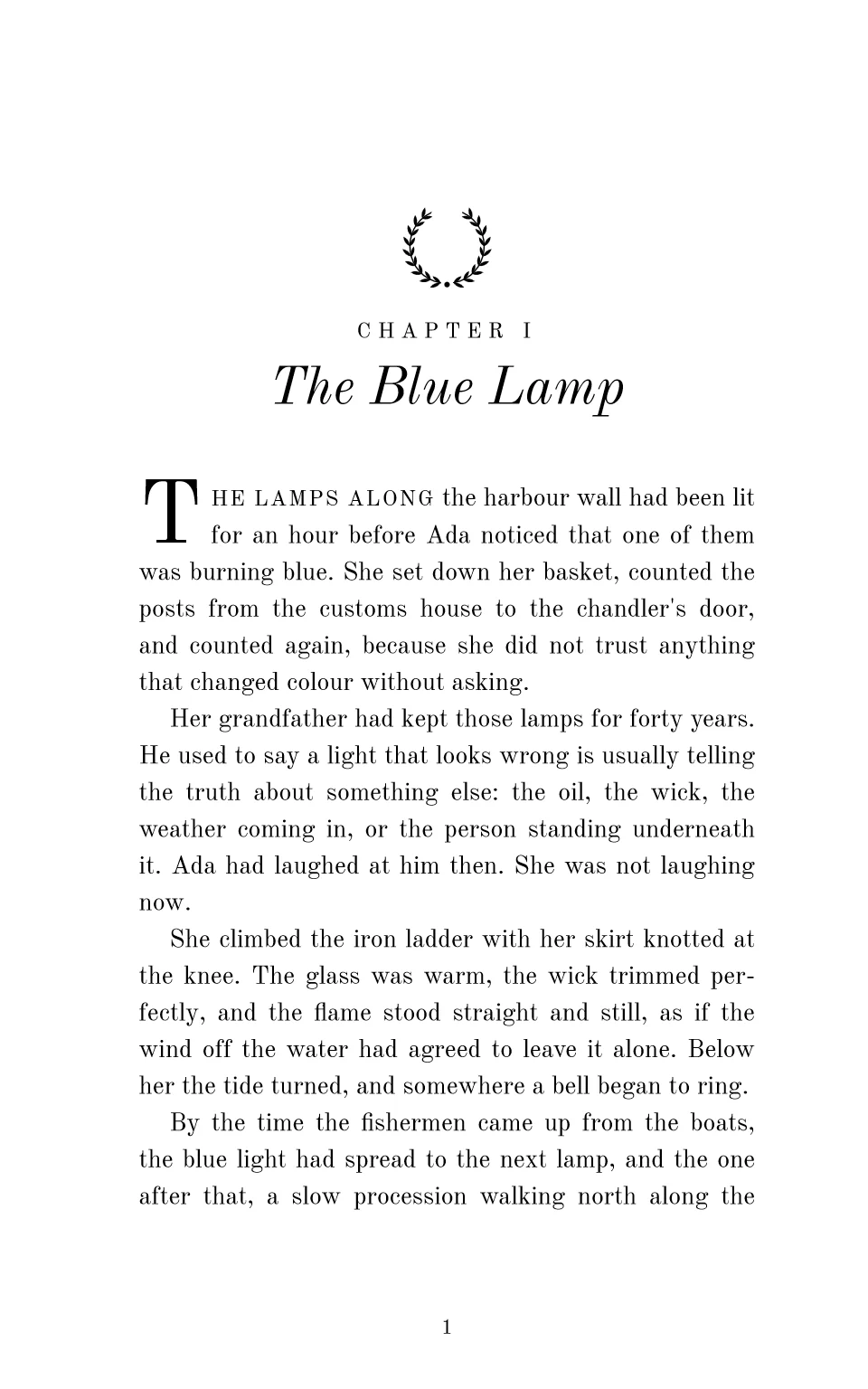
A contents list that you typed, or that Word generated, goes out of date the moment a chapter moves. LeafBound replaces it with its own contents page, built from the chapters and kept up to date. It does this when the typed list names headings that appear later in the manuscript, which is how it tells a contents list from ordinary text.
It also removes what was only there to push text around: empty paragraphs and manual breaks. Lines of ***, # or ~ become real scene breaks, and a hand-made drop cap is rejoined to its word so the theme can set a proper one.
Page size, margins, headers and footers are not carried over, because the theme and the trim size you choose replace them. If you would like to tidy the file first, the Word import guide lists ten steps to a clean .docx.
What it shows you before you start.
The import ends with a summary you can check.
When the import finishes, LeafBound shows the title, the authors and the language it found, with one line that sums up the structure, for example “Found 19 chapters, 6 parts, a prologue and a title page”. Nothing is dropped silently: every line the import moved is listed. If something is wrong at the source, fix the manuscript and use Reimport Word file, which replaces the text and keeps the book’s settings.
From there the book is ready to design. Pick a theme, check the pages in the print preview and export. One manuscript goes from docx to a print PDF and an EPUB edition for each store. Your text can leave again at any time through Word export.
Which tier
Author, $79 once.
Smart import is part of the Author tier, with 14 core themes, print preflight and the ebook editions. LaTeX import is part of Academic. The free 4-day trial includes every tool in the personal tiers.
Questions
How do I convert a Word document to a book?
Open the .docx in LeafBound. Smart import finds the title page, the parts and the chapters, you choose a theme and a trim size, and LeafBound exports a print-ready PDF and the ebook editions. You do not rebuild the layout by hand.
Do my chapters need Word heading styles?
No. LeafBound also finds chapters from “Chapter 1” and “Part Two” lines, numbered headings, type size and bold lines. Real heading styles still leave the least to guess, and the Word import guide shows how to apply them.
Can I turn a Markdown file into a book?
Yes. LeafBound opens .md and .markdown files as a new book, builds the title page, runs the same clean-up as for Word, and exports the same print PDF and ebook editions. Plain text files work the same way.
Are footnotes, images and equations kept?
From a Word file, yes. Footnotes and endnotes, lists, images with their alt text, links, emphasis and Word equations come across. Footnotes and endnotes explains how notes are then set in print and in ebooks.
Can LeafBound import RTF, ODT, Pages or Scrivener files?
RTF, Pages and Scrivener, yes. LeafBound opens RTF files, Apple Pages documents and Scrivener (.scriv) projects, as well as Word (.docx), Markdown, plain text and EPUB files and Vellum projects. Pages and Scrivener import was tested on sample projects, so check the result in the preview. For ODT, save a Word file from your writing app and import that.
Can I import a LaTeX manuscript?
Yes, in the Academic tier. LaTeX (.tex) import reads a .tex book with BibTeX, equations, figures, tables and cross-references and shows a summary to review. TikZ drawings, \includepdf and some packages are skipped. The LaTeX import guide describes the import.
What if I change the manuscript in Word afterward?
Use Reimport Word file. It replaces the manuscript and keeps the book’s settings.
Keep reading
Import your manuscript and read the summary.
The free 4-day trial lets you import your own manuscript, see what smart import found and try a theme on it.
Early access · Author from $79 once · free 4-day trial · Windows 10 and 11