 LeafBound
Guide · Word (.docx)
Prepare your Word manuscript, then import it.
Most books start in Word, and most formatting problems start there too: headings that are only bold text, footnotes typed by hand, a contents page built manually. Ten minutes of cleanup in Word gives any tool, LeafBound included, a manuscript it can read correctly. LeafBound’s smart import then does much of the rest for you. This guide shows the cleanup, what LeafBound reads on import, and the three routes from Word to EPUB.
Ten steps to a clean .docx
Do these in order. Each one takes a minute, and together they decide whether the import is clean or a day of fixing.
Use Heading 1 for chapter titles
Apply the Heading 1 style to every chapter title, including front and back matter titles such as Prologue, Acknowledgments and About the author. Heading 1 is the one signal every importer understands. LeafBound’s smart import also finds chapters from lines such as “Chapter 1” or “Part Two” and from numbered headings, but a real style leaves nothing to guess.
Use Heading 2 for sections
Sections inside a chapter get Heading 2, and sub-sections Heading 3. Never skip a level. Do not make a heading by bolding and enlarging body text.
Keep body text in Normal
Every paragraph of body text in the Normal style (or Body Text). Do not set fonts, sizes, indents or spacing by hand; the theme sets those. First-paragraph and scene-break treatment are applied by LeafBound.
Use real italics and bold
Apply italics and bold with the buttons or Ctrl+I and Ctrl+B. Do not underline for emphasis and do not use a different font for a “typewriter” passage; mark it and style it after import.
Insert real footnotes
References > Insert Footnote. Word footnotes import as footnotes; typed superscript numbers with notes at the end of the file are just text and have to be rebuilt by hand.
Use page breaks, not blank lines
Where a chapter must start on a new page, use Insert > Page Break (Ctrl+Enter), or better, rely on Heading 1, which LeafBound already treats as a new chapter. Never press Enter until the text moves to the next page. LeafBound’s import removes empty paragraphs and manual breaks, but other tools keep them.
Place images inline with alt text
Insert > Pictures, with the layout set to In Line with Text, not floating. Right-click the image, choose View Alt Text, and write a description. Keep images at their full resolution; do not shrink them in Word.
Remove the manual table of contents
Delete any table of contents you built by hand or with Word’s TOC field. Other tools keep it as text. LeafBound’s import replaces a typed contents list with a generated one, and builds the contents page from the headings, with dot leaders and final page numbers for print and a navigation document for the EPUB.
Remove headers and footers
Running heads and page numbers belong to the printed layout, and LeafBound sets them per part of the book. Any header or footer text in the .docx is ignored on import, so clear it to avoid confusion.
Save as one .docx
One file for the whole book, in .docx format (not .doc or .odt), chapters in order. LeafBound also imports .rtf, but a .docx is what these steps prepare. Close Word before importing so the file is not locked.
Why prepare rather than format
Word can lay out a book. It cannot lay out the same book twice, once for print and once as a reflowable EPUB, from one file. Everything you do to make the print version look right (page size, mirror margins, section breaks, headers, a fixed contents page) is exactly what gets in the way of the ebook, and Word has no EPUB export at all. So the useful work in Word is not layout. It is structure: telling the file which lines are chapter titles, which paragraphs are body text, which notes are footnotes, and which words are emphasized. Structure survives import into any tool. Layout does not.
That is also why the ten steps above never mention fonts, margins or page numbers. A theme supplies those after import, and you can change the trim size at the end without touching a paragraph.
What LeafBound reads on import
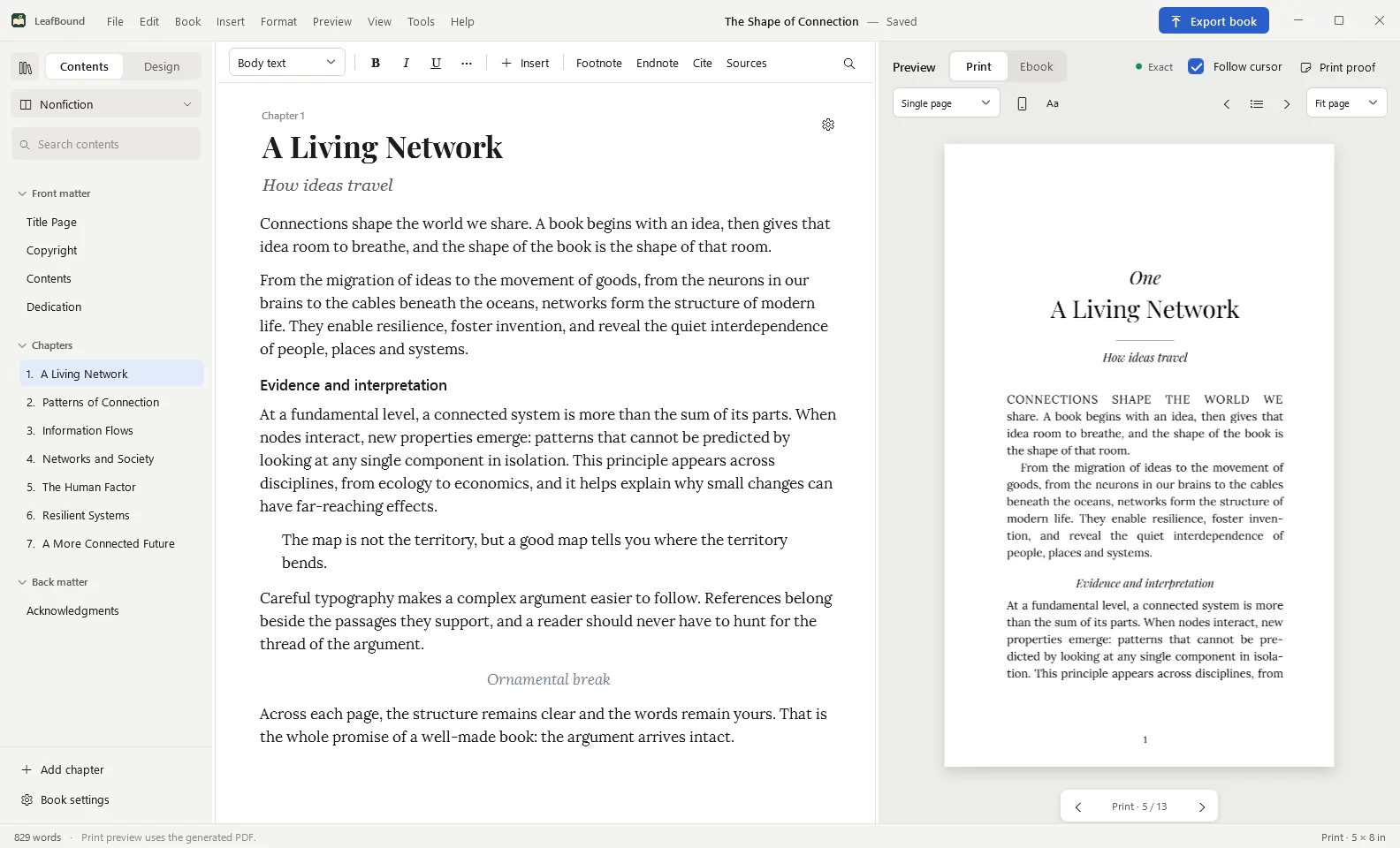
LeafBound reads the structure of a .docx and ignores its layout. Chapters, headings, footnotes, images and emphasis come across. Smart import goes further, even in a manuscript typed with direct formatting: it finds the title page, parts, prologue, chapters and back matter; replaces a typed contents list with a generated one; removes empty paragraphs and manual breaks; and turns lines of * * * into scene breaks. Nothing is dropped silently: everything it moved is listed. Markdown, plain text and EPUB files get the same treatment. The table lists each Word style and what it becomes.
| Word style or element | What LeafBound makes of it |
|---|---|
| Heading 1 | Chapter (or part) title. Starts a new chapter with the theme’s chapter opening. |
| Heading 2 | Subheading inside a chapter. |
| Heading 3 | Lower-level subheading inside a chapter. |
| Normal / Body Text | Body paragraph. Indents, spacing and first-paragraph treatment come from the theme. |
| Footnotes | Real Word footnotes become LeafBound footnotes: same page as the reference in print, linked notes in ebooks. |
| Images (inline) | Imported with their alt text. LeafBound asks for any missing description before an ebook export. |
| Italic, bold | Kept as emphasis. |
| Title, subtitle and credit lines | Read from the opening lines (including “Edited by” and “Translated by”) into an automatic title page. |
| “Chapter 1”, “Part Two”, numbered headings | Detected as chapters and parts even without Heading 1, along with a prologue and back matter. |
| Empty paragraphs and manual breaks | Removed. |
| Lines of * * * | Become scene breaks. |
| Page size, margins, headers, footers | Not imported. The theme and your trim size replace them. |
| Typed table of contents | Replaced by a generated contents page and the EPUB navigation document. |
| Tables | Check after import. LeafBound has tables (Insert > Table, four styles), exported to Word and EPUB. |
Word to EPUB: three routes compared
Word cannot save an EPUB, so a .docx reaches a store by one of three routes: a free converter (Calibre, a desktop app; Pandoc, a command-line tool), a book formatter, or KDP’s own conversion when you upload the .docx directly to Kindle (no EPUB, no other stores). The table compares the first two with LeafBound. Calibre and Pandoc facts are from their documentation as of 3 November 2026; where the docs do not state a behavior, the cell says so.
| Calibre | Pandoc | LeafBound | |
|---|---|---|---|
| Price | Free | Free | $79 one-time (4-day trial) |
| How it works | Add the .docx, choose Convert to EPUB | One command in a terminal | Import the .docx, choose a theme, export |
| Navigation table of contents | Yes, built from headings (check the detection setting) | Yes, built from headings | Yes, from Heading 1 and Heading 2, plus landmarks |
| Footnotes become linked notes | Kept as links; pop-up note markup not stated in the docs we checked | Kept as linked notes | Yes, with backlinks, and on the same page as the reference in print |
| Images with alt text | Carries Word alt text where present; check the output | Carries Word alt text where present; check the output | Yes; asks for any missing description before export |
| Accessibility metadata | You add it to the package by hand | You add it to the package by hand | EPUB Accessibility 1.1 metadata on every edition |
| EPUBCheck-clean | Usually; run EPUBCheck on the result | Usually; run EPUBCheck on the result | Tested with EPUBCheck and Ace in LeafBound’s test suite |
| Store editions | No; one EPUB | No; one EPUB | Kindle, Apple Books, Kobo, Nook and Google Play editions with their own store links |
| Print PDF from the same source | No | Not from the EPUB command; PDF needs a separate LaTeX setup | Yes: PDF/X-1a:2001 or PDF/X-3:2002 with KDP and IngramSpark preflight |
A converter is the right choice for a plain novel going to one store, or for a quick proof of how a manuscript reads on a phone. LeafBound is the right choice when the print book and the ebook come from the same source, when footnotes, images or accessibility matter, or when the book goes to more than one store. See the comparison of book formatters for the wider field.
If you stay in Word
If the book is text only and goes to KDP paperback once, Word can get it there. Three settings do most of the work:
- Page size: Layout > Size > More Paper Sizes, set to the trim (6 x 9 in, for example), or the trim plus bleed if any page bleeds. See KDP trim sizes.
- Mirror margins: Layout > Margins > Custom Margins, then Multiple pages: Mirror margins. Set the inside margin from KDP’s page-count table and the outside margins to at least 0.25 in (0.375 in with bleed). See KDP margins.
- KDP templates: KDP publishes Word templates per trim size with these settings already made. They save the setup but not the rest: fonts must be embedded when you save the PDF, running heads need section breaks, and a late trim change means redoing the margins.
What Word still cannot do: PDF/X-1a or PDF/X-3 output, a KDP or IngramSpark preflight, an EPUB, or page-bottom footnotes that also work in an ebook. If any of those is on the list, prepare the file and import it.
Back to Word at any time
Import is not a one-way door. LeafBound exports an editable .docx at any time, with chapters, headings, notes and emphasis intact, so an editor or proofreader who works in Word can keep working in Word. Import the corrected file again and the theme, trim and settings are unchanged. The Academic edition imports the same way and adds a source library, citations and equations after import.
Word import questions
Can Microsoft Word save as EPUB?
No. Word saves PDF, but it has no EPUB export. To make an EPUB from a .docx you need a converter (Calibre or Pandoc, both free) or a book formatter such as LeafBound that imports the .docx and exports EPUB and store editions.
Does KDP accept a .docx?
Yes, for ebooks. KDP lists DOC and DOCX among its accepted ebook manuscript formats, checked 3 November 2026, and converts the file itself. You get no control over the result and no accessibility metadata, so check it in Kindle Previewer. For paperbacks, upload a PDF.
How do I make chapter headings in Word?
Put the cursor in the chapter title and apply the Heading 1 style from the Home ribbon. Do that for every chapter, and use Heading 2 for sections inside a chapter. Avoid making a heading by enlarging and bolding Normal text: it looks the same, but most tools cannot tell it is a chapter. LeafBound’s smart import can often spot such lines by their size and spacing, and a real heading style leaves nothing to guess.
Should I format the whole book in Word or use software?
Word is fine for a plain text book printed once, if you are careful with mirror margins, section breaks and embedded fonts. The moment you need a print PDF and an EPUB from the same text, footnotes that work in both, accessibility metadata, or a change of trim size late on, dedicated software saves the time you would spend redoing it. Preparing the manuscript well in Word is useful either way.
Is Calibre good for converting Word to EPUB?
For a simple novel, yes: it is free and makes a working EPUB with a contents list from your headings. Check the result with EPUBCheck and in Kindle Previewer. It does not write accessibility metadata or store editions, and footnotes come through as plain links.
Does LeafBound keep my Word footnotes?
Yes. Real Word footnotes import as LeafBound footnotes. In print they sit on the same page as their reference; in ebooks they become linked notes with backlinks. Typed superscript numbers with notes at the end of the file do not: they are just text.
What is lost on import?
Page layout: page size, margins, headers, footers and columns. LeafBound replaces those from the theme and the trim you choose, which is the point of importing. A typed contents list is replaced by a generated one, and empty paragraphs and manual breaks are cleaned up. Chapters, headings, footnotes, images and emphasis come across, and anything the import moved is listed so you can check it. LeafBound has tables (Insert > Table, with four styles), so check any table after import and rebuild it there if needed.
Can LeafBound import RTF, Markdown, plain text or EPUB?
Yes. Word (.docx), RTF, Markdown, plain text and EPUB files open as a new book, and Vellum projects open too. Markdown, text and EPUB get the same smart import as Word: the title page, parts, prologue, chapters and back matter are detected, and the same clean-up runs.
Can I get my book back into Word later?
Yes. LeafBound exports an editable .docx at any time, with the chapter structure, notes and emphasis, so an editor who works in Word can keep working in Word.
More guides
Import your Word manuscript and see it typeset.
Clean up the headings, import the .docx, and compare three themes side by side before you decide anything else.
Early access · Author from $79 once · free 4-day trial · Windows 10 and 11