 LeafBound
Guide · Print
KDP margins and the gutter, by page count.
The gutter is the inside margin, the one next to the spine, and KDP’s minimum for it depends only on page count. This guide gives the five bands, the outside-margin rule with and without bleed, the IngramSpark equivalent, a worked example and the Word settings.
What the gutter is
The gutter is the inside margin of a page, the one next to the spine. KDP’s minimum gutter depends only on page count, not on trim size. A thick book curves more sharply into its binding, so more of the inside edge disappears from view, and the margin has to grow to keep the text readable without cracking the spine.
On a left-hand page the gutter is on the right; on a right-hand page it is on the left. That is why book margins are mirrored, and why a single symmetrical margin set in a word processor is wrong for print: one side of every spread ends up with the gutter on the outside.
Inside margin by page count
| Page count | Minimum inside margin | In millimeters |
|---|---|---|
| 24 to 150 | 0.375 in | 9.5 mm |
| 151 to 300 | 0.5 in | 12.7 mm |
| 301 to 500 | 0.625 in | 15.9 mm |
| 501 to 700 | 0.75 in | 19.1 mm |
| 701 to 828 | 0.875 in | 22.2 mm |
These are minimums. Many typesetters add 0.125 in or more to the inside value for a comfortable opening, and set the outside margin wider still so the text block sits slightly toward the spine. The KDP print calculator gives the band for any page count.
Outside, top and bottom margins
The three outer edges share one rule, and the rule changes when the file has bleed, because the trim cut can wander by about 1/16 in and text has to stay clear of it.
| File | Outside | Top | Bottom |
|---|---|---|---|
| Without bleed | 0.25 in | 0.25 in | 0.25 in |
| With bleed | 0.375 in | 0.375 in | 0.375 in |
IngramSpark margins
IngramSpark recommends at least 0.5 in from the trim on every side, plus about 0.125 in of extra gutter on the inside for perfect-bound and hardcover books, especially those over 400 pages. There is no page-count table; the 0.5 in applies to short books too, which makes IngramSpark stricter than KDP below 300 pages and about the same above it.
If you plan to publish the same interior on both, set the inside margin to the larger of KDP’s band and 0.625 in, and the outer margins to 0.5 in. One file then passes both. The IngramSpark formatting guide has the rest of the Ingram rules.
Worked example: a 320-page 6 x 9 novel
A novel that typesets to 320 pages at 6 x 9 in, text only, no bleed, destined for both KDP and IngramSpark.
| Item | Value |
|---|---|
| Page count | 320 (band 301 to 500) |
| Inside margin, KDP minimum | 0.625 in |
| Outside, top and bottom, KDP minimum | 0.25 in (no bleed) |
| Inside margin, IngramSpark | 0.5 in plus about 0.125 in gutter, so 0.625 in |
| Outside, top and bottom, IngramSpark | 0.5 in |
| Values that pass both | Inside 0.625 in; outside, top and bottom 0.5 in |
| Text block at those values | 4.875 x 8 in on a 6 x 9 in page |
Notice that the inside margin is larger than the outside one by only 0.125 in in this example. On the printed page the two look equal, because the binding takes the difference. If you can see that the inside margin is wider on a printed proof, you have added more than the book needs.
Mirror margins in Word
Word can set correct book margins, but only with mirror margins switched on. The steps below are for Word for Windows; Word for Mac has the same dialog under Format, Document.
- Open the margin dialog. In Word, choose Layout, then Margins, then Custom Margins at the bottom of the list.
- Turn on mirror margins. Under Pages, set Multiple pages to Mirror margins. The Left and Right boxes become Inside and Outside.
- Enter the inside margin. Type KDP’s value for your page count in Inside: 0.5 in for 151 to 300 pages, 0.625 in for 301 to 500, and so on. Leave Gutter at 0.
- Enter the outside margins. Type at least 0.25 in in Outside, Top and Bottom, or 0.375 in if the file has bleed. 0.5 in on all three passes IngramSpark too.
- Apply to the whole document. Set Apply to: Whole document, then check that no section break has its own margins (Layout, Breaks, and the section margins shown in Page Setup).
- Check after the last edit. Export to PDF, count the pages, and confirm the inside margin still matches the band. A late foreword can move you into the next band.
About Word’s Gutter box. Word adds the Gutter value to the inside margin (or to the top, if Gutter position is Top). So Inside 0.5 in plus Gutter 0.5 in gives a 1 in inside margin, which is twice what a 300-page book needs. Use one box or the other, not both, and check the result in Print Preview, where the inside margin alternates sides from page to page.
Why page count must be final
The inside margin depends on the page count of the finished file, and the page count depends on everything else: trim, font, size, leading, chapter openers, front matter and the margins themselves. Widening the inside margin to meet a band narrows the text block, which adds lines, which can add pages, which can cross into the next band. A 495-page draft at 0.625 in can become a 503-page book that needs 0.75 in.
So the order is: typeset the whole book, export the PDF, count the pages, then check the inside margin against the band, and recheck after any change. Checking a template before the text is in it proves nothing. The same applies to the trim size, which should be fixed before you typeset, not after.
How LeafBound checks margins
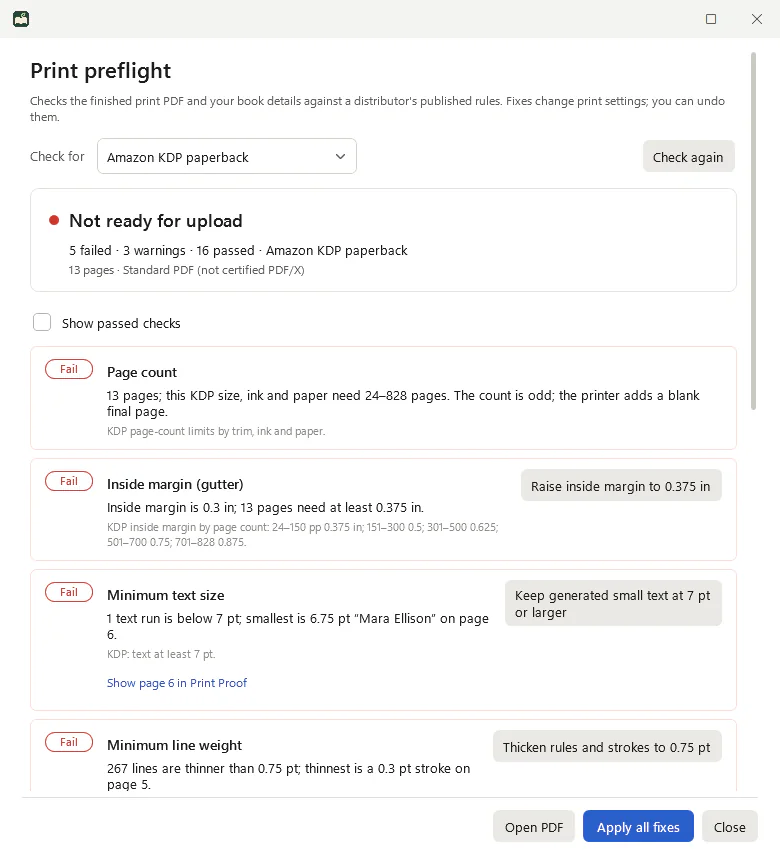
LeafBound composes the whole book first and then runs print preflight on the finished PDF. The Inside margin (gutter) check counts the pages, looks up KDP’s band or IngramSpark’s 0.5 in plus gutter rule, and compares it with the composed margin. If it fails, a one-click fix raises the inside margin, recomposes the book and runs the whole preflight again, so a band crossing caused by the fix is caught too. Separate checks cover the outside, top and bottom margins with or without bleed, and text inside the safe area, including running heads and folios.
Margins live in Print and page setup with the trim and bleed, and every one of the 128 themes keeps its text block inside the chosen margins at any trim.
Margin and gutter questions
What is the gutter on KDP?
The inside margin, next to the spine. KDP calls it the inside margin and sets a minimum by page count: 0.375 in for 24 to 150 pages, 0.5 in for 151 to 300, 0.625 in for 301 to 500, 0.75 in for 501 to 700 and 0.875 in for 701 to 828. It is larger on thick books because more of the page curves into the binding.
Does the gutter depend on trim size?
No. KDP’s inside margin depends only on page count. A 300-page book needs 0.5 in inside whether it is 5 x 8 or 8.5 x 11 in. The trim affects page count, though, so a smaller trim can push the same manuscript into the next band.
What are KDP’s outside margins?
At least 0.25 in on the outside, top and bottom edges when the file has no bleed, and at least 0.375 in when it does. Running heads and page numbers count as text and must sit inside those margins; most “text outside the printable area” rejections are a folio or running head placed too close to the edge.
How do I set a gutter in Word?
Go to Layout, Margins, Custom Margins. Under Pages, set Multiple pages to Mirror margins, so the boxes change from Left and Right to Inside and Outside. Put KDP’s inside value in the Inside box and leave the Gutter box at 0, or put the full inside value in Gutter and set Inside to match the outside margin; Word adds the Gutter box to the inside margin, so do not fill both.
Are IngramSpark margins different?
Yes. IngramSpark recommends at least 0.5 in from the trim on every side, plus about 0.125 in of extra gutter for perfect-bound and hardcover books, especially above 400 pages. That is stricter than KDP for short books and similar for long ones. Set the stricter value and one interior passes both.
Why do I have to finish the book before checking margins?
Because the page count sets the inside margin, and the page count is not known until the book is typeset. Adding a foreword, changing the font size or moving from 6 x 9 to 5.5 x 8.5 in can cross a band. A margin that was right for a 290-page draft fails at 305 pages.
How does LeafBound check the inside margin?
Print preflight reads the finished PDF, counts the pages, looks up KDP’s band and compares it with the composed inside margin. A failed check offers a one-click fix that raises the margin, recomposes the book and runs the check again, because the extra margin can itself add pages.
More guides
Let preflight check the gutter against the final page count.
Import your manuscript, compose it, and see the inside margin checked against KDP’s bands on the finished PDF, with a one-click fix if it falls short.
Early access · Author from $79 once · free 4-day trial · Windows 10 and 11