 LeafBound
Guide · Print
KDP rejected your interior PDF? What each message means.
KDP rejects or flags interior files for a short list of reasons, and the messages are terse. This guide decodes fifteen of them: what the message means, what caused it in Word or a formatter, how to fix it, and which print preflight check catches it before you upload.
The fifteen rejection reasons
Each row names the problem the way KDP’s previewer and email describe it, the usual cause, the fix in Word or a formatter, and the preflight check in LeafBound that reports it.
| KDP message | Cause | Fix | LeafBound preflight check |
|---|---|---|---|
| Text or images outside the printable area | Something sits closer than 0.25 in to the trim (0.375 in with bleed), or inside the gutter band for the page count. Usually a folio, running head or ornament. | Word: raise the margin in Layout, Margins, and check headers and footers separately. Formatter: raise the outer or inside margin and recompose. | Text inside the safe area; outside, top and bottom margins; inside margin against final page count. One-click margin fix. |
| Fonts not embedded | A font was referenced, not embedded. Word’s “Minimum size” PDF option, some PDF printers and fonts whose license forbids embedding all cause it. | Re-export with Optimize for Standard; convert to PDF/X-1a; replace any font that refuses to embed. | Embedded fonts. LeafBound embeds every font and refuses to import a font whose maker forbids embedding. |
| Page size does not match the trim size | The PDF page is not the trim size, or not trim plus bleed for a bleed book. A Letter-size page from a Word template is the classic case. | Set the page size to the trim (or trim plus 0.125 x 0.25 in with bleed) and re-export. Check KDP’s setup says the same trim. | Trim size against the chosen profile; trim and bleed boxes on every page. |
| Bleed required | Artwork reaches the page edge but the file has no bleed, or KDP’s setup says bleed and the file has none. | Add 0.125 in to the top, bottom and outside edges on every page and extend the artwork to the new edge. See the bleed guide. | Artwork at the trim edge; trim and bleed boxes. One-click bleed fix. |
| Images below 300 dpi | An image is lower than 300 dpi at its printed size, often because it was enlarged on the page. | Replace with a larger original; never upscale. Place at 100% or smaller. | Image resolution after scaling. |
| Transparency not flattened | Drop shadows, soft edges, PNGs with transparency or overlapping objects left live. | Flatten on export (PDF/X-1a does this); replace transparent PNGs with flattened images. | Transparency check; PDF/X-1a:2001 output flattens. |
| Too many blank pages | More than 4 blank pages in a row at the start or in the middle, or more than 10 at the end. | Remove padding pages; put “This page intentionally left blank” text on pages that must stay. | Blank-page runs. |
| Spreads instead of single pages | The PDF was exported as two-page spreads, so each PDF page holds two book pages. | Export single pages. In InDesign, uncheck Spreads; in Word, turn off Book fold. | Trim size (a spread is twice the trim width) and page count. |
| Crop marks or printer marks | Registration or crop marks were added on export, which enlarge the page and print as lines. | Export without marks; the page must be exactly the trim (or trim plus bleed). | Trim size; trim and bleed boxes. |
| File is encrypted or password-protected | Security settings were applied on export, or the file was signed. | Re-export with no security and no password; remove digital signatures. | The preflight reads the finished file; LeafBound never applies security. |
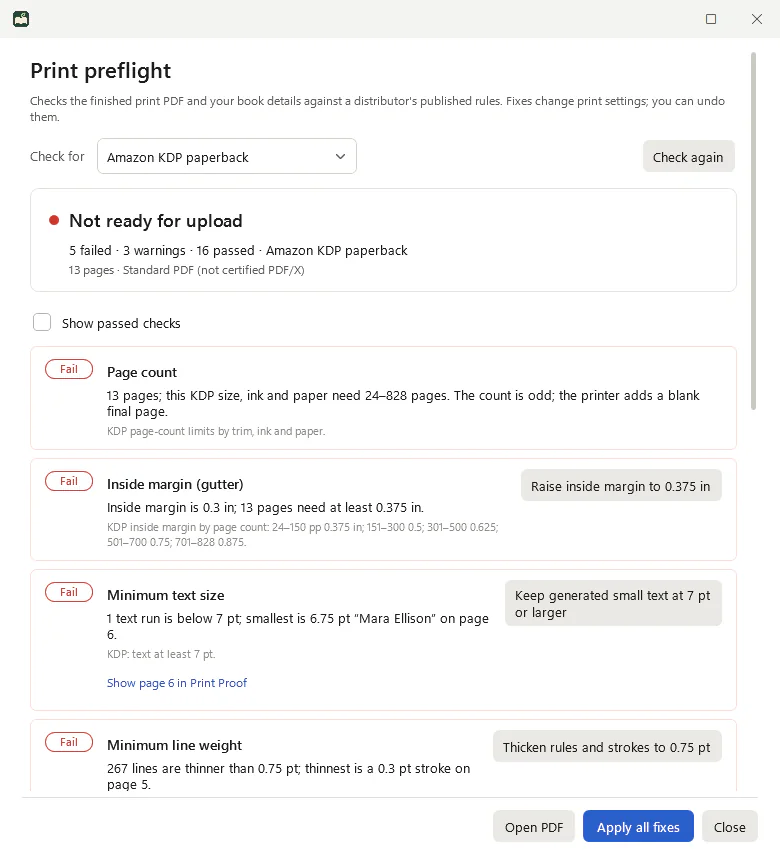
| Page count outside the allowed range | Fewer than 24 pages (72 for color, 75 for hardcover) or more than the maximum for the paper (828 white, 776 cream, 600 color, 550 hardcover). | Add or remove content, change paper, or split into volumes. | Page count for the trim, ink and paper. |
| Gray fill below 10% | A tint or background lighter than 10% gray, which can print as nothing or as bands. | Set tints to at least 10%; check table shading and sidebars. | Light gray fills under 10%. |
| Text smaller than 7 pt | Footnote markers, captions, folios or table text under 7 pt. | Raise every text style to 7 pt or more, including superscripts and running heads. | 7 pt minimum text, with the one-click fix “Keep folios, note markers and captions at 7 pt or larger”. |
| Lines thinner than 0.75 pt | Hairline rules, table borders or footnote rules under 0.75 pt, which can drop out in print. | Set every rule and stroke to 0.75 pt or heavier. | 0.75 pt minimum lines, with the one-click fix “Thicken rules to at least 0.75 pt”. |
| Title, author or ISBN does not match | The title page or copyright page says something different from the KDP setup, or the ISBN printed in the book is not the one assigned. | Make the title page, copyright page and KDP setup agree before export. | Preflight lists the ISBN and book details alongside the file checks so you can confirm them. |
The three margin errors, in detail
“Text outside the printable area” is the most common rejection, and it is rarely the body text. It is the page number sitting 0.2 in from the bottom edge, the running head placed in a 0.2 in header, or a chapter-opening ornament that reaches the top of the page. KDP measures every mark on the page against the margin, so a decorative rule counts as much as a paragraph.
There are three margins to check. The outside, top and bottom margins must be at least 0.25 in, or 0.375 in when the file has bleed. The inside margin depends on page count: 0.375 in up to 150 pages, 0.5 in to 300, 0.625 in to 500, 0.75 in to 700 and 0.875 in to 828. The KDP margins guide has the table and the Word settings.
In Word, the header and footer have their own distance from the edge (Layout, Margins, Custom Margins, Layout tab, Header and Footer from edge), and it is often set to 0.5 in with the page number pushed lower by an empty paragraph. Check the exported PDF with a ruler, not the Word settings.
Fonts, in detail
A PDF either carries the font data or merely names the font. KDP’s printer has no fonts of its own, so a named font prints as a substitute or not at all, and the file is rejected. Three causes account for nearly every case. Word’s “Minimum size” PDF option, which can skip embedding. A PDF printer driver that references system fonts. And a font whose license forbids embedding, which no exporter can embed and which must be replaced.
“Embedded Subset” is fine: it means only the characters you used are included. Convert to PDF/X-1a and the exporter must embed everything, which is one reason KDP asks for it. See the PDF/X guide.
Page size, bleed and spreads
“Page size does not match trim” and “bleed required” are the same mistake seen from two sides. KDP compares the PDF page to the trim size in your setup. A 6 x 9 in book needs 6 x 9 in pages, or 6.125 x 9.25 in pages if any page bleeds. A Letter-size page from a Word template, a spread that is twice the trim width, or a page enlarged by crop marks all fail the comparison. The bleed guide has the page size for every trim.
Bleed is all or nothing. One chapter opener with a full-bleed photograph means every page in the file must be at the bleed page size, and the outer margins for every page rise to 0.375 in.
Before you re-upload
- Count the pages of the new PDF and confirm the inside margin band still holds.
- Open File, Properties, Fonts in Acrobat and confirm every font says Embedded or Embedded Subset.
- Confirm the page size is the trim, or trim plus 0.125 x 0.25 in if the book bleeds, on every page.
- Confirm bleed is on every page or no page, never a mix.
- Check running heads, folios and footnote rules against the 0.25 in (0.375 in with bleed) outer margin.
- Search the file for text under 7 pt and rules under 0.75 pt, including superscripts and table borders.
- Confirm no crop marks, no bookmarks, no annotations, no security.
- Confirm the title page, copyright page and ISBN match the KDP setup.
- Upload, then open KDP’s previewer and read every flagged page, not just the first.
- Order a printed proof. The printer makes the final decision.
How LeafBound catches them first
LeafBound’s print preflight reads the finished PDF, not the settings, and runs more than 25 checks against the profile you choose: KDP paperback, KDP hardcover, IngramSpark paperback or IngramSpark hardcover. Every rejection reason in the table above has a check, and the four that account for most rejections, margins, bleed, small text and thin lines, have one-click fixes that recompose the book and run preflight again. The report names the page for each failure and links to it in Print proof. Where IngramSpark publishes no exact limit, the result is a warning, not a pass, and the printed proof is still the final test. The features page lists the full set of checks.
Rejection questions
Why does KDP say my text is outside the margins?
Something printed sits closer than 0.25 in to the trim edge (0.375 in when the file has bleed), or closer to the spine than the inside margin for your page count. It is usually not the body text but a page number, a running head, a footnote rule or a chapter-opening ornament. KDP’s previewer marks the page; move the element inward or raise the margin for the whole file.
How do I fix “fonts not embedded” on KDP?
Re-export the PDF with every font embedded. In Word, Save As PDF with Optimize for set to Standard, not Minimum size. In Acrobat, File, Properties, Fonts lists each font with “Embedded” or “Embedded Subset”; one without that word is the culprit. A font whose license forbids embedding has to be replaced, because no export setting can embed it.
What does “page size does not match the trim size” mean?
The PDF page is a different size from the trim you chose in KDP’s setup. The common causes are a Letter-size page (8.5 x 11 in) exported from a Word template meant for 6 x 9 in, or a file with bleed uploaded for a book set up without bleed. The page must be exactly the trim, or exactly trim width plus 0.125 in and trim height plus 0.25 in when the book bleeds.
Does KDP reject low-resolution images?
KDP flags images below 300 dpi at their printed size and may let you proceed with a warning, but they print blurred. Replace the image with a larger original rather than upscaling; resolution is measured after scaling, so a 300 dpi image placed at twice its size is 150 dpi on the page.
Can I upload the same PDF after fixing one error?
Yes, but check the whole file first, because fixing one error often causes another. Raising the inside margin can add pages and change the band; adding bleed changes the page size and raises the outer margin minimum to 0.375 in. Run every check again on the new PDF before you upload.
Which of these does LeafBound catch before upload?
All fifteen. Print preflight reads the finished PDF and runs more than 25 checks with KDP paperback, KDP hardcover, IngramSpark paperback and IngramSpark hardcover profiles. Margins, bleed, small text and thin lines have one-click fixes that recompose the book and run the checks again. Where IngramSpark publishes no exact limit, preflight gives a warning rather than a pass.
More guides
See the rejection before KDP does.
Import your manuscript, choose the KDP paperback profile and read the preflight report on the finished PDF, with one-click fixes for margins, bleed, small text and thin lines.
Early access · Author from $79 once · free 4-day trial · Windows 10 and 11