 LeafBound
A PDF stores printed pages, not a manuscript: it records where each letter sits, not chapters, paragraphs or notes. LeafBound rebuilds the manuscript from that, so always read the result through. If you still have the Word, rich text, Markdown or EPUB file the PDF was made from, import that instead.
LeafBound imports both kinds of PDF: one that contains text, and a scan, which it reads with text recognition. See Scanned PDFs below.
- In a book window, choose File then Import then Import PDF…. From the library, choose Import manuscript… and pick the PDF there. The library and the guide under its Help item both name PDF among the formats you can import.
- In the Import a PDF window, select the file and choose Open.
- Wait while the Import PDF window reads the pages. It shows which page it is on, and Cancel stops the import.
- Choose the book type, then Continue.
- Check the title, author and language, then choose Open book.
- Read the Import notes message. It lists what was done and which pages to check.
- Save the new book with Ctrl+S, then read it through against the PDF.
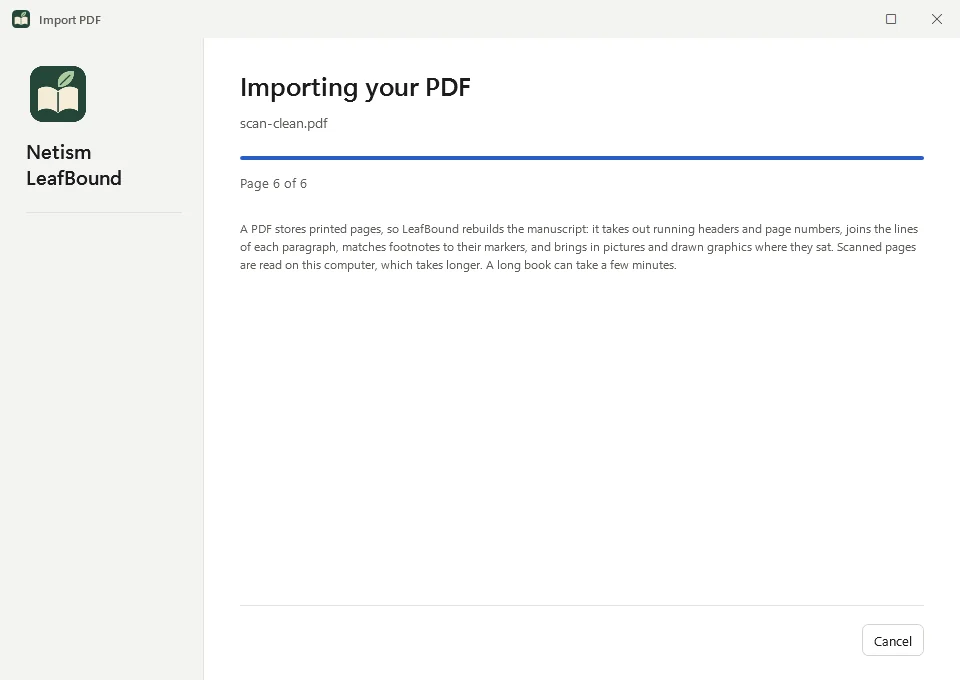
A long book can take a few minutes. File then Open… also takes a PDF and does the same. For a scanned PDF there can be one more step before the book type: see Check the recognized text.
What LeafBound rebuilds
- Running headers, footers and page numbers are taken out.
- The lines of each paragraph are joined, and words split at a line end are joined again.
- Pages set in columns are read column by column.
- Italic, bold, small capitals and superscript are kept.
- The look of the PDF: its page size, margins, columns, fonts, text size, line spacing, indents and alignment. Looks that repeat become paragraph styles such as Body text, Heading 1 and Quotation, which you can change later.
- Chapters come from the PDF's bookmarks when it has them, otherwise from its headings. The title page, parts and front and back matter are found as for a Word manuscript. See How smart import finds chapters and the title page.
- A chapter that opens with a small line such as CHAPTER 4 above a large title becomes one chapter named by its title, and a book set this way is split into every one of its chapters.
- A bookmark that carries a number, such as 1. The Harbor, is matched to the printed heading The Harbor.
- A chapter title printed on two lines is joined into one title.
- Footnotes at the foot of a page or column are matched to their markers. Notes gathered under a Notes heading at the end of a chapter or of the book also become notes at their markers.
- Drop capitals are joined to their words. Scene breaks, block quotations, bulleted and numbered lists and verse are kept.
- Pictures come in where they sat, with their captions. Charts, diagrams and line drawings come in as pictures.
- Artwork that runs across two facing pages, as in a picture book, is put together again as one wide picture. The import notes say how many and on which pages.
- Tables with ruled lines come in as tables.
- Ornaments, rules and logos that repeat on the pages are left out as page decoration.
What does not come across
- A footnote or endnote whose marker LeafBound cannot find stays as ordinary text. The import notes name the pages.
- A table without ruled lines may stay as lines of text. The import notes name the pages.
- Pictures placed side by side come in one after the other.
- Text drawn as outlines comes in as a picture, and text set sideways on the page is left out. The import notes name the pages.
- The printed table of contents is left out, also when it is set as a column of titles beside a column of page numbers. LeafBound builds the contents from your chapters.
- A word that has its own hyphen and was broken there at a line end can come back joined.
Scanned PDFs
A scanned PDF holds pictures of pages, as a scanner or a camera makes, not letters. LeafBound reads the words from those pictures with text recognition. The reading happens on your PC; nothing is sent anywhere. It takes longer than a text PDF: a long book can take a few minutes.
- Before reading a scan, LeafBound asks which language it is in. The Language of the scan list says for each language whether it is already on this computer or how large its download is. A language that is not yet on the computer is downloaded once from leafbound.org, checked, and then works without a connection.
- The import notes then say "This text was read from page images and needs proofreading." and name the pages, including the ones that were hard to read. Proofread those pages word by word against the scan, also where LeafBound was sure.
- On pages read this way, italic and bold are not recognized, and footnotes are not matched to their markers: they stay as text. Add them by hand.
- A blank side is skipped. A page that is an illustration or a photograph stays a picture.
- A page of print that cannot be read is kept as a picture of the page, and the import notes name it. Print preflight warns about such pages until you type their text or choose to keep the pictures. See Check the words later.
- When a doubtful word is one look-alike change away from a word the book has several times in clearly read text, LeafBound sets it right from the book itself. The import notes say how many and on which pages.
- A scan that already carries a hidden text layer is imported from that text as it is, unless the page itself reads better, in which case LeafBound reads the page again. The import notes name the pages.
- If LeafBound's text recognition is missing from the LeafBound folder, and Windows has none either, LeafBound says "This PDF holds pictures of pages, not text, so there are no words to import. It was probably made with a scanner or a camera. LeafBound's text recognition is missing from this copy; install LeafBound again to put it back." Reinstall LeafBound from your account page.
- For a book in a language LeafBound does not bring itself, add that language in Windows Settings, under Time and language, then import again.
- If hardly any words can be read in the whole file, LeafBound says "LeafBound could not read the words in this PDF's page pictures. The scan may be too faint or too small, or in a language LeafBound's text recognition does not read." Scan again at a higher resolution, straight and with good contrast.
Check the recognized text
When a scan has words LeafBound is unsure of, or pages that were hard to read or could not be read, the Import PDF window shows Check the recognized text before the book is set up. It says how many pages read well, fairly well, were hard to read, or could not be read and were kept as pictures of the page.
- Choose a word in the Doubtful words list. Each entry shows the word and its page.
- Compare it with the picture of the line. Show page shows the whole page with the word outlined, and Show line goes back to the line.
- If the word is wrong, type the right one in This word should read.
- Go on with Next word, or back with Previous word.
- Choose Continue when you have checked as many as you want.
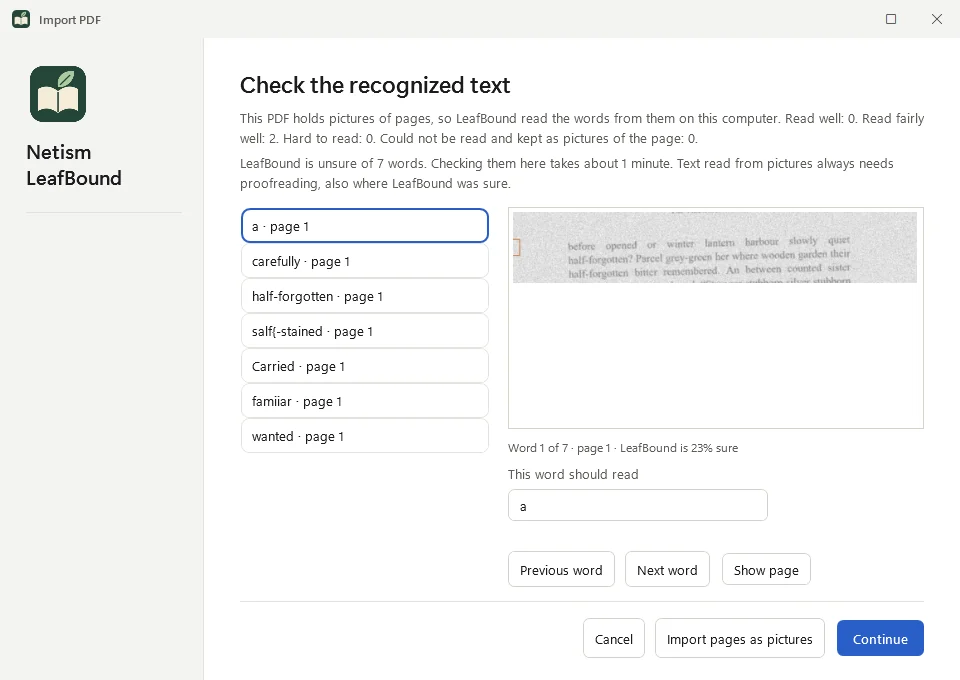
- You do not have to check every word here. The words you set right are done; the others stay on a list that is saved with the book. See Check the words later.
- Cancel stops the import.
- For a very hard scan, the window lists only the first doubtful words and suggests importing the pages as pictures instead.
Check the words later
A book that still has doubtful words, or scanned pages kept as pictures, says "This book has recognized text to check. Choose Tools > Check recognized text…" each time you open it.
- Choose Tools then Check recognized text….
- Choose a word in the Doubtful words list. Each entry shows the word, its chapter and the page of the PDF.
- Compare it with the picture of the line. Show page shows the whole page with the word outlined, and Show line goes back to the line.
- If the word is right, choose Keep this word.
- If it is wrong, type the right one in This word should read and choose Change word, or press Enter.
- Go on with Next word, or back with Previous word. Choose Close at any time; the words left stay on the list.
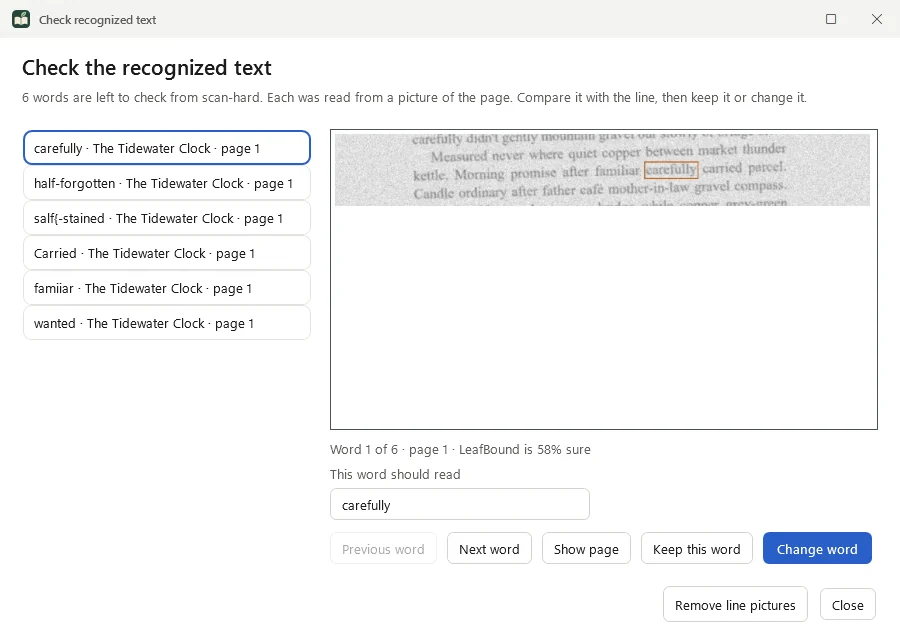
- Each word you keep or change leaves the list. Change word puts what you typed in the book, and the book then has unsaved changes like after any other edit.
- An entry that says "no longer in the text" is a word you have already edited or deleted in the manuscript. Choose Keep this word to take it off the list.
- Show page needs the PDF where it was when you imported it. If the file was moved, renamed or changed, only the line is shown.
- The pictures of the lines are kept on this PC beside your LeafBound settings, not in the book file, and they are never exported. LeafBound keeps up to 150 MB of them for a book. Remove line pictures deletes them and leaves the words on the list. On another PC the list is there without the pictures.
- When scanned pages could not be read, the window names them. Type the text of each page in the manuscript and delete its picture, or choose Keep these pages as pictures.
- Print preflight has a check named Recognized text. It warns while a doubtful word is left or an unreadable page is not settled, and passes with "Every doubtful word and unreadable page has been settled."
- When nothing is left, the list and its line pictures are removed from the book.
Import the pages as pictures
In the same window, Import pages as pictures brings every page in as a picture of the page, as it is. Use it for a scan that is too hard to read, or when the look of the pages matters more than the words. The import notes then say "Every page was imported as a picture of the page. The words in those pictures cannot be edited, searched or read aloud."
PDFs with a password
- When the PDF needs a password to open, the window shows This PDF needs its password.
- Type the password in Password.
- Choose Open PDF.
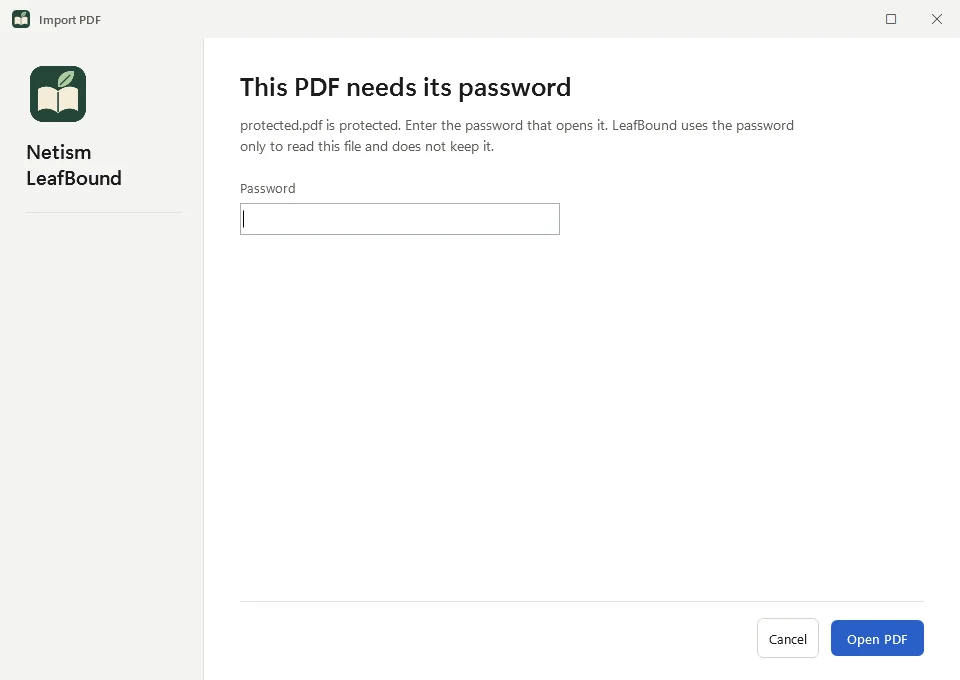
LeafBound uses the password only to read this file and does not keep it. If it is wrong, the window says "That password did not open this PDF. Check it and try again." LeafBound does not open a protected PDF without its password.
Your right to use the material
The import notes always include "Import only material you have the right to use. LeafBound does not check who owns a file." When the PDF's author switched off copying, they add "The author of this PDF restricted copying. Go on only if you have the right to use this material."
Check the result
- Chapter breaks: every chapter starts where it should, and no heading became body text.
- Paragraph breaks at the top and bottom of pages.
- Footnotes and their markers, on the pages the import notes name.
- Pictures, charts and tables, on the pages the import notes name.
- Italics, small capitals, accented letters and quotation marks.
Limits and messages
| Message | What to do |
|---|---|
| This PDF is larger than 1 GB, which is more than LeafBound can import. | Split the PDF into smaller files, or save a copy with smaller pictures. |
| This PDF has more than 5000 pages, which is more than LeafBound can import. Split it into smaller files and import those. | Split it into parts and import each one. |
| This file is not a PDF, or it is damaged and cannot be imported. | Check that you chose the right file and that the download or copy finished. |
| This PDF is damaged and cannot be imported. Open it in a PDF reader, save a new copy, then try again. | Open it in a PDF reader, save a new copy and import that. |
| This PDF has no text that LeafBound can read. | The pages hold no words and no page pictures LeafBound can read. Import the manuscript in another format. |
Related
- How smart import finds chapters and the title page
- Import a Word manuscript
- Import a manuscript from the library
- What LeafBound does not do
Still stuck?
Choose Help then Report a problem… in LeafBound to send us the details, or write to support.