 LeafBound
The Import manuscript window makes a new book from a file you already have. Your original file is never changed: the imported book is a separate LeafBound file that you save yourself. You can also import from inside an open book with File then Import; see the table at the end.
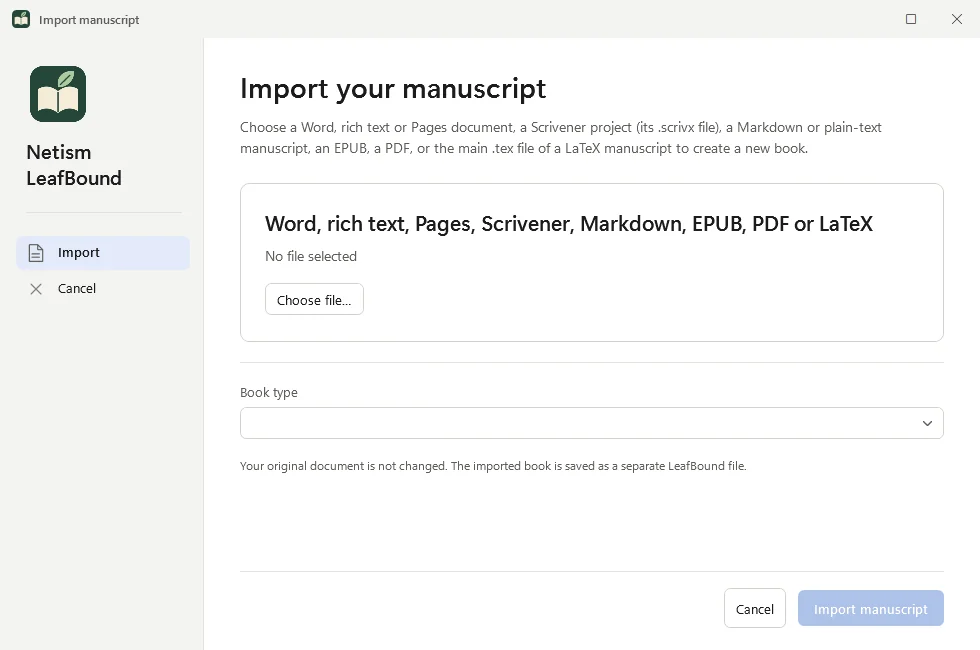
- In the library, choose Import manuscript… (at the top of the page or in the list on the left).
- Choose Choose file…. The Choose a manuscript window opens.
- Pick the file type you want in the list at the bottom right of that window, or leave it on Manuscripts to see every kind, then select the file and choose Open.
- Open the Book type list and choose the kind of book, for example Fiction or Nonfiction. The book type sets up the tools and the starting theme; you can change it later.
- Choose Import manuscript. The button stays gray until a file and a book type are both chosen.
- Check the Book title, Author and Language that LeafBound read from the file, and read the line that says what it found (chapters, parts, front and back matter).
- Choose Open book. The book opens in its own window.
- Press Ctrl+S and choose where to save the new
.leafboundfile.
A LaTeX manuscript goes a different way after Import manuscript: the Import LaTeX manuscript window reads it and shows its review page. Choose Create book there and the book opens with the book type you chose, without the Set up your book page.
Files you can choose
| File | What to pick | Guide |
|---|---|---|
| Word | A .docx file | Import a Word manuscript |
| Rich text | An .rtf file | Import a rich text file |
| Pages | A .pages file | Import a Pages document |
| Scrivener | The .scrivx file inside the .scriv folder, or a zip of the whole .scriv folder | Import a Scrivener project |
| Markdown or plain text | A .md, .markdown or .txt file | Import Markdown or plain text |
| EPUB | An .epub file | Import an EPUB |
| LaTeX | The main .tex (or .ltx) file, the one with \begin{document} | Import a LaTeX manuscript |
.vellum file from inside a book with File then Open…; see Import a Vellum project.Import from inside a book
The File then Import menu has one item per kind of file. Each one opens a file window that shows only that kind, then asks for the book type and shows the same Set up your book page. The imported book replaces the book in the current window, so LeafBound first asks whether to save any unsaved changes.
| Menu item | What it does |
|---|---|
| File then Import then Import Word file… | Imports a .docx as a new book. |
| File then Import then Import LaTeX manuscript… | Imports the main .tex file of a LaTeX manuscript, with a review of the import before the book is made. |
| File then Import then Import Markdown or EPUB… | Imports a Markdown or plain-text manuscript, or an EPUB. |
| File then Import then Import rich text, Scrivener or Pages… | Imports an .rtf file, a Scrivener project or a Pages document. |
| File then Import then Import PDF… | Rebuilds a manuscript from a PDF that contains text. See Import a PDF. |
| File then Import then Reimport Word file… | Replaces this book's manuscript with a newer version of its Word file. See Reimport a Word manuscript. |
| File then Import then Reuse elements from another book… | Copies chapters or other elements from another LeafBound book, linked to their source. See Reuse elements from another book. |
| File then Import then Update reused elements | Brings linked elements up to date with their source books. |
Limits
- Importing needs LeafBound to be activated. Opening a saved book does not.
- If the import found things to check (pictures it could not place, text boxes, tracked changes), an Import notes message lists them. It appears over the new book window, whether you import from the library or from inside a book.
Related
- How smart import finds chapters and the title page
- Open a book or a manuscript
- Import a Word manuscript
- Import a LaTeX manuscript with BibTeX
Still stuck?
Choose Help then Report a problem… in LeafBound to send us the details, or write to support.