 LeafBound
 is activated with your LeafBound account. You approve each PC once in your browser; you never type your password into LeafBound itself. After that, LeafBound works offline after one activation, checking in at least every 10 days.
- Open LeafBound. The window Sign in to your account appears.
- Choose Continue to sign in.
- Wait a moment while Connecting to your account gets a code. Your browser opens by itself.
- In LeafBound, note the code under Connect this device. Choose Copy if you want to paste it.
- In your browser, sign in to your LeafBound account if asked, check that the code matches, and approve this PC.
- Go back to LeafBound. When the approval arrives, the window closes and LeafBound opens.
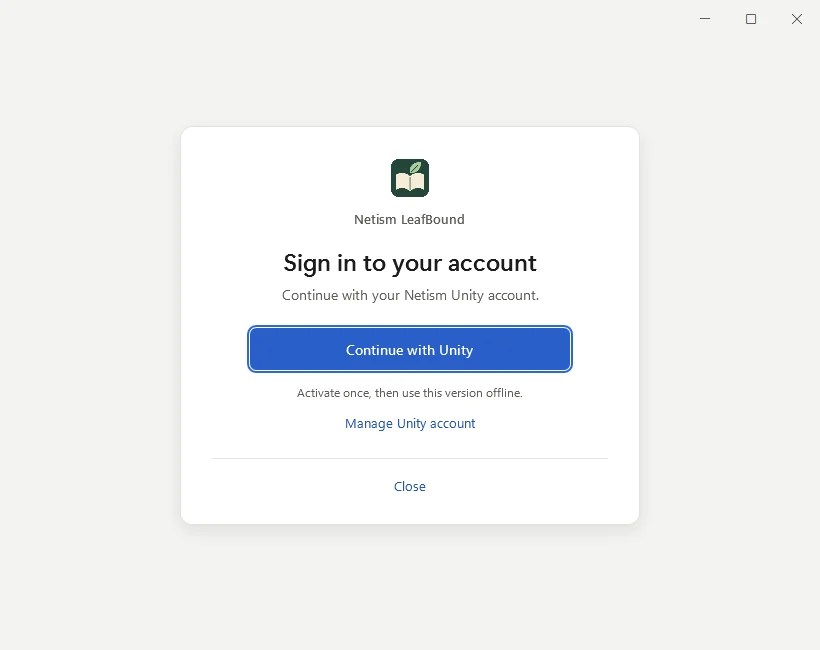
Controls along the way
| Control | What it does |
|---|---|
| Continue to sign in | Starts the connection and opens your browser. |
| Manage your account | Opens your LeafBound account page in your browser. |
| Copy | Copies the code. If the clipboard is busy, type the code shown instead. |
| Open in browser | Opens the approval page again, for example if you closed the browser tab. |
| Cancel connection | Stops waiting and goes back to the first page. |
| Close | Closes the window. At startup, closing it without connecting also closes LeafBound. |
The status line says "Waiting for approval…" until you approve. A request lasts 10 minutes; after that, start again from LeafBound.
Where to find your account later
- In the library, LeafBound account at the top right opens the account window. See Check your license and plan.
- In a book window, Help then LeafBound account… opens your LeafBound account page in your browser.
If the sign-in does not work
| Message | What to do |
|---|---|
| Could not reach Unity. Check your internet connection and try again. | Check your connection, then choose Retry connection. |
| The device connection was declined. Start again when you are ready. | You declined in the browser. Choose Sign in again. |
| This connection request expired. Start again in LeafBound. | The 10 minutes ran out. Choose Sign in again. |
| This device could not be verified. Check Windows date and time, then try again. | Set the date and time to automatic in Windows settings, then try again. |
| Your Unity account has not been approved for LeafBound. Ask a Netism administrator for access. | Choose Review account access, or Try another account if you signed in with the wrong account. |
| Verify your email address first, then start your LeafBound trial again. | Confirm your email address from the message you were sent, then sign in again. |
| Trials need a permanent email address. Sign up with your usual email address to start a trial. | Use your usual email address for your LeafBound account. |
| This computer has already used a LeafBound trial. Buy LeafBound to keep working; your books are safe. | Each computer gets one trial. Buy a plan, then sign in again. |
| This copy of LeafBound has been withdrawn. Download a fresh copy from your account page and install it. Your books are safe. | Download and install LeafBound again from your account page. |
| This copy of LeafBound is version ….x, and your license is for a different version. Install the current version from your account page, then sign in again. Your books are safe. | This PC has an older or newer major version than your license covers. Download and install the current version from your account page, then sign in again. |
A refused sign-in, for example with another account, does not change this PC's existing activation.
Related
- Open LeafBound for the first time
- Check your license and plan
- The free trial
- What LeafBound sends over the internet
Still stuck?
Choose Help then Report a problem… in LeafBound to send us the details, or write to support.