 LeafBound
Report a problem sends the people who build LeafBound a short report with the facts they need to find a fault, and gives you a request number to follow it. You see everything it contains before it goes.
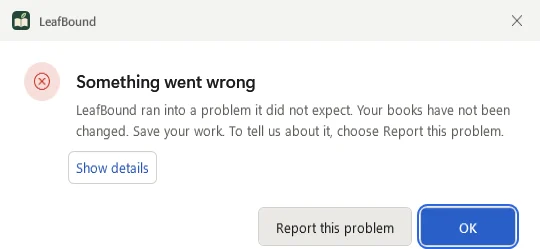
- Choose Help then Report a problem…. You can also choose Report a problem in the library, or Report this problem on a "Something went wrong" message.
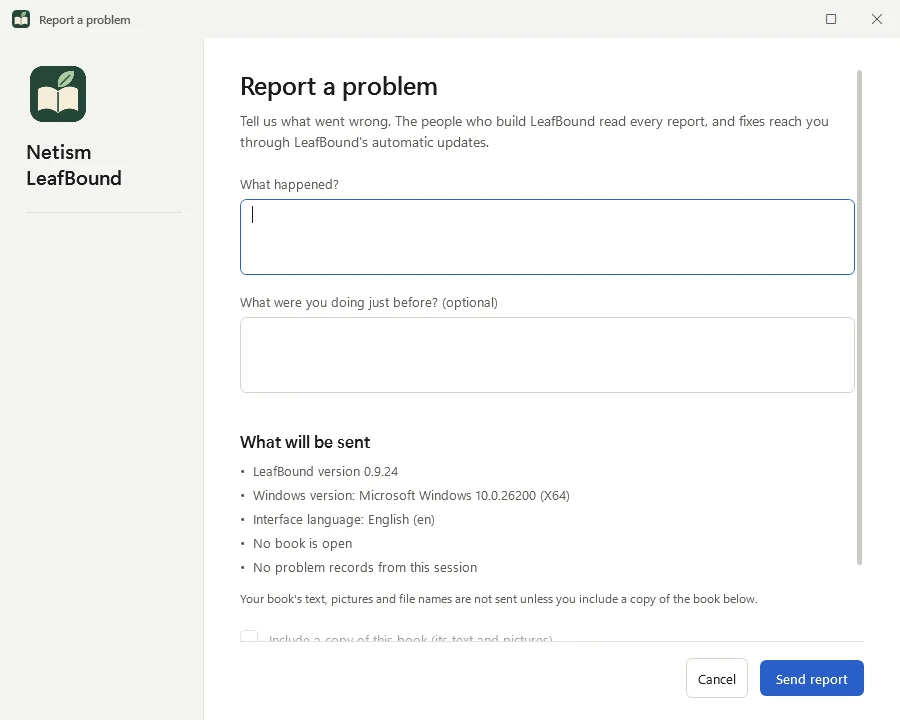
- Under What happened?, describe the problem. This field is required.
- Under What were you doing just before? (optional), add the steps that led to it, if you can.
- Read the What will be sent list. Open Show exactly what will be sent to see the full text.
- If a book is open and the problem is about its content, tick Include a copy of this book (its text and pictures).
- Choose Send report, or Cancel to send nothing.
What is sent
- What you typed in the window.
- Your LeafBound version, your Windows version and your interface language.
- The book type of the open book.
- The problem records from this session: error types, codes and program method names. Never file names or your text.
- A copy of the open book, only when you tick the box. It is off by default, needs a saved book, and can be up to 40 MB.
After you choose Send report
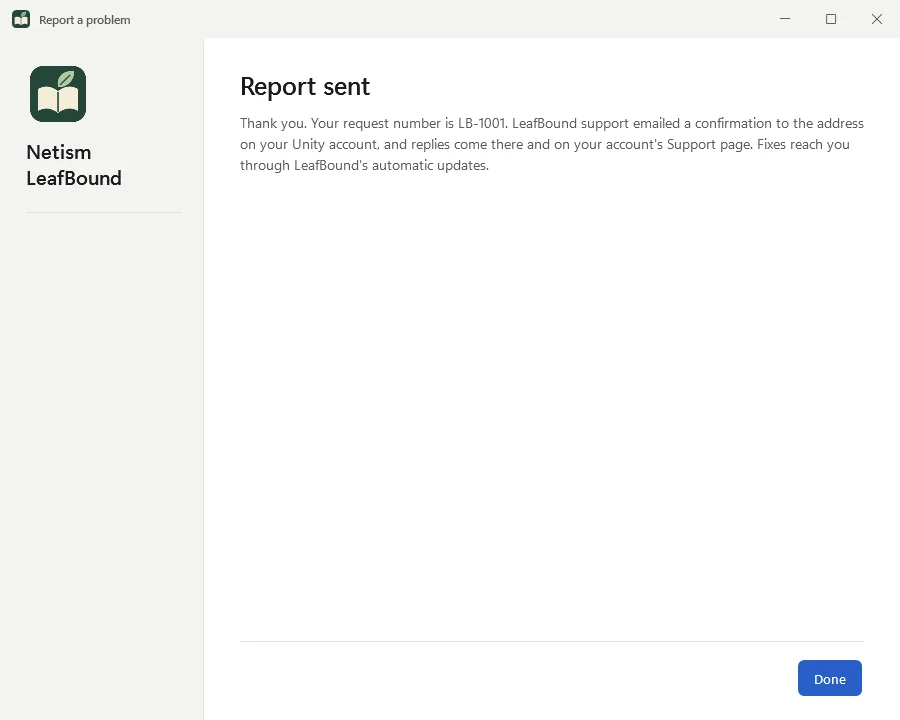
LeafBound sends the report straight to LeafBound support, which files it as a support request in your LeafBound account. The window shows your request number, such as LB-1234, and support emails a confirmation to the address on your LeafBound account. Replies come by email and on your account's Support page.
If the report cannot be sent directly
When this PC is offline, is not connected to a LeafBound account yet, or cannot reach LeafBound support, nothing is lost. LeafBound hands the report to you to send from your browser:
- LeafBound saves the report, and the book copy if you ticked it, in a new folder under Documents\LeafBound\Problem reports named with the date and time.
- It copies the report text to the clipboard and opens LeafBound support in your browser.
- Paste the report into the support form with Ctrl+V, attach the files from the folder, and send it.
The window then shows the folder, with Open the folder, Open LeafBound support and Done. The folder holds LeafBound problem report.txt, and Book copy.leafbound when you included the book. Open LeafBound support opens the support request page again if you closed it. Replies come to that request in your LeafBound account.
When the window asks you to change something
- "This report was not sent: several reports came from your account or this PC in a short time.": LeafBound support takes up to five reports in ten minutes from each account, and ten a day from each PC. Your description stays in the window. Wait ten minutes and choose Send report again, or choose Send it from your browser instead.
- "This report was not sent: the copy of your book is too large.": a book copy can be up to 40 MB. Untick Include a copy of this book (its text and pictures) and send the report without it. Support will ask for the book if they need it.
- "This book is larger than 40 MB": the include box stays off for that book, and the rest of the report is sent as usual.
- "Describe what happened, then choose Send report": the What happened? field is empty.
From the "Something went wrong" message
When LeafBound runs into a problem it did not expect, the message offers Report this problem. Choose it to open the same window with that problem already noted in the problem records.
Related
Still stuck?
Choose Help then Report a problem… in LeafBound to send us the details, or write to support.