 LeafBound
- Choose Book then Cover…, or Cover… in the Export book window.
- Design the cover and fix anything the check reports.
- Choose Export cover PDF….
- In the Export cover PDF window, check the folder (it starts in the Export book folder) and the name (the book title followed by
-Cover.pdf), then choose Save.
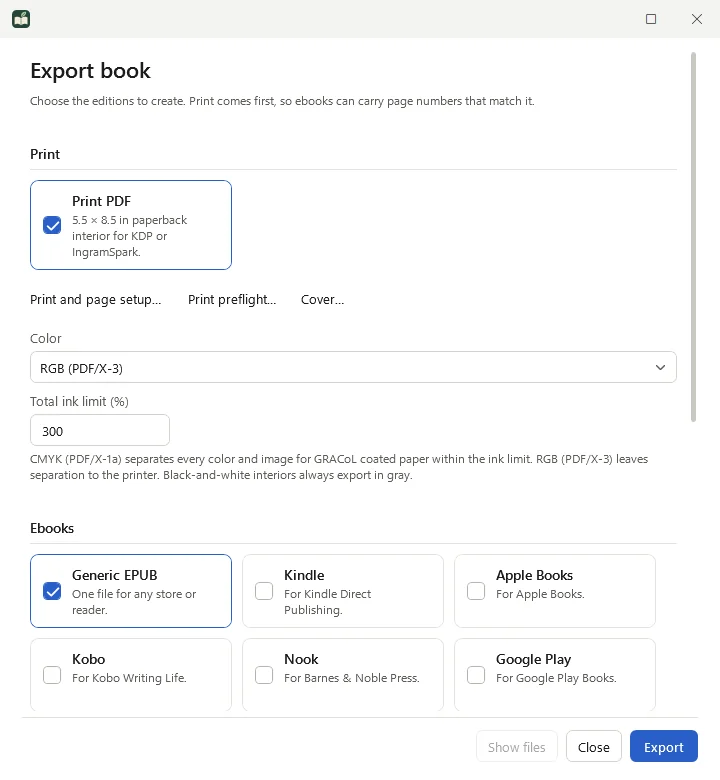
The line beside the button then says the size and whether the file is CMYK PDF/X-1a or RGB, and either “Every check passed” or how many checks failed. The cover is sized from the page count the book has now, so export the cover again whenever the page count changes.
Some printer formats have no printed cover file (for example a cloth case). Then LeafBound says so and does not export.
Related
Still stuck?
Choose Help then Report a problem… in LeafBound to send us the details, or write to support.