 LeafBound
Export book makes the finished files: the print-ready PDF and an EPUB for each store you choose, in one run. Print is always made first, so the ebooks can carry a page list that matches the printed pages.
- Choose File then Export book…, press Ctrl+G, or choose Export book at the top right of the window.
- Tick the editions you want: Print PDF and any of the ebook cards.
- Under Save to, type the full path of a folder, such as
C:\Books, or choose Browse… to pick one in the Where to save the exported books window. - Choose Export.
- If any ebook is ticked and some pictures have no description, the Describe images window opens first. See Describe images before ebook export.
- Watch the result box fill in. When it finishes, choose Show files to open the folder.
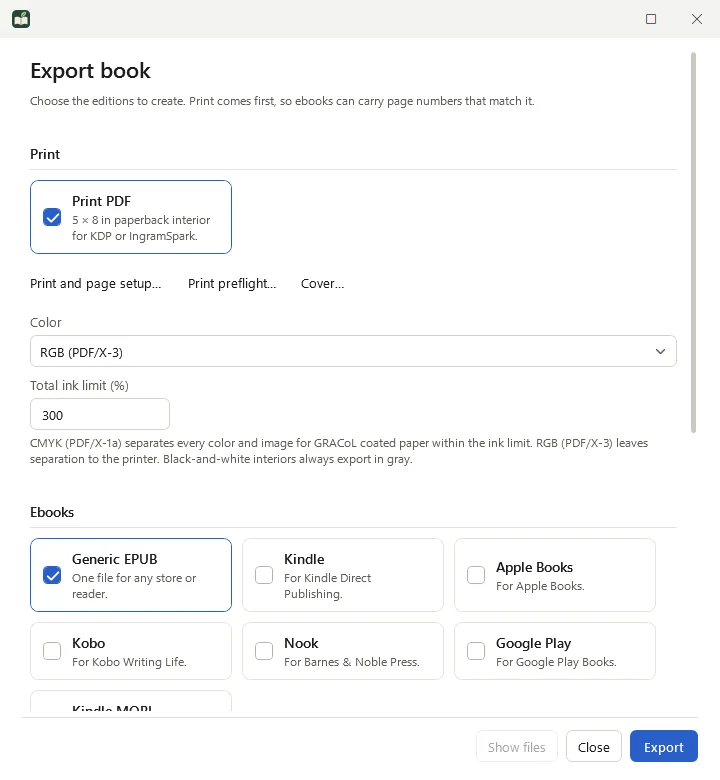
| Control | What it does |
|---|---|
| Print PDF card | Makes the print interior PDF at the book's trim size (shown on the card), for KDP, IngramSpark or another printer. |
| Print and page setup… | Opens trim size, margins, bleed and the other page settings. |
| Print preflight… | Checks the print PDF against the rules of the printer chosen for the book, with one-click fixes. |
| Cover… | Opens the cover designer, where you export the print cover PDF. |
| Color | RGB (PDF/X-3) leaves color separation to the printer. CMYK (PDF/X-1a) separates every color and picture for coated paper within the ink limit. Black-and-white interiors always export in gray. |
| Total ink limit (%) | The most ink a CMYK PDF may lay down in one spot. |
Ebooks
| Card | What it makes |
|---|---|
| Generic EPUB | One file for any store or reader. The only edition that can be EPUB 2. |
| Kindle | For Kindle Direct Publishing, linked to Amazon pages. |
| Apple Books | For Apple Books, linked to Apple Books pages. |
| Kobo | For Kobo Writing Life. |
| Nook | For Barnes & Noble Press. |
| Google Play | For Google Play Books. |
| Generic EPUB version | EPUB 3 (the default) or EPUB 2, for the generic edition only. Store editions are always EPUB 3. |
| Declare that this ebook meets EPUB Accessibility 1.1 and WCAG 2.2 AA | Off for every book. Tick it only after checking the book yourself: the ebook then names you, the publisher or author, as the one who declares it. See Accessible ebooks: what LeafBound declares. |
| Store links… | Sets the store page for each of your other titles, so each store edition links to its own store. See Link your other books in each store. |
For illustrated books and picture books, an Ebook layout section offers fixed-layout ebooks. See Fixed-layout ebooks.
Who can export
- Every paid plan exports the print PDF and the ebooks.
- During the free trial nothing is exported. Choosing Export book opens Buy LeafBound to export instead of the Export book window, and everything you made during the trial exports once you buy. See The free trial.
- The free Reader plan exports the manuscript as a Word document only. Rich text, LaTeX, the print PDF, the cover PDF and front cover image, the ebooks, Kindle MOBI and special edition packages need the Author plan or above; choosing one opens a window that names the plan which adds it.
Where the files go and what they are called
- Every file goes into the folder under Save to. LeafBound creates the folder if it does not exist.
- The folder must be a full path. If you type only a name, LeafBound says "Type the full path of a folder, such as C:\Books, or choose Browse… to pick one." and exports nothing.
- Each file is named after the book title, a hyphen and the edition, for example
The Lantern House-Print PDF.pdf,The Lantern House-Kindle.epubandThe Lantern House-Generic EPUB.epub. Characters Windows does not allow in file names become hyphens. - Include the subtitle in file names adds the subtitle after the title.
- Add today's date to file names adds the date at the end, for example
The Lantern House-Kindle-2026-11-10.epub, so earlier exports are kept. - If files with the same names are already in the folder, LeafBound lists them and asks before it replaces them.
Your choices of editions, folder, EPUB version, file names and print color are saved with the book, so the next export starts the same way.
The result box
While it works, the window shows a progress bar and the edition it is making; Close waits until it finishes. Then the box shows, for each edition:
- Print PDF: the page count, where the file is, the PDF standard it meets, and a preflight verdict with the number of failed checks and warnings. Choose Print preflight… to review and fix them.
- Each ebook: where the file is, whether it carries an accessibility declaration, any pictures without a description, how many print pages the page list maps, how many store links were used, and any warnings (for example a picture too large for that store).
- Any edition that failed, with the reason. The others are still made.
The first line says how many editions were exported and how many failed. Show files is available once at least one edition was made.
Messages
| Message | What to do |
|---|---|
| Choose at least one edition to export. | Tick a card. |
| Choose a folder to save the books in. | Fill in Save to. |
| The destination is unavailable. | The folder cannot be created or written to. Pick another one. |
| Your LeafBound activation could not be confirmed, so the export was not saved. | Check your internet connection and export again. |
Related
- Ebook editions for each store, and EPUB 2 or EPUB 3
- Describe images before ebook export
- Upload your book to KDP
- Export the print cover PDF
Still stuck?
Choose Help then Report a problem… in LeafBound to send us the details, or write to support.