 LeafBound
Guide · Kindle Create
Get your book out of Kindle Create: the .docx route and the EPUB fallback.
Kindle Create does not export to Word or PDF, and no tool converts a KPF back. That sounds worse than it is: the book was never inside Kindle Create. It was the Word manuscript you imported, and that file goes straight into LeafBound. This guide covers the clean route, the fallback through Kindle Create’s EPUB export when the original is lost (LeafBound imports it directly, or through Calibre if you want a Word file), what transfers, how to fix headings, scene breaks and footnotes, and when to stay where you are.
Seven steps from Kindle Create to a finished book
Steps 2 and 3 are only for a lost manuscript. If you have the .docx, go from step 1 to step 4.
Find the Word manuscript you imported
Kindle Create reads a DOC or DOCX and never writes one back, so the file you started from is the master copy. Look for it before anything else. If you corrected typos inside Kindle Create after importing, those corrections are not in the .docx; note them now so you can re-apply them in Word. Open the .docx and save a dated copy.
If the .docx is lost, export an EPUB from Kindle Create
Open the .kcb project in Kindle Create and use the EPUB export, which exists for reflowable books only. KDP’s page says this EPUB loses image bleeds, drop caps over three lines and chapter-start imagery, which does not matter here: you want the text. If the export fails, close Kindle Previewer and try again. Print Replica and comic projects have no EPUB export. LeafBound imports this EPUB directly, so you can go to step 5; step 3 is for a Word copy.
Convert the EPUB to .docx in Calibre
Install Calibre (free, Windows 10 version 1809 or later; version 9.17 as of 23 October 2026). Add the EPUB, choose Convert books, set the output format to DOCX, and under Look and feel turn on the option to insert a blank line between paragraphs if the result loses paragraph spacing. Calibre follows the EPUB’s fonts, resets margins to 72 pt, flattens any tables and turns footnotes into links. Open the result in Word and save it as .docx.
Tidy the .docx in Word
Make every chapter title Heading 1 and every section Heading 2, in the Home ribbon’s styles, not by bolding text. Put body paragraphs in Normal. Replace typed scene-break marks or empty lines with a single centered line of three asterisks, which LeafBound’s import turns into scene breaks. Rebuild footnotes from the Calibre links with References, Insert Footnote. Delete any contents page, running heads and page numbers; LeafBound makes those. The Word import guide lists the full ten-step cleanup.
Import into LeafBound and choose a theme
Open LeafBound, create a book, choose its type (Fiction, Nonfiction and so on) and import the .docx. Chapters, headings, footnotes, images and emphasis come across, and smart import lists anything it moved. Kindle Create’s theme does not, so choose one of the 128 themes and use Compare themes to see up to three side by side with page counts. Set the trim from the KDP catalogue, or a custom size, in Print and page setup.
Check notes and images in the preview
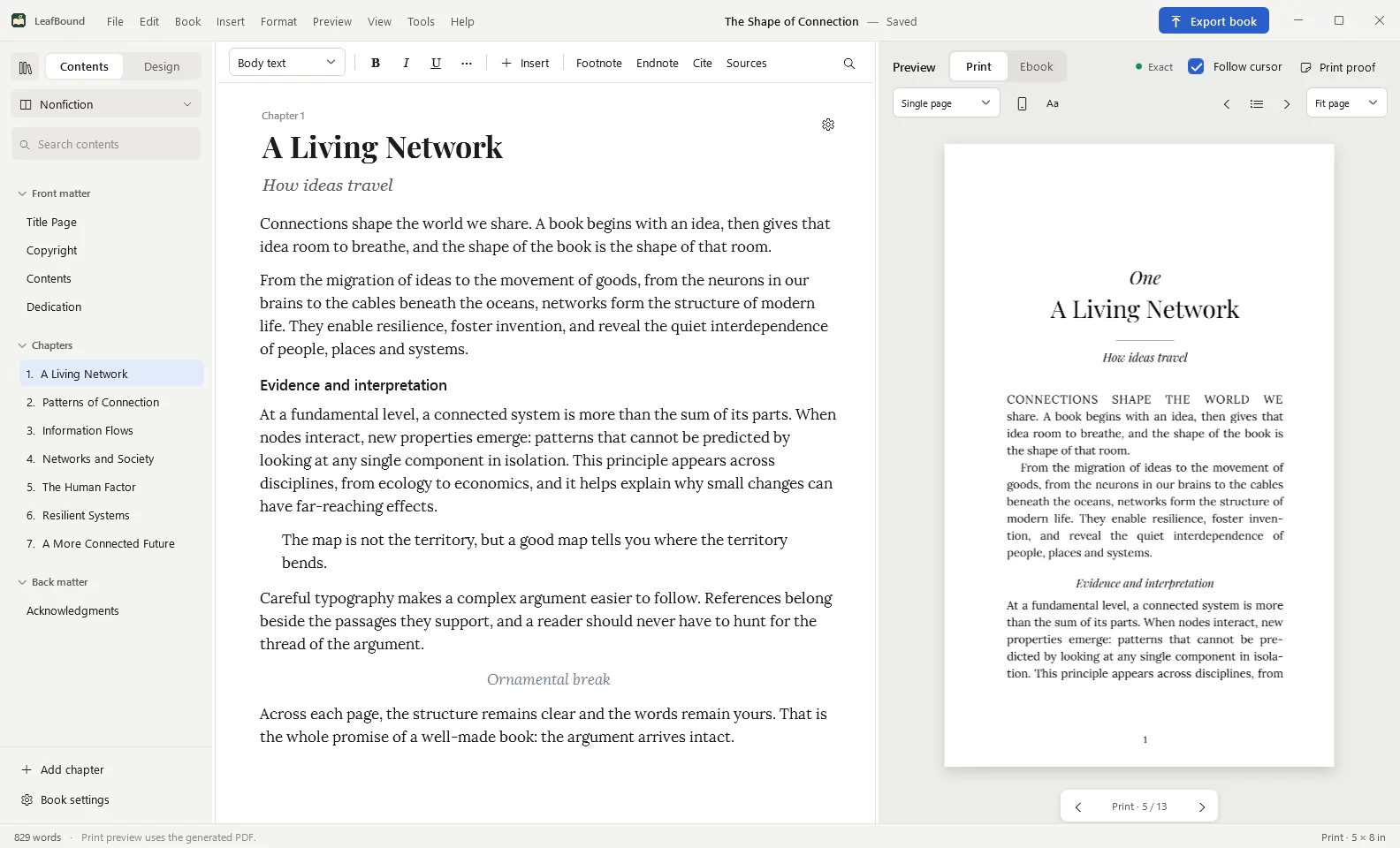
Read the preview, which is composed from the generated print PDF. Footnotes should sit on the page with their reference; endnotes collect in a Notes section. Every image that matters needs a description: LeafBound asks for any missing ones before an ebook export and claims accessibility metadata only when all are present. Fix stray scene breaks and headings here rather than later.
Run print preflight and export
Choose the KDP paperback profile (or KDP hardcover, IngramSpark paperback or IngramSpark hardcover), run preflight, apply the one-click fixes for margins, bleed, small text and thin lines, and let it recheck. Export the PDF/X-1a:2001 paperback file, then the Kindle edition and whichever store editions you need. Upload to KDP as an update to the same title and order a printed proof; the printer makes the final decision.
What you need, and what Kindle Create can give you
You need one file: the Word (.docx) manuscript. LeafBound imports Word, RTF, Markdown, plain text and EPUB, and the original .docx is the best of those. Kindle Create cannot give you one. KDP’s page lists its exports as KPF, “the preferred format for Kindle eBook and print books”, and EPUB, “available only for reflowable books”. The project itself is a .kcb file, which KDP says “is used for updates” and of which “Amazon does not keep copies”. When an author asked the KDP community how to convert a Kindle Create file to PDF or Word, a KDP moderator answered that it is not possible. One user in a separate thread reports a Calibre round trip that kept most of the text; that is the fallback below, and it is an anecdote, not a feature.
So the file you need is the one you already had. Kindle Create reads DOC or DOCX and writes nothing back, and a community thread on Kindle Create versus formatting in Word states the consequence: edits made in Kindle Create do not flow back to your Word file. If you corrected anything after importing, those corrections live only in the .kcb. Note them before you start.
What transfers and what does not
Two columns, because the two routes differ. “Original .docx” is the manuscript you imported into Kindle Create. “EPUB via Calibre” is Kindle Create’s reflowable EPUB export converted to .docx in Calibre.
| Element | Original .docx | EPUB via Calibre | What to do |
|---|---|---|---|
| Chapter text and order | Yes | Yes | Chapters are read from Heading 1 either way; check the chapter list after import. |
| Headings | Yes, from Word heading styles | Usually; Calibre writes heading tags from the EPUB | Any heading that was only bold text in the original must be restyled as Heading 1 or 2. |
| Italics and bold | Yes | Yes | Underlining used for emphasis is just underlining; mark it as italic. |
| Footnotes | Yes, real Word footnotes become LeafBound footnotes | No; they arrive as linked text, not Word footnotes | Rebuild with References, Insert Footnote before importing. |
| Scene breaks | Yes, if the original used a consistent mark | Often lost with paragraph spacing | Search for the old mark or for empty lines and standardize them. |
| Images | Yes, inline images with their alt text | Usually; an old Calibre version is reported to have dropped them | Check every image is present and inline, then add descriptions in LeafBound. |
| Paragraph spacing and indents | Set by the LeafBound theme, not the file | Lost by default in Calibre; the blank-line option helps | The theme decides indents or spacing after import, so the loss is cosmetic. |
| Fonts | Set by the theme | Calibre follows the EPUB’s CSS | Irrelevant after import; the theme and your own fonts replace them. |
| Kindle Create theme (Modern, Classic, Cosmos, Amour) | No | No | Choose a LeafBound theme; there is no mapping. |
| Paperback margins, trim and running heads | No | No | Set in Print and page setup; running heads are set per part of the book. |
| Contents page | No; LeafBound generates it | No | Delete any contents page in the .docx. |
| Edits made inside Kindle Create | Not in the .docx | Yes, if they were saved before the EPUB export | Re-apply them in Word if you use the original. |
| Tables | Check after import | Flattened by Calibre | Rebuild any table with Insert > Table in LeafBound (four table styles). |
| Drop caps over three lines, image bleeds, chapter-start imagery | Not in the .docx; the theme supplies drop caps and opening art | Lost in the EPUB export (per KDP) | Choose a theme with the chapter opening you want; set bleed in Print and page setup. |
Fixing the usual import issues
Headings. LeafBound reads chapters from Heading 1 and sections from Heading 2. A manuscript prepared for Kindle Create usually has this right, because Kindle Create detects chapters the same way, and KDP warns that Word headings “styled beyond Normal” cause import errors there too. LeafBound’s smart import also finds chapters from lines such as “Chapter 1” and lists anything it moved. After import, read LeafBound’s chapter list; if a chapter is missing, apply Heading 1 to its title in Word and import again; the Word import guide has the ten-step cleanup.
Scene breaks. Kindle Create manuscripts often mark scene breaks with a row of asterisks or a blank line. LeafBound’s theme supplies the scene-break ornament, so what it needs is one consistent mark. In Word, search for your old mark (or for two paragraph marks in a row) and replace each with a single centered line of three asterisks before importing; LeafBound’s import turns those lines into scene breaks. After import, read the preview for a break that landed at the top or bottom of a page and let the theme’s spacing handle it.
Footnotes. From the original .docx, real Word footnotes import as LeafBound footnotes: on the same page as their reference in print, linked notes with backlinks in ebooks. Kindle Create paperbacks could not have footnotes at all, so if you stripped them for Kindle Create, this is the moment to put them back. From the Calibre route, footnotes arrive as links at the end of a chapter and must be rebuilt with References, Insert Footnote. See footnotes in ebooks for how they behave on Kindle and elsewhere.
Images. Keep them inline, not floating, and at full resolution. Kindle Create did not support image captions; LeafBound does, and it asks for a description for every image that matters before an ebook export. The Kindle edition warns about images larger than KDP’s guidance, and preflight checks image resolution after scaling for print.
Run preflight before you upload
This is the step Kindle Create never gave you, because it chose the margins for you. In LeafBound you set trim, margins and bleed yourself, so print preflight reads the finished PDF and runs more than 25 checks against the KDP paperback profile: trim size, page count for the paper, inside margin against the final page count, outside margins with or without bleed, text inside the safe area including running heads and folios, 7 pt minimum text, 0.75 pt minimum lines, image resolution, embedded fonts, light gray fills, transparency and blank-page runs. One-click fixes handle margins, bleed, small text and thin lines, then it rechecks. The output is PDF/X-1a:2001 with every font embedded, which KDP asks for “if possible”; see KDP paperback formatting. The printer makes the final decision; order a printed proof.
For the ebook, export the Kindle edition and check it in Kindle Previewer, exactly as you would have checked the KPF. The difference is that the same book also exports a generic EPUB 3 and Apple Books, Kobo, Nook and Google Play editions, with EPUB Accessibility 1.1 metadata, so the move to LeafBound is also the move off Amazon-only.
When to stay with Kindle Create
If the book is plain text, you sell only on Amazon, the locked paperback margins and font look fine to you, and the budget is zero, there is no reason to move. Kindle Create is free, it is Amazon’s own tool, and its output is what KDP’s pipeline wants. Move when the book needs a second store or a second printer, footnotes or bleed in the paperback, your own fonts and margins, a large print version, accessibility metadata, or citations and equations. The full comparison is on LeafBound vs Kindle Create, and the alternatives page covers the free options too.
Questions
Can Kindle Create export to Word?
No. Kindle Create imports DOC or DOCX and exports KPF or, for reflowable books, EPUB. There is no DOCX, RTF or PDF export, and a KDP moderator on the community forum says converting a Kindle Create file to Word or PDF is not possible, checked 4 November 2026. Your original manuscript is the way out.
Can I convert KPF to EPUB?
Not from the KPF. KPF is Amazon’s packaged format and no published tool converts it back. What you can do is open the Kindle Create project (the .kcb file) and export an EPUB from inside Kindle Create, for reflowable books only. KDP’s page says that EPUB loses image bleeds, drop caps over three lines and chapter-start imagery compared with the KPF.
Can I convert KPF or .kcb to .docx?
No tool does it directly. The route is Kindle Create’s EPUB export, which LeafBound can import as it is; if you want a Word file, run Calibre’s EPUB-to-DOCX conversion, then clean up in Word. Calibre’s conversion keeps the text, headings and emphasis but loses paragraph spacing by default, follows the EPUB’s fonts, resets margins to 72 pt and turns footnotes into links rather than Word footnotes. It is a repair job, which is why the original .docx is always the first choice.
Does Amazon keep a copy of my Kindle Create file?
No. KDP’s page says Amazon does not keep copies of your Kindle Create file and that the .kcb file is used for updates. If the .kcb is gone and the KPF has been uploaded, you can still download nothing editable from KDP. Keep the .kcb, the KPF and, above all, the .docx.
Will moving to LeafBound change my Amazon listing?
No. Your published book stays as it is until you upload a new file. When the LeafBound version is ready, you upload its Kindle edition EPUB and its PDF/X paperback file to the same KDP title as an update. KDP converts the EPUB to its own format on upload; check the result in Kindle Previewer.
Kindle Create’s EPUB export fails. What now?
Users on the KDP community forum report the EPUB export failing where the KPF export succeeded, with no published fix. If your original .docx exists, you do not need the EPUB at all. If it does not, try the export again after closing Kindle Previewer (reported to interfere with saving), and if it still fails, the text can be recovered from the KPF only by hand.
What transfers from Kindle Create to LeafBound?
From the original .docx: chapters, headings, footnotes, images and emphasis. From the EPUB, imported directly or through Calibre: text, headings and emphasis, with footnotes to check. In neither case: the Kindle Create theme, the paperback layout, the automatic contents page or any edit you made inside Kindle Create rather than in Word. LeafBound replaces the layout from a theme and the trim you choose, which is the point.
Why would I leave a free tool for a paid one?
Only if the book needs something Kindle Create does not do: a second store, a print PDF for another printer, footnotes or bleed in the paperback, your own fonts and margins, accessibility metadata, or citations and equations. If it does not, stay. LeafBound costs $79 one-time and its 4-day trial lets you test the import before paying.
More guides
Import the manuscript Kindle Create could not give back.
The free 4-day trial includes every feature. Import your .docx, pick a theme and run preflight before you pay.
Early access · Author from $79 once · free 4-day trial · Windows 10 and 11