 LeafBound
Guide · Jutoh
Jutoh to LeafBound: export ODT, save as .docx in Word, import.
Jutoh does not list a Word export, but it exports ODT, and ODT is a file Word and LibreOffice open and save as .docx without fuss. That makes the move cleaner than from most ebook tools: footnotes and tables ride along, and the real work is checking the headings before import. Here are the steps, the table of what transfers, the usual import fixes, the preflight step, and the cases where staying with Jutoh is right.
Seven steps from Jutoh to a finished book
Steps 2 to 4 are for a book whose latest text lives in Jutoh. If the Word manuscript is still the master, go from step 1 to step 5.
Decide which file is the master
If you imported a Word manuscript into Jutoh and have not edited the text since, that .docx is the master: skip to step 5. If you have been writing or correcting inside Jutoh, the project holds the latest text and you need the export in step 2.
Export an ODT from Jutoh
Use Jutoh’s ODT export, which its feature page describes as the route for PDF creation through OpenOffice or LibreOffice. Ignore the Print on Demand wizard and its page styles: LeafBound sets trim, margins and bleed itself, so a plain ODT is what you want.
Open the ODT in Word or LibreOffice and save as .docx
In Word, File, Open, choose the .odt file, then File, Save As and pick Word Document (.docx). In LibreOffice Writer, open the file and Save As with the .docx type. Keep the ODT as a backup.
Check the structure in Word
Open the Navigation pane (View, Navigation Pane). Every chapter title should appear as Heading 1 and every section as Heading 2; if Jutoh’s heading styles arrived under other names, apply the Word styles. Confirm footnotes are real footnotes on the References tab. Set every image to In Line with Text. Delete any contents list, cover image, running heads and page numbers.
Import into LeafBound and choose a theme
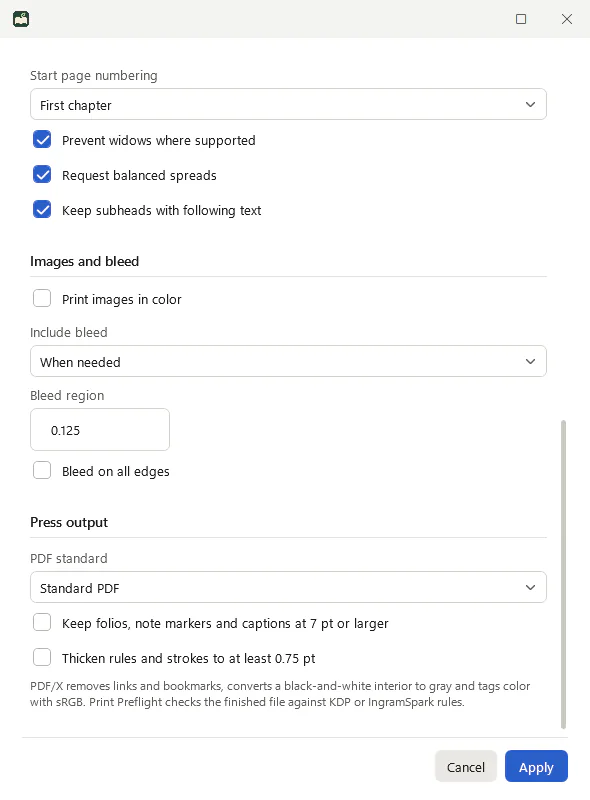
Create a book, choose its type and import the .docx. Chapters, headings, footnotes, images and emphasis come across, and smart import lists anything it moved; Jutoh’s style sheets and configurations do not. Choose one of the 128 themes, each in Standard, Large print and Accessible versions, compare up to three side by side, and set trim, margins and bleed in Print and page setup.
Check notes and images in the preview
Read the print preview, which is the real PDF and recomposes a moment after you stop typing. Footnotes should sit on the page with their reference; endnotes collect in a Notes section. LeafBound asks for any missing image descriptions before an ebook export, so the alt text you wrote for Jutoh’s accessibility check is worth carrying over.
Run print preflight and export
Choose the KDP paperback, KDP hardcover, IngramSpark paperback or IngramSpark hardcover profile and run Print preflight. Apply the one-click fixes, let it recheck, and export the PDF/X-1a:2001 or PDF/X-3:2002 file with the Kindle edition and any other store editions. Order a printed proof; the printer makes the final decision.
What Jutoh can give you
You need a manuscript LeafBound imports: Word (.docx), RTF, Markdown, plain text or EPUB. Jutoh’s feature page lists its exports as EPUB, Kindle (through KindleGen), ODT, HTML, CBZ, text and Markdown, and the home page adds MP3; DOCX is listed as an import, not an export, on every Jutoh page we read, checked 4 November 2026. The EPUB, Markdown and text exports can go straight into LeafBound’s smart import. The one this guide follows is ODT, which Jutoh describes as the route to PDF creation through LibreOffice or OpenOffice. An ODT is a word-processor document, not an ebook package, so footnotes, tables and pictures have somewhere to go on the way out. Keep the Jutoh project and the ODT after the move, and keep the .docx as the master from here on.
What transfers and what does not
“Not confirmed” means Jutoh’s pages do not say and we have not tested every version; check the .docx.
| Element | Through ODT to .docx | What to do |
|---|---|---|
| Chapter text and order | Yes | Read LeafBound’s chapter list. |
| Headings | Yes, as ODT paragraph styles | Make each chapter title Heading 1 and each section Heading 2. |
| Italics and bold | Yes | Check a chapter or two. |
| Footnotes and endnotes | Yes, per Jutoh’s feature page; confirm after the round-trip | Rebuild any that arrived as plain text. |
| Images and alt text | Images yes; alt text not confirmed | Set inline; describe them in LeafBound. |
| Tables | Yes, in the .docx | Check after import; rebuild any with Insert > Table in LeafBound. |
| Text boxes | Not confirmed | Move the text into ordinary paragraphs if needed. |
| Scene breaks | Yes, as whatever paragraph Jutoh used | Replace with one consistent centered mark. |
| Style sheets, custom CSS and configurations | No | Choose a LeafBound theme. |
| Landmarks, metadata and accessibility metadata | No | LeafBound writes its own per edition. |
| Cover design | No | Upload the cover separately as before. |
| Fixed layout and narration | No | LeafBound Pro writes fixed-layout EPUB (not tried on a Kindle device); narration is not offered. |
| ODT page styles from the Print on Demand wizard | No | Set trim, margins and bleed in Print and page setup. |
Fixing the usual import issues
Headings. LeafBound reads chapters from Heading 1 and sections from Heading 2, and its smart import also finds chapters and parts from lines such as “Chapter 1”. Jutoh keeps its own style names, so the ODT may carry chapter titles under a style Word does not treat as Heading 1. The Navigation pane shows what Word sees; anything missing needs the Word style applied. The Word import guide has the ten-step cleanup.
Scene breaks. The theme supplies the ornament, so what it needs is one consistent mark: search for the old one or for two paragraph marks in a row and replace each with a single centered line of three asterisks. LeafBound’s import turns those lines into scene breaks.
Footnotes. Jutoh supports footnotes and endnotes throughout the document and ODT carries real footnotes, so most books arrive with them intact. Confirm on Word’s References tab and rebuild any note that arrived as plain text. After import, footnotes sit on the page in print and become linked notes with backlinks in ebooks; see footnotes in ebooks.
Images. Set every image to In Line with Text at full resolution. Drawing objects that Jutoh renders to bitmap, SVG or MathML arrive as whatever the ODT holds; check each one.
Run preflight before you upload
This is the step the ODT and LibreOffice route never had. The paperback comes from the same file as the ebook, with trim, margins by page count and bleed set in Print and page setup. Print preflight then reads the finished PDF and runs more than 25 checks with KDP and IngramSpark paperback and hardcover profiles, from trim size and inside margin to 7 pt minimum text, image resolution and embedded fonts, with one-click fixes. Where IngramSpark publishes no exact limit, you get a warning rather than a pass. The file is PDF/X-1a:2001 or PDF/X-3:2002; see PDF/X explained and IngramSpark formatting. The printer makes the final decision; order a printed proof. The ebook side exports a generic EPUB 3 or EPUB 2 plus Kindle, Apple Books, Kobo, Nook and Google Play editions with EPUB Accessibility 1.1 metadata, tested with EPUBCheck and Ace in LeafBound’s test suite.
When to stay with Jutoh
If the book is an ebook only and your Jutoh workflow works, stay. If you are on Linux, stay; LeafBound runs on Windows 10 and 11. If the book depends on narration, stay: LeafBound does not offer narration. Fixed-layout EPUB is in LeafBound Pro. Move when print is the point: a paperback with PDF/X output and preflight from the same file as the ebook, a designed theme with a print preview that is the real PDF, or citations and equations in LeafBound Academic. The full comparison is on LeafBound vs Jutoh; the Jutoh alternatives page covers the free options. LeafBound Author is $79 one-time, and the 4-day trial lets you test the import before paying.
Sources: jutoh.com features, home page, FAQ, what’s new and download page, checked 4 November 2026. Calibre sources are on the Calibre guide.
Questions
Does Jutoh export to Word (.docx)?
Not on any Jutoh page we read. The feature page lists exports to EPUB, Kindle, ODT, HTML, CBZ, text and Markdown, and the home page adds MP3; DOCX appears only as an import, checked 4 November 2026. The editable route is ODT, which Word and LibreOffice open and save as .docx.
Can Word open an ODT file?
Yes. File, Open, pick the .odt, then File, Save As and choose Word Document (.docx). LibreOffice Writer opens ODT natively and offers a .docx type in Save As. Check headings and footnotes after saving.
Will my footnotes survive?
Jutoh’s feature page says footnotes and endnotes are supported throughout the document, and ODT carries real footnotes, so they should arrive in Word as footnotes. We have not tested every Jutoh version, so confirm on Word’s References tab and rebuild any that arrived as plain text.
Will my tables survive?
Into the .docx, yes. LeafBound has tables (Insert > Table, with four styles), so check each table after import and rebuild any that did not come across there.
Can LeafBound import Jutoh’s EPUB instead?
Yes. LeafBound imports EPUB, Markdown and plain text as well as Word, and gives each the same smart import: title page, parts, prologue, chapters and back matter are detected, and anything moved is listed. Jutoh exports all three. The ODT route still gives you a .docx to check in Word before import, with real footnotes and tables. The Calibre EPUB to DOCX guide covers the EPUB-to-Word route.
Do I lose my Jutoh styles and configurations?
Yes. Style sheets, custom CSS, compile configurations, cover templates, landmarks and narration settings describe the Jutoh ebook, and nothing on the LeafBound side reads them. What crosses is the structure; the theme replaces the look.
Can I keep Jutoh for ebooks and use LeafBound for print?
Yes, from the same Word manuscript. Keep the .docx as the master and make text changes there. LeafBound exports an editable .docx at any time, so corrections can go back out to Jutoh.
More guides
Bring the paperback into the same file as the ebook.
The free 4-day trial includes every feature. Import the .docx, pick a theme and run preflight before you pay.
Early access · Author from $79 once · free 4-day trial · Windows 10 and 11