 LeafBound
Guide · Calibre
Calibre EPUB to DOCX: what survives, what to fix, then import into LeafBound.
Calibre converts an EPUB to a Word (.docx) file in one step, for free. The result is less documented: paragraph spacing and indents go, fonts follow the EPUB’s stylesheet, margins reset to one inch and footnotes arrive as links. None of that is fatal. Here are the exact steps, the losses with their sources, the fixes in Word, and the import into LeafBound for the print book and ebook editions.
Seven steps from an EPUB to a finished book
Steps 1 and 2 happen in Calibre, 3 to 5 in Word, 6 and 7 in LeafBound. If you still have the original manuscript, skip to step 6. LeafBound also imports an EPUB directly, so skip Calibre if you do not need to edit in Word.
Add the EPUB to Calibre
Install Calibre from calibre-ebook.com (free; Windows 10 version 1809 or later; version 9.17 as of 23 October 2026) and click Add books. Copy the EPUB somewhere safe first if it is the only copy of your book. Calibre will not convert an EPUB protected by DRM.
Convert with DOCX as the output
Select the book, click Convert books and set the output format to DOCX. The DOCX output options are page size (Letter by default), margins (72 pt by default, overriding the global margins), no cover, no contents list and cover aspect ratio. Under Look and feel, turn on Insert blank line between paragraphs if a first attempt loses the gaps. Leave Linearize tables off.
Open the .docx in Word and reset the styles
Find the new .docx in Calibre’s library folder and open it in Word. Press Ctrl+A, then Ctrl+Space and Ctrl+Q to clear the formatting Calibre wrote from the EPUB’s CSS, and apply Normal to everything. Indents, spacing and fonts come from the LeafBound theme later. Save as a new .docx.
Restore the headings
After the reset every line is Normal. Apply Heading 1 to each chapter title, including Prologue, Epilogue and the back matter, and Heading 2 to sections. The Navigation pane (View, Navigation Pane) shows the chapter list as it grows. LeafBound’s smart import also finds chapters from lines such as “Chapter 1”, but Heading 1 leaves nothing to guess.
Rebuild footnotes and check images
Notes arrive as linked text at the end of each chapter. Put the cursor after each reference, choose References, Insert Footnote, and move the note text in. Check every image is present and In Line with Text. Delete the contents list and cover image Calibre added; leave the margins alone.
Import into LeafBound and choose a theme
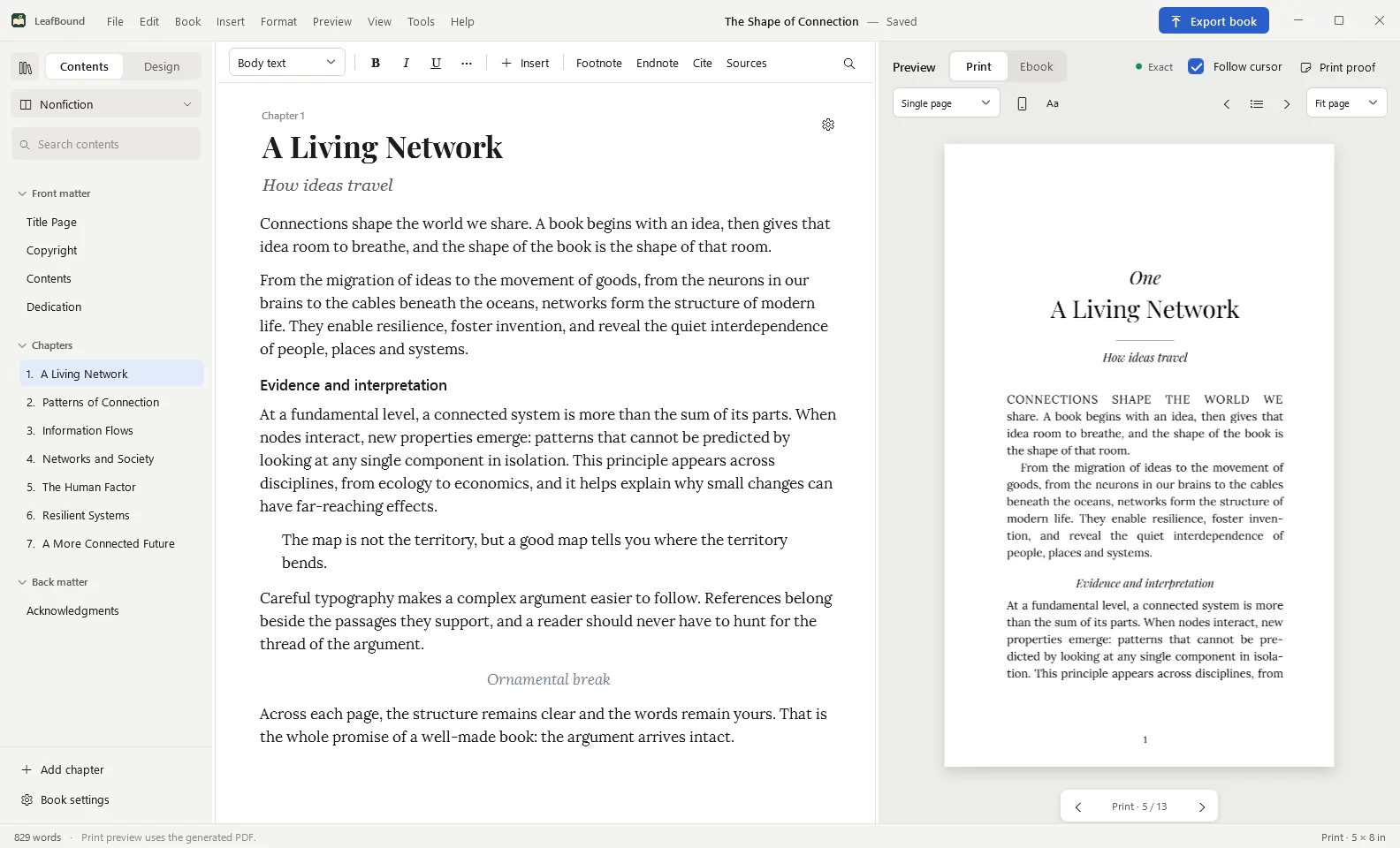
Create a book, choose its type and import the .docx. Chapters, headings, footnotes, images and emphasis come across; the EPUB’s CSS, fonts and spacing do not. Choose one of the 128 themes, compare up to three side by side with page counts, and set trim, margins and bleed in Print and page setup.
Check the preview, run preflight and export
Read the preview, composed from the generated print PDF: footnotes on the page, every image described (LeafBound asks for missing descriptions before an ebook export). Run Print preflight with the KDP or IngramSpark profile, apply the one-click fixes and export the PDF/X file and the ebook editions. Order a printed proof; the printer makes the final decision.
When you need Calibre
LeafBound imports Word (.docx), Markdown, plain text and EPUB, and gives each the same smart import; it also imports RTF. If you have the manuscript, import it and skip this guide; the Word import guide covers the cleanup. If the only copy of the book is an EPUB (a file another formatter made, or a backup of a book whose manuscript is lost), LeafBound can import that too. Calibre comes in when you want the text in Word first, to edit it or to fix the structure by hand. Calibre is a free, open-source ebook manager and converter; version 9.17 of 23 October 2026 runs on Windows 10 (version 1809) and later, macOS 14 and later, and Linux. Its manual lists DOCX among about twenty output formats but has no section on DOCX quality, so each loss below carries its forum source and date. If your only copy is a PDF, the manual calls that one of the worst formats to convert from; expect broken paragraphs and missing images.
The documented losses
- Paragraph spacing and indents. A MobileRead thread from 20 December 2020 reports the conversion loses the spaces between paragraphs; the fix found there is the Insert blank line between paragraphs option.
- Fonts. Calibre does not choose fonts: its developer wrote on MobileRead on 16 June 2020 that the output uses whatever the input named.
- Margins. The DOCX output’s own margin option, 72 pt by default, overrides the global margins (MobileRead thread linked below).
- Footnotes. No dedicated handling in conversion: notes in an EPUB are links, and links are what you get in Word.
- Images and tables. A Calibre 3.6-era report describes images missing from the DOCX. Linearize tables flattens every table to text.
What transfers and what does not
| Element | From Calibre’s DOCX | What to do |
|---|---|---|
| Chapter text and order | Yes | Read LeafBound’s chapter list after import. |
| Headings | Usually, as heading tags | Reapply Heading 1 and 2 after the style reset. |
| Italics and bold | Yes, from em and strong tags | Emphasis set by a CSS class can arrive plain. |
| Paragraph spacing and indents | Lost by default (MobileRead, 20 December 2020) | Cosmetic; the theme decides. |
| Fonts | The EPUB’s CSS fonts (MobileRead, 16 June 2020) | Clear formatting; the theme supplies typefaces. |
| Page size and margins | Letter, 72 pt margins | Ignore; set in Print and page setup. |
| Footnotes | No; linked text at the chapter end | Rebuild as Word footnotes. |
| Scene breaks | A paragraph that loses its styling | Replace with one consistent centered mark. |
| Images | Usually; a Calibre 3.6-era report describes dropped images | Count them; set inline; describe in LeafBound. |
| Tables | Kept unless Linearize tables is on | Check them after import; rebuild any with Insert > Table in LeafBound. |
| Contents list and cover | Added unless No TOC and No cover are set | Delete both. |
| The EPUB’s CSS, fonts, ornaments and metadata | No | Choose a theme; LeafBound writes its own metadata. |
Fixing the usual import issues
Headings. LeafBound reads chapters from Heading 1 and sections from Heading 2, and its smart import also finds chapters, parts and a prologue from lines such as “Chapter 1” and from numbered headings. After import, read the chapter list and the list of anything the import moved. If a chapter is still missing, apply Heading 1 to its title in Word and import again.
Scene breaks. An EPUB marks them with a styled paragraph, an ornament image or an empty paragraph, and the styling is gone after the reset. Replace each with a single centered line of three asterisks and delete ornament images. LeafBound’s import turns those lines into scene breaks, and the theme supplies its own ornament.
Footnotes. Put the cursor after each reference, insert a footnote, move the note text in and delete the leftover link. Real Word footnotes import as LeafBound footnotes: same page as the reference in print, linked notes with backlinks in ebooks.
Images. Keep them inline and at full resolution. Alt text from the EPUB may not survive; LeafBound asks for a description for every image that matters before an ebook export.
Run preflight before you upload
An EPUB had no print layout, so trim, margins by page count, bleed, running heads and folios all come from the theme and Print and page setup. Print preflight then reads the finished PDF and runs more than 25 checks with KDP and IngramSpark paperback and hardcover profiles, from trim size and inside margin to 7 pt minimum text, image resolution and embedded fonts, with one-click fixes. The file is PDF/X-1a:2001 or PDF/X-3:2002; see PDF/X explained and KDP paperback formatting. The printer makes the final decision; order a printed proof. The ebook side exports a generic EPUB 3 or EPUB 2 and Kindle, Apple Books, Kobo, Nook and Google Play editions with EPUB Accessibility 1.1 metadata, tested with EPUBCheck and Ace in LeafBound’s test suite.
When to stay with Calibre
If the book is an ebook only and you need nothing from print, stay: Calibre is free and its Edit book tool can fix an EPUB by hand. Move when the book needs a paperback checked against KDP and IngramSpark rules, footnotes on the page, a designed theme without CSS, store editions with accessibility metadata, or citations and equations. The full comparison is on LeafBound vs Calibre and every formatter compared. LeafBound Author is $79 one-time, and the 4-day trial lets you test the import before paying.
Sources: Calibre FAQ, conversion manual, ebook-convert reference, Windows download page, MobileRead on paragraph spacing (20 December 2020), MobileRead on fonts (16 June 2020) and MobileRead on DOCX margins, checked 4 November 2026.
Questions
Can Calibre convert an EPUB to a Word file?
Yes. Add the EPUB, choose Convert books and set the output to DOCX; the manual lists DOCX among the output formats, checked 4 November 2026, and jobs can run in batches. The result needs the fixes in steps 3 to 5 before it is a manuscript again.
Why does the Word file lose paragraph spacing and indents?
Calibre writes paragraphs as the EPUB’s stylesheet described them, not as Word styles. A MobileRead thread from 20 December 2020 reports the loss and the fix: Insert blank line between paragraphs under Look and feel. For a LeafBound import it is cosmetic; the theme sets indents or spacing.
Why are the margins one inch?
Calibre’s DOCX output has its own margin setting, 72 pt by default, which overrides the global margins. Leave it; LeafBound sets trim, margins and bleed in Print and page setup.
Why did the fonts change?
Calibre does not choose fonts; its developer wrote on MobileRead in June 2020 that the output uses the fonts named in the input. Clear the formatting in Word; the LeafBound theme supplies the typefaces.
Does Calibre keep footnotes?
Not as Word footnotes. Notes arrive as linked text at a chapter end. Rebuild each with References, Insert Footnote; LeafBound then places it on the same page as its reference in print. See footnotes in ebooks.
Do I need Calibre to bring an EPUB into LeafBound?
No. LeafBound imports an EPUB directly and gives it the same smart import as a Word file: the title page, parts, prologue, chapters and back matter are found, and anything moved is listed. Use Calibre’s DOCX route when you want to edit the text in Word first.
Can I convert a DRM-protected EPUB?
No. Calibre’s FAQ says it will not convert DRM-protected files, checked 4 November 2026, and this guide does not cover removing it. A book you made, or that a formatter exported for you, is normally not protected.
More guides
Turn the EPUB back into a book.
The free 4-day trial includes every feature. Import the cleaned .docx, pick a theme and run preflight before you pay.
Early access · Author from $79 once · free 4-day trial · Windows 10 and 11