 LeafBound
Tables in LeafBound hold plain text in each cell, with an optional header row and a caption. This keeps them readable in every edition: print, every ebook and Word.
- Click in the paragraph the table should follow.
- Choose Insert then Table….
- In the Table window, type in the cells. Tab moves across, Enter moves down and Shift+Enter adds a line inside a cell.
- Use Add row, Remove row, Add column and Remove column to change the size. New rows and columns go after the cell you are in.
- Choose a Style and a Width (%), and tick First row is a header if the first row holds column titles.
- Type a Caption if the table needs one.
- Choose Insert table.
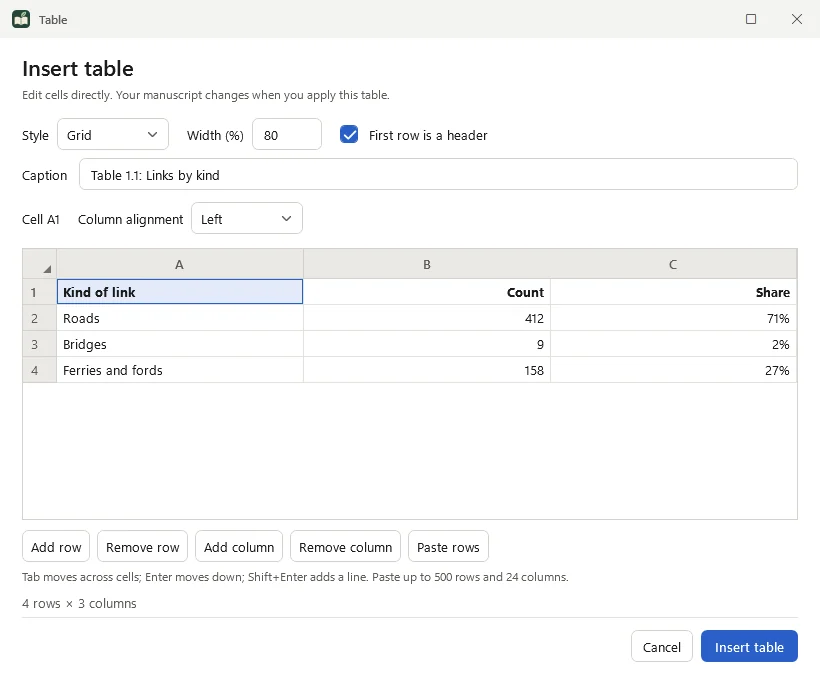
Table window options
| Option | What it does |
|---|---|
| Style | Grid draws every cell border. Rules draws horizontal rules. Striped shades alternate rows. Plain has no lines. |
| Width (%) | The table width as a share of the text area, from 20 to 100. |
| First row is a header | Sets the first row as the header. It shows in bold in the grid. |
| Caption | Text shown with the table. |
| Column alignment | Left, Center or Right for the column the selected cell is in. The cell name, such as Cell B2, shows beside it. Screen readers announce each cell by the same name. |
| Paste rows | Replaces the grid with tab-separated cells copied from a spreadsheet. |
A table can have up to 500 rows and 24 columns. A paste that is larger is refused and your table is kept.
Change a table later
- To open the table in the Table window again, right-click in the table and choose Edit table…, or choose Edit table… on the table toolbar. Change the cells and options, then choose Apply changes.
- Click in a cell to edit the text directly in the manuscript. The table toolbar appears with Style, a Width slider, a Header row check box and a Rows & columns menu to add or remove rows and columns and to align the current column.
- Right-click in the table and choose Table style or Table width (25%, 50%, 75% or 100%).
- Right-click and choose Add caption…, Edit caption… or Remove caption.
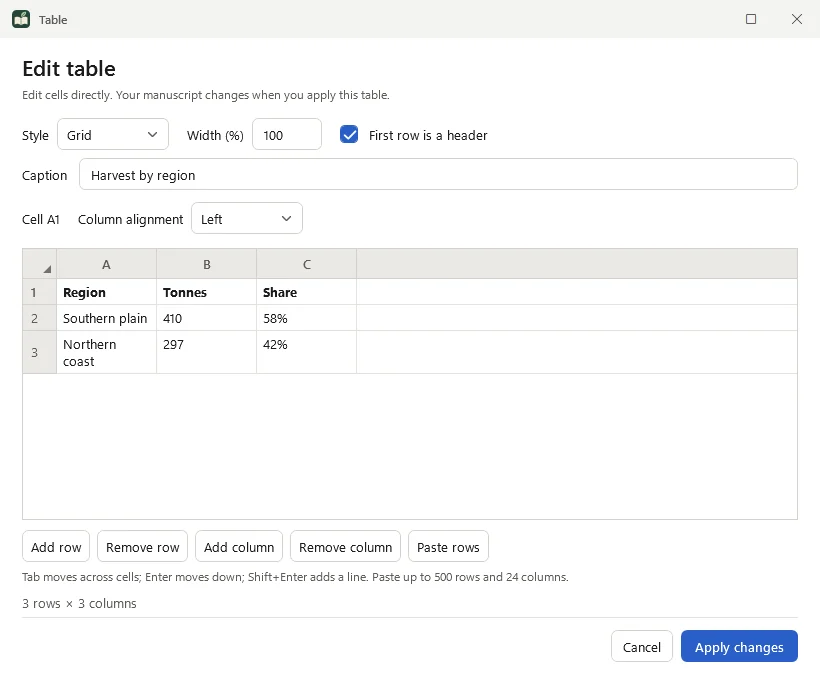
Tables from Word
When you import a Word manuscript, its tables come across as LeafBound tables. A table with nested tables or vertically merged cells is imported as a simple grid, and the import summary says so.
Cells hold text only. Merged cells, pictures in cells and nested tables are not supported yet.
Related
Still stuck?
Choose Help then Report a problem… in LeafBound to send us the details, or write to support.