 LeafBound
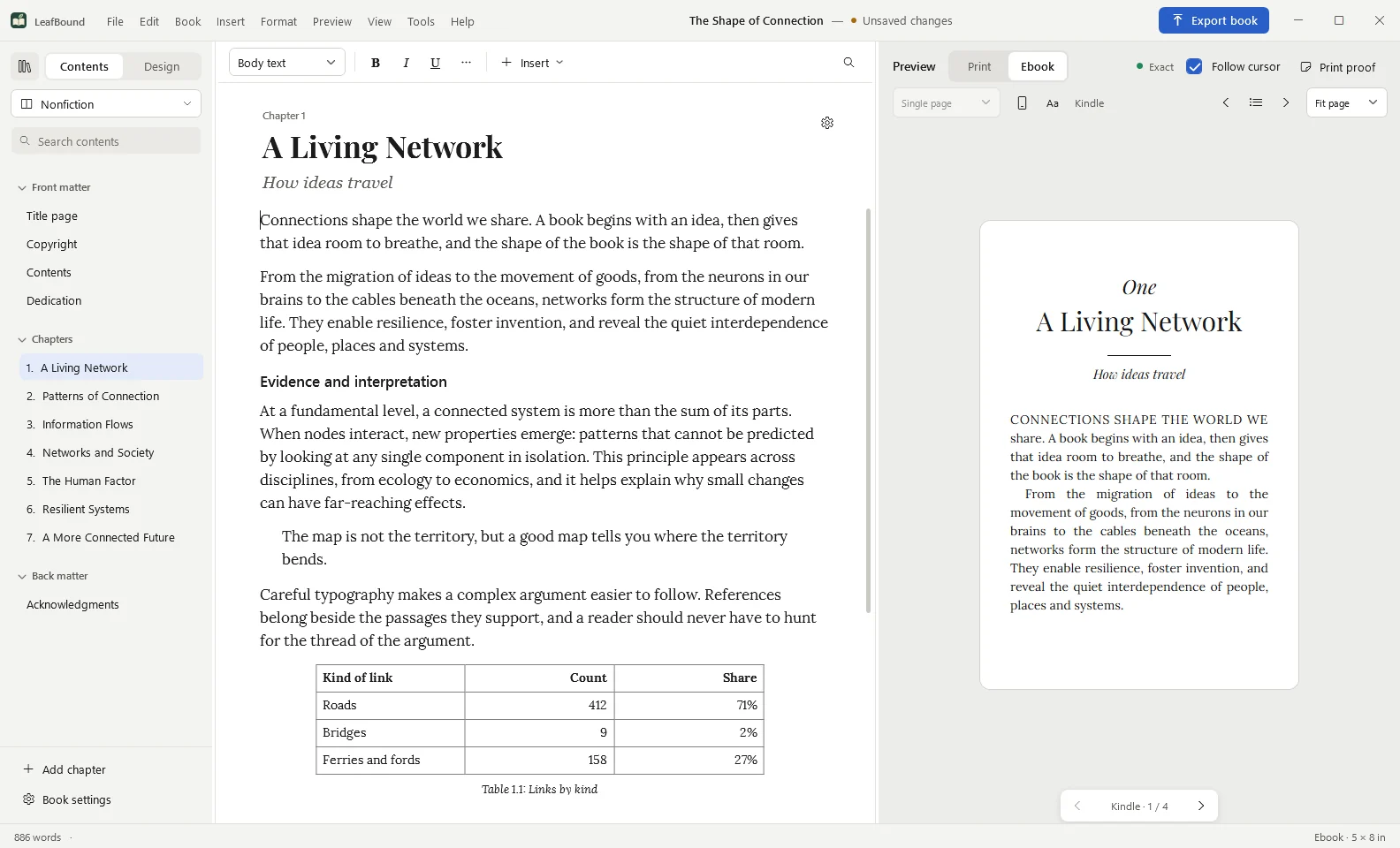
- Choose Preview then Ebook, or the Ebook tab at the top of the preview.
- Choose the device button (its tooltip is Device and preview edition), or Preview then Device and reader settings…, and pick a device.
- Choose Aa to change the reader theme, the text size or the reader font.
- Move through the book with the arrows at the bottom of the preview, or Preview then Next page and Preview then Previous page.
Devices
Kindle: Fire, Kindle: Paperwhite, iPad, iPad mini, iPhone, Kobo, Nook and Android Tablet. Illustrated books and picture books also have Fixed layout (print pages), which shows the fixed-layout ebook page exactly as exported. The same list switches back to Print draft or Print proof.
Reader settings
| Under Aa | What it does |
|---|---|
| Light, Sepia, Dark | The page and text colors of the reading app. |
| 80% text to 160% text | The reader's text size. |
| Reader font | The typeface a reader might pick in their app: Book's own font, Georgia, Palatino Linotype, Cambria, Book Antiqua, Verdana, Segoe UI or Atkinson Hyperlegible. |
These settings change only the preview, not the exported ebook. Readers choose them in their own apps.
The Preview menu
| Menu item | What it does |
|---|---|
| Preview then Print | Shows the print pages. |
| Preview then Ebook | Shows the ebook on the chosen device. |
| Preview then Print proof | Shows the exact print PDF pages. |
| Preview then Previous page and Preview then Next page | Turn the page. |
| Preview then Previous chapter and Preview then Next chapter | Jump to the previous or next element of the book. |
| Preview then Device and reader settings… | Opens the device list. Reader theme, text size and font are under Aa. |
Good to know
- The preview shows the chapter you are editing and follows your typing; the indicator shows Rendering… while it updates and Exact when it matches the export.
- An element left out of the ebook edition shows “This element is not included in the ebook edition.”
- The preview uses the Microsoft Edge WebView2 Runtime installed with Windows, and never loads anything from the internet. If it says the ebook preview page did not load, choose the Ebook tab again.
- The preview is a close guide. Proof each exported file in its store's own previewer before you upload it.
Related
Still stuck?
Choose Help then Report a problem… in LeafBound to send us the details, or write to support.