 LeafBound
AI assistants
Connect an AI assistant to your books.
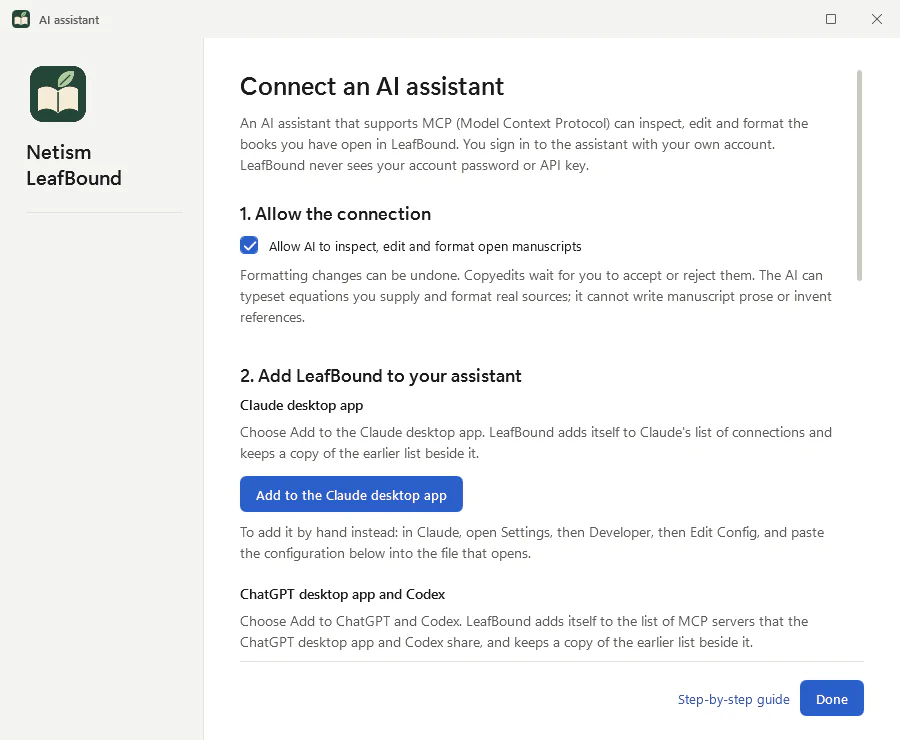
LeafBound can be connected to an AI assistant that supports MCP (Model Context Protocol). The assistant can then inspect, edit and format the books open in LeafBound on the same PC. The connection is off until you turn it on.
- 5ways to connect, from one button to pasted configuration
- 3steps in LeafBound to set it up
- Offuntil you turn the connection on
- 0AI passwords or API keys that LeafBound sees
What the connection does, and what it does not
Works on your open books
The assistant can inspect, edit and format the books that are open in LeafBound on the same PC.
Formatting can be undone
A formatting change the assistant makes can be undone.
Copyedits wait for you
A copyedit is a proposal. It waits for you to accept or reject it.
No ghostwriting
The assistant cannot write manuscript prose or invent references. It can typeset equations you supply and format real sources.
Your own AI account
You use your own AI account. LeafBound never sees that account’s password or API key.
Off until you turn it on
The connection is off until you turn it on, and it keeps working after LeafBound updates.
Never trained on your books
We never use your books to train AI, and never sell or give them to anyone who does. LeafBound has no AI of its own and sends your books to no AI service.
Assistants you can connect.
Each one is added in its own way. Two take one button, two take a command you run once, and anything else takes a piece of configuration.
The assistant must be an app on the same PC as LeafBound, and it must support MCP, the way assistants connect to other programs.
- Claude desktop app. One button in LeafBound: Add to the Claude desktop app.
- ChatGPT desktop app and Codex. One button in LeafBound: Add to ChatGPT and Codex. The two share one connection list, so the button adds LeafBound to both. A one-line command does the same.
- Claude Code. A one-line command.
- Grok. Through Grok Build, Grok’s terminal app, with a one-line command.
- Any other assistant that supports local MCP servers. Copy the configuration from LeafBound and paste it into the assistant’s settings.
What cannot connect.
Better to know before you try.
ChatGPT and Grok in a web browser or on a phone cannot connect to LeafBound. They only reach servers on the internet, and LeafBound keeps your books on your own computer.
Use the ChatGPT desktop app or Codex in place of ChatGPT in a browser, and Grok Build in place of Grok in a browser or on a phone.
Three steps in LeafBound.
You set the connection up in one window, Connect an AI assistant.
On the home screen, choose AI assistant. Inside a book, choose Tools, then AI editing connections…. Both open Connect an AI assistant, which has three steps.
The step-by-step guide in the help center goes through the window, with what to do if the assistant cannot find LeafBound.
- 1. Allow the connection. Nothing can connect until you do.
- 2. Add LeafBound to your assistant. Use the button, the command or the configuration for the assistant you have.
- 3. Restart the assistant and try it. Ask it: “List my open LeafBound books.”
What the AI may do.
The assistant edits and formats the manuscript you supplied. It does not write the book.
Formatting changes can be undone. Copyedits wait for you to accept or reject them, so the words change only when you say so.
The assistant can typeset equations you supply and format real sources. It cannot write manuscript prose or invent references. Equations and LaTeX and citations and bibliography describe those tools.
You use your own AI account, in the assistant. LeafBound never sees that account’s password or API key.
What the assistant reads goes to that assistant’s AI service, under its terms and your AI account, so check that service’s settings if you do not want it to train on your text. LeafBound itself never uses your books to train AI. AI is off by default and never trained on your books lists everything that can leave your PC.
- It can inspect, edit and format the books open in LeafBound.
- It can typeset equations you supply.
- It can format real sources.
- It cannot write manuscript prose.
- It cannot invent references.
Which tier
Author, $79 once.
AI connections are part of the Author tier and of every tier above it. The free 4-day trial includes them. The free Reader tier does not.
Questions
Which AI assistants can I connect to LeafBound?
The Claude desktop app, the ChatGPT desktop app and Codex, Claude Code, and Grok through Grok Build, Grok’s terminal app. Any other assistant that supports local MCP servers connects with configuration you copy from LeafBound.
Can I connect ChatGPT or Grok in my web browser or on my phone?
No. ChatGPT and Grok in a web browser or on a phone only reach servers on the internet, and LeafBound keeps your books on your own computer. Use the ChatGPT desktop app, Codex or Grok Build on the same PC as LeafBound.
Will the AI write my book?
No. The assistant cannot write manuscript prose or invent references. It can inspect, edit and format the books you have open, typeset equations you supply and format real sources.
Can the AI change my words without asking?
No. Copyedits wait for you to accept or reject them. Formatting changes are applied, and they can be undone.
Does LeafBound see my AI account?
No. You use your own AI account in the assistant. LeafBound never sees that account’s password or API key.
Is the AI connection on by default?
No. It is off until you turn it on in the Connect an AI assistant window.
Is my book used to train AI?
Not by LeafBound. LeafBound has no AI of its own, does not send your books to us, and we never use them, or sell or give them to anyone, to train AI. If you connect an assistant, what it reads goes to its AI service under that service’s terms and your account settings.
Do I have to connect again after LeafBound updates?
No. The connection keeps working after LeafBound updates.
Keep reading
Try it on your own book.
The free 4-day trial includes AI connections. Import your manuscript, connect the assistant you use and ask it to list your open books.
Early access · Author from $79 once · free 4-day trial · Windows 10 and 11